Use Hex to analyze LiteLLM costs, then set budgets and routing



AI spend.Cost reporting, now in Hex.
Connect Hex to your LiteLLM Postgres data.
Set budgets and routing in LiteLLM.
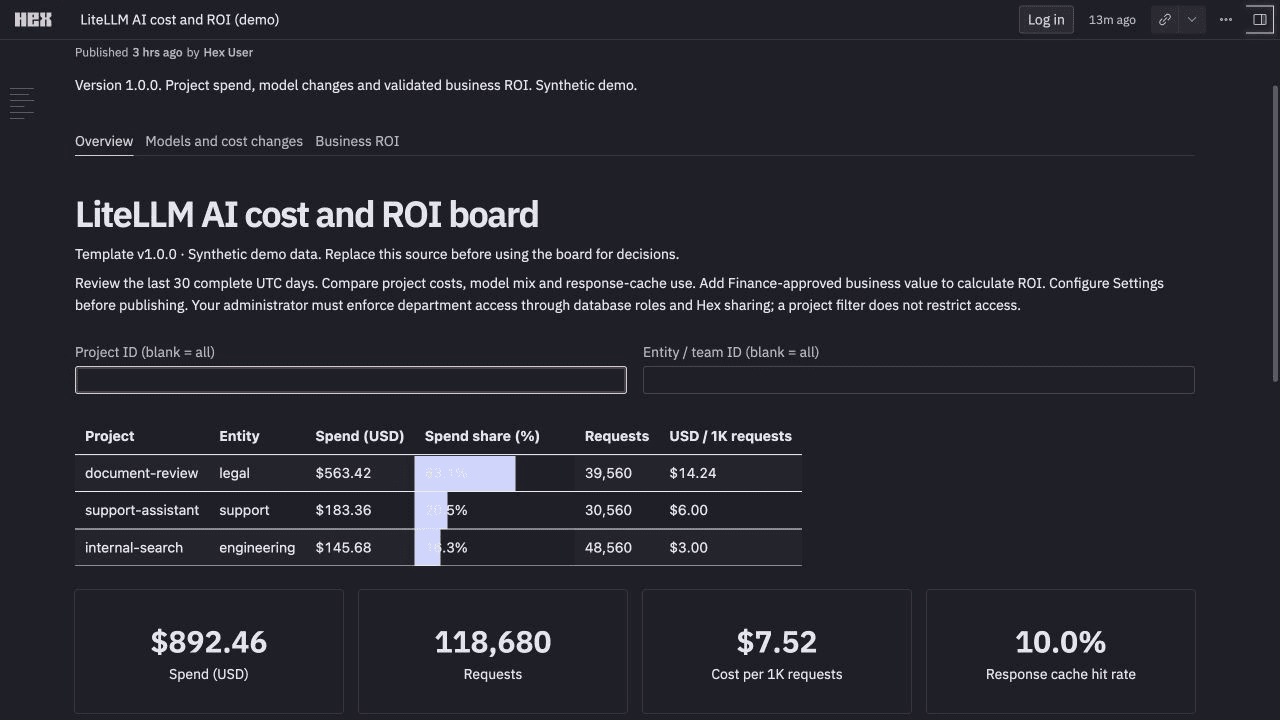
Explore the live Hex dashboard.
Open the working demo ↗ · Synthetic data · No sign-in
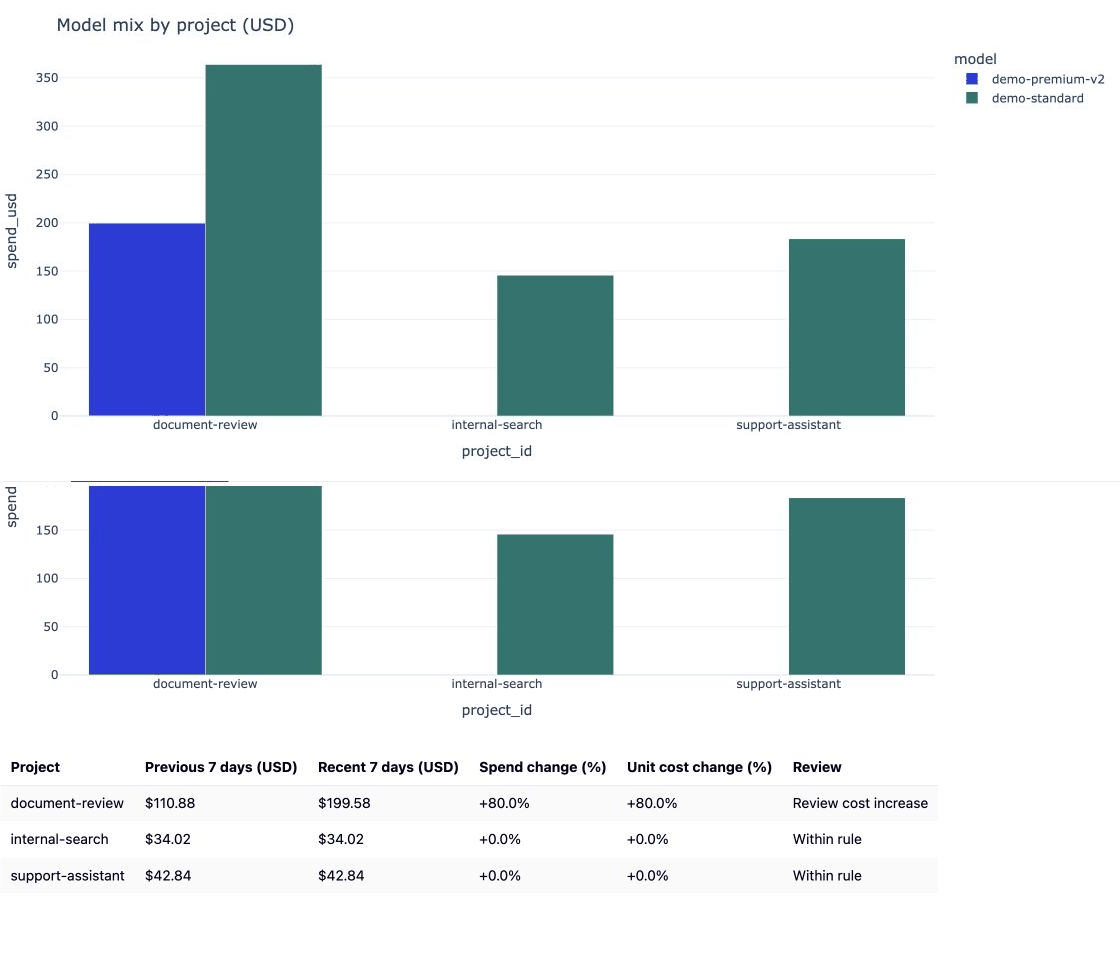
See a model change raise unit cost.
The public demo includes synthetic timing metrics. The daily team template reports recorded costs, requests and usage; daily rows do not include latency.
LiteLLM records AI costs in Postgres and maintains daily spend totals. Hex connects to that database and reads the totals. Use the dashboard to find a cost increase, then open LiteLLM to change routing or set a budget.
1. Connect Hex to your LiteLLM Postgres database
In Hex, open Settings → Data sources → + Connection → Postgres. Add a read-only connection to the database your LiteLLM gateway uses. Join daily totals to team display names. Team costs. Model mix.LiteLLM_DailyTeamSpendLiteLLM_TeamTable
Keep ownership by stable team ID.
Daily trends. Cost changes.
The template reads two existing tables: LiteLLM_DailyTeamSpend for costs and usage, and LiteLLM_TeamTable for team display names. It groups the results by day, team and model. Give the reader access to those reporting fields. It does not need your key table, prompts or responses.
Connection details and SQL permissions.
2. Add the template and inspect your costs
Open the live Hex demo first. You can filter it without signing in. Its records are synthetic.
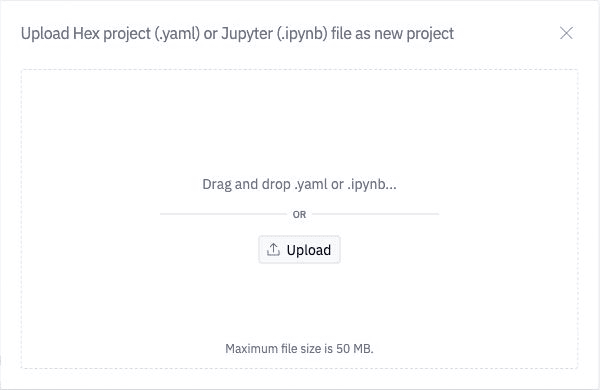
To use your own data, download the Postgres template below. In Hex Home, click + → Upload project, then click Upload in the dialog and choose the .hex.yaml file. Select your Postgres connection on the Source SQL cell and Run all.
Filter by team. Compare recorded spend, request volume and cost per thousand requests, then open Models and cost changes. In the demo, the Legal team's document-review workload switches models and unit cost rises 80%.
3. Take an action in LiteLLM
Use Hex to investigate the increase. Apply the change through your LiteLLM gateway.
| Your decision | In the LiteLLM UI |
|---|---|
| Try a cheaper model | Open Teams → your team → Settings → Edit Settings → Model Aliases. Change the model behind an alias your application already calls, then save. Evaluate the candidate on your workload first. |
| Route by request complexity | Open Models + Endpoints → Auto Router → Add Auto Router. Choose the models for each tier, test routing and connections, then save. Configure your application or team alias to call that router. |
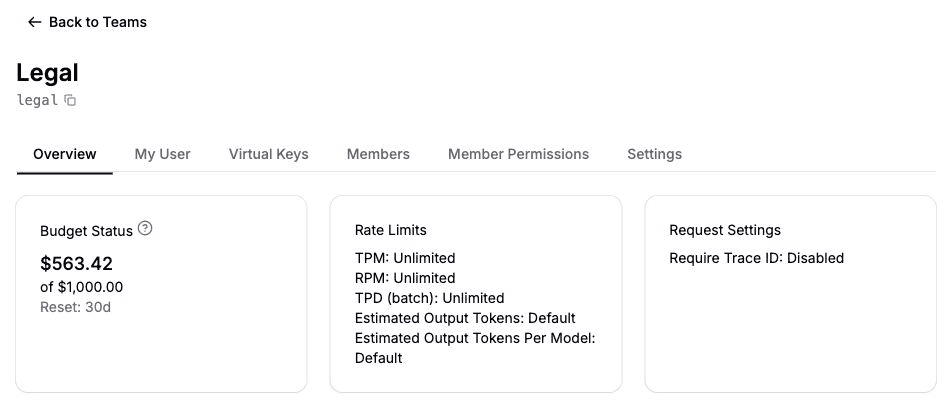
| Set a spending limit | Open Teams → your team → Settings → Edit Settings. Set Max Budget (USD) and Reset Budget, then save. |
For example, select Legal in LiteLLM and set Max Budget (USD) to 1000 and Reset Budget to monthly (30 days). This limits new spend; it does not change recorded costs.
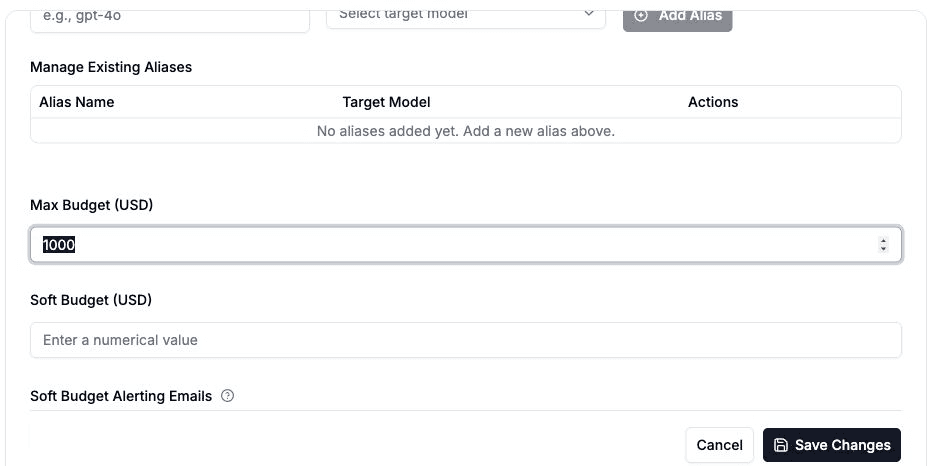
Current LiteLLM UI with synthetic local gateway data.
After saving, check the team's budget status. Then refresh Hex after LiteLLM updates its daily totals to compare the next complete period. Set a Hex scheduled run if you want the report to refresh on a schedule.