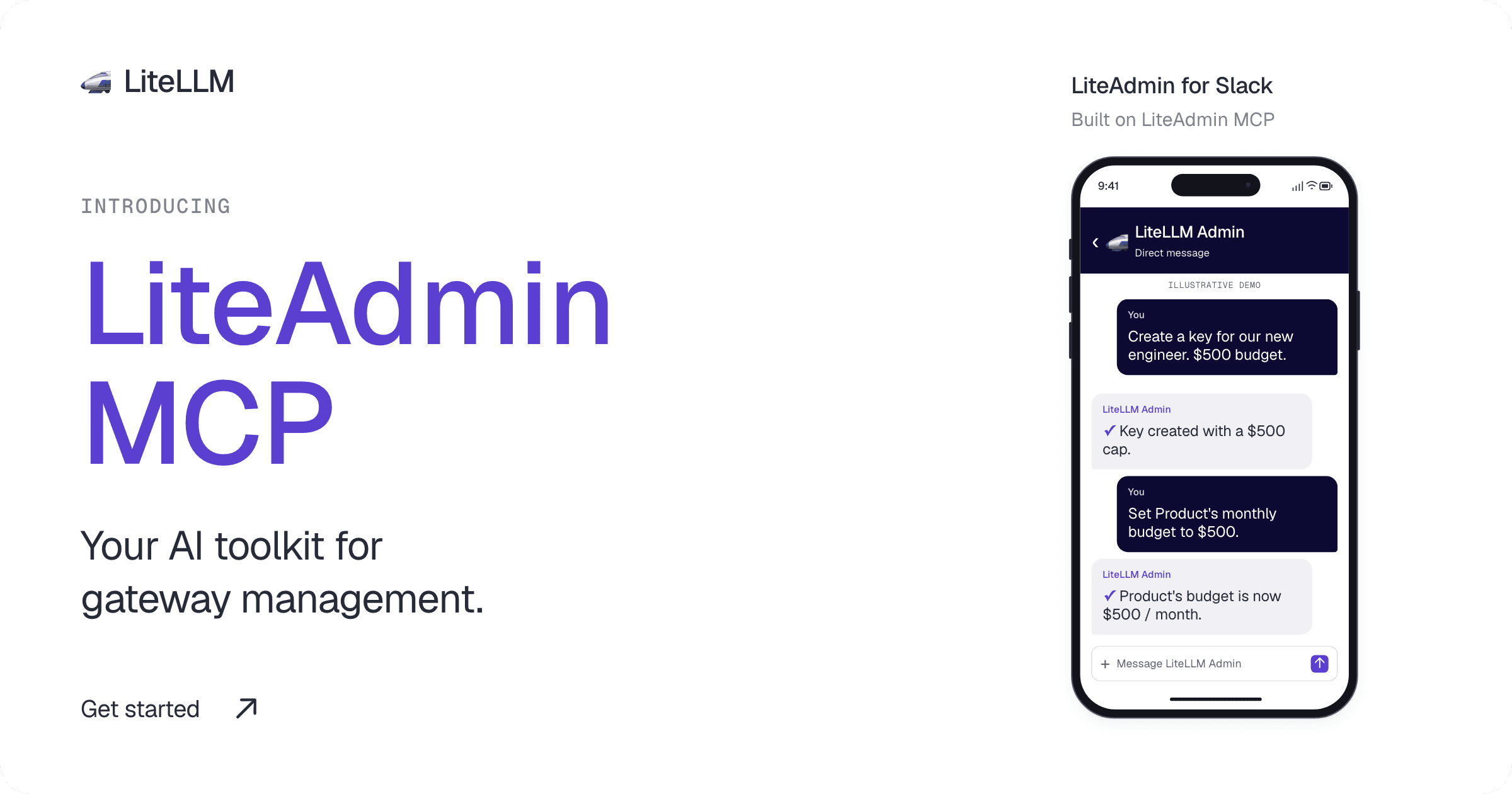

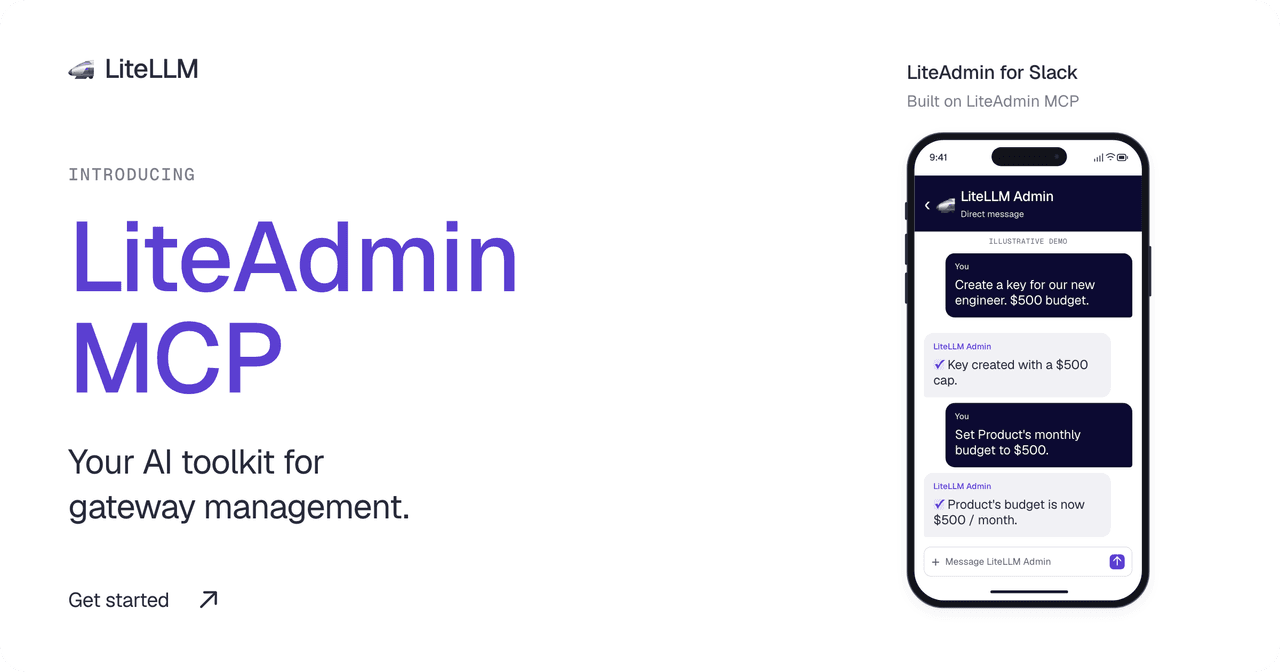
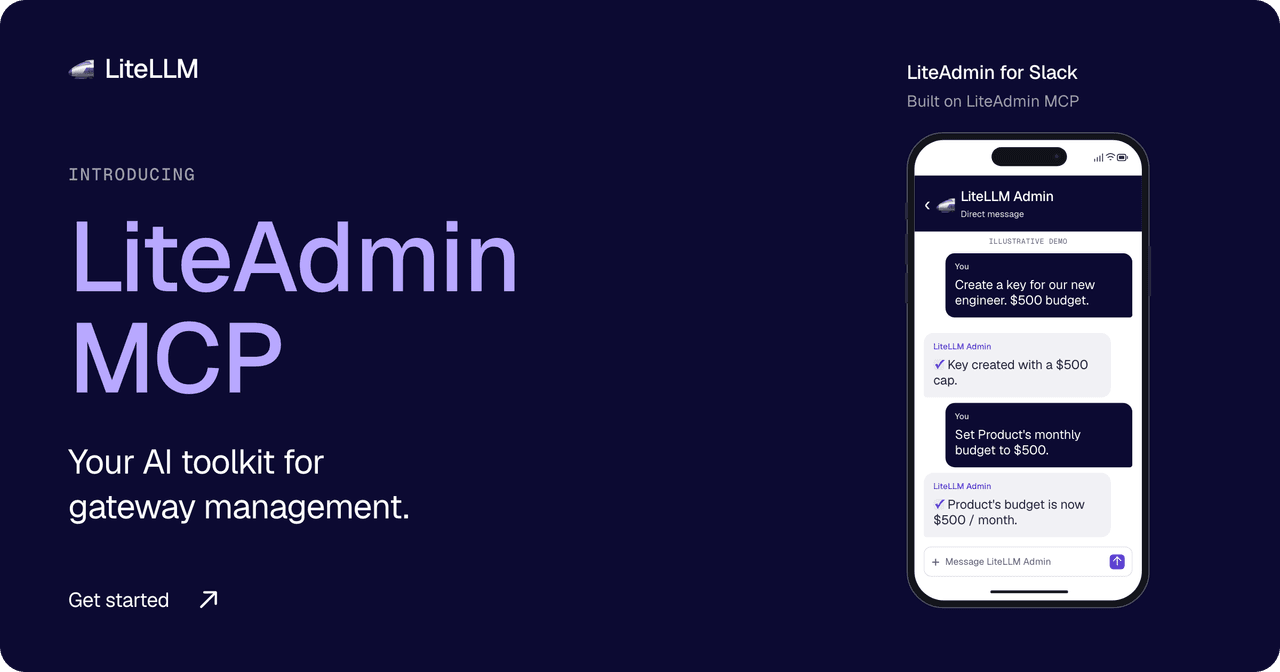
An engineer asks for an API key for a new project. You need to choose its models, set a budget, and assign it to a team. As usage grows, you need to check spending and adjust those limits.
LiteAdmin MCP lets your agent handle these tasks through your gateway's management API. Connect it to an MCP client or a custom agent. We built LiteAdmin, our Slack admin agent, on the same connector.
Connect your agent to your gateway
Connect LiteAdmin MCP to a client such as Claude Code or Cursor, or to your own agent. Your client provides the conversation and model; the connector calls your gateway's management API with your admin credential.
Through that connection, you can:
- Create and manage virtual keys: Set model access and spending limits.
- Add model deployments: Use credentials configured on your gateway.
- Manage teams and budgets: Update team membership and budgets.
- Inspect usage: Check spending and request logs.
The connector includes 65 reviewed admin operations and exposes the ones your gateway supports.
Set up access for a project
To set up a project for Engineering, ask:
Create a key for Engineering with a $100 monthly budget.
Include the models the project needs and an alias to identify the key. The agent can look up Engineering and create the key with the limits you specify.
Once the project is running, ask for its recorded spend. You can update the key's budget or the team's budget; specify which one in your request.
To add a model deployment, provide its public name, provider/model ID, and credential reference:
Add a model named support-chat using openai/gpt-4.1 and the existing gateway credential openai-production.
Use a stored credential name and keep provider API keys out of chat. Your gateway needs provider access and a database configured to store models. Follow the model setup requirements, then test inference after adding the deployment.
Choose the tools your agent can use
Connect with your own LiteLLM proxy-admin credential. Your gateway permissions apply to management requests, and you can restrict the connector to specific tools or enable read-only mode.
Start with team and spend lookups, then enable key creation when you're ready to make changes.
LiteAdmin: a Slack agent built on Admin MCP
LiteAdmin (the LiteLLM Admin Agent) uses the same MCP server to manage your gateway from Slack. The app provides the conversation and sign-in; Admin MCP provides the gateway tools.
Host the agent, connect your gateway, and choose the model it uses. The app includes the MCP connector, and each installation connects one gateway to one Slack workspace.
Open LiteLLM Admin in Slack, send connect, and follow the private link to sign in with your own admin account. Your deployment can use SSO or a personal admin key entered on a browser page. Then ask:
Show Engineering's current spend and budget.
After checking the spend, request a change:
Increase Engineering's monthly budget to $500.
You can follow up about the team's keys or usage in the same DM, from your laptop or phone.
Get started
Both projects are open source. Choose where you want to work:
- LiteAdmin MCP: Follow the MCP setup guide to connect Claude, Codex, or another MCP client.
- LiteAdmin for Slack: Follow the Slack app setup guide to deploy with Docker Compose or Render.
Once connected, try “List my teams and their current budgets.”