 / AI GATEWAY
MODEL LIFECYCLE MANAGEMENT / NEW IN THE LITELLM UI
ModelDeprecationManagement
The LiteLLM UI now has alerts
for model deprecations.

This blog post is about how you can do model lifecycle management with LiteLLM AI Gateway. We are giving you the following primitives to better manage model deprecations.
We heard from a lot of our production gateway users that model deprecation was a problem: for production use cases, it's hard to figure out how to prevent outages.
This helps prevent outages with:
- Alerting around model deprecations.
- Emails around model deprecations.
- Usage tracking for different models that are getting deprecated, so you can validate that traffic is going down once you migrate, and a recommended model to use.
Alerts around model deprecations
Check the notification bell for model deprecations that need attention. Open Alerts under Observability, then select Model deprecations. You can see the provider, the model, its deprecation date, requests in the last 30 days, and when LiteLLM last saw traffic to it.
Open the alert to investigate the migration across teams. You can keep the alert open while you coordinate with the owners, then return to the same page to check progress. The Model deprecations inbox in the LiteLLM UI. Sample usage; the provider deadline and recommendation come from model metadata.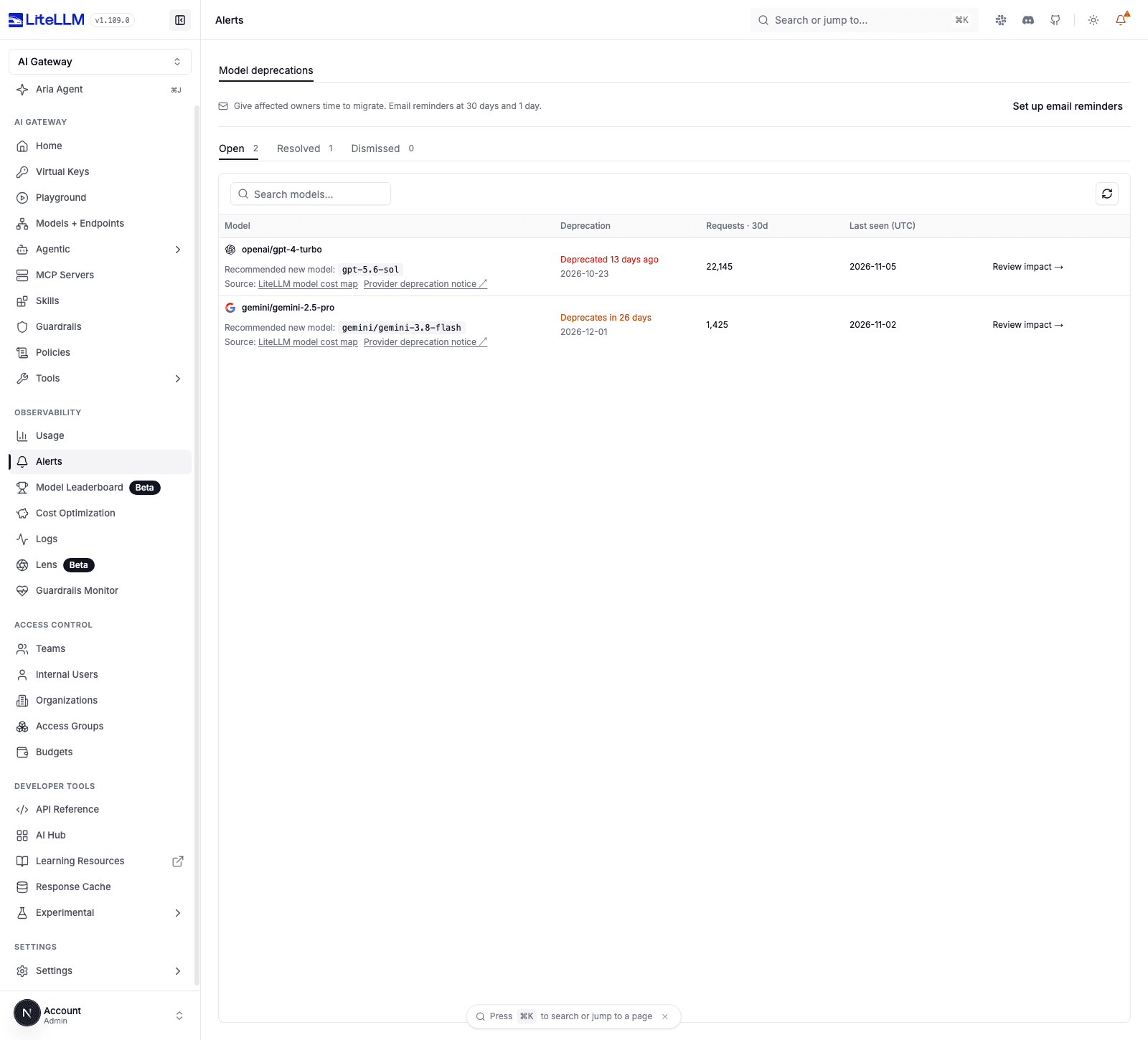
Emails around model deprecations
From the alert, click Set up email reminders, then Open Email Settings. This opens Logging & Alerts → Email Alerts.
If your gateway already sends email, keep its delivery settings. Otherwise, enter the SMTP connection details from your email provider in Email Server Settings. Set Gateway URL to the public address owners use to reach your gateway and save. Enter TEST_EMAIL_ADDRESS, select Test Email Alerts, and confirm that the test email arrives.
In Email Notifications, turn on Model Deprecations and select Save Changes. This event is off by default.
LiteLLM schedules two reminders: 30 days before and 1 day before the provider's deprecation date, checked in UTC. It selects affected key owners and current team admins using requests from the last 30 days. Each recipient sees usage for their keys and teams they administer.
The email names the provider deprecating the model, shows the current and recommended models with provider logos, and gives the owner the migration steps. It includes the recommendation source, the provider notice, and a link to review usage in the gateway. The 30-day email template with sample usage. Owners can see what changes, when they need to act, and where to review the affected traffic.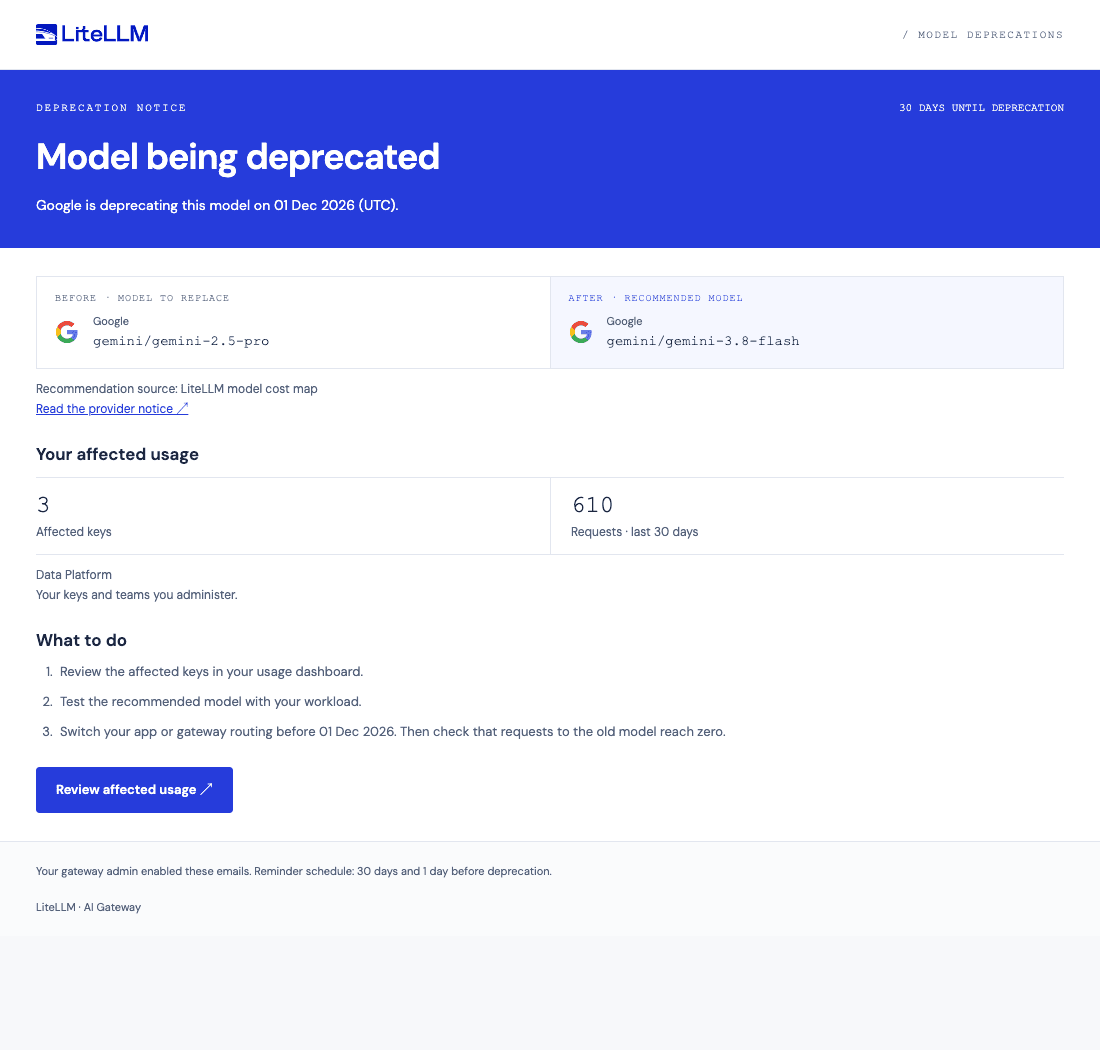
Keep the gateway running on the reminder dates. The scheduler does not send a missed reminder later if the gateway is offline for the entire UTC date.
Track usage as you migrate
Click Review impact to open the model. The Daily requests chart shows requests to that model over time, with a separate stack for each key. Compare the total bar height to check whether usage is falling, then inspect the colored stacks to find the keys that still send traffic.
Below the chart, inspect the affected keys, teams, owners, and tags used with that model. Filter by team when you need to coordinate one part of the migration. Use the key and owner list to follow up with the people responsible for each production use case. Actual LiteLLM UI with a seeded migration example: five use cases across two teams. Daily requests decline as the example keys move off the model. The final complete days show zero requests; the current day is partial.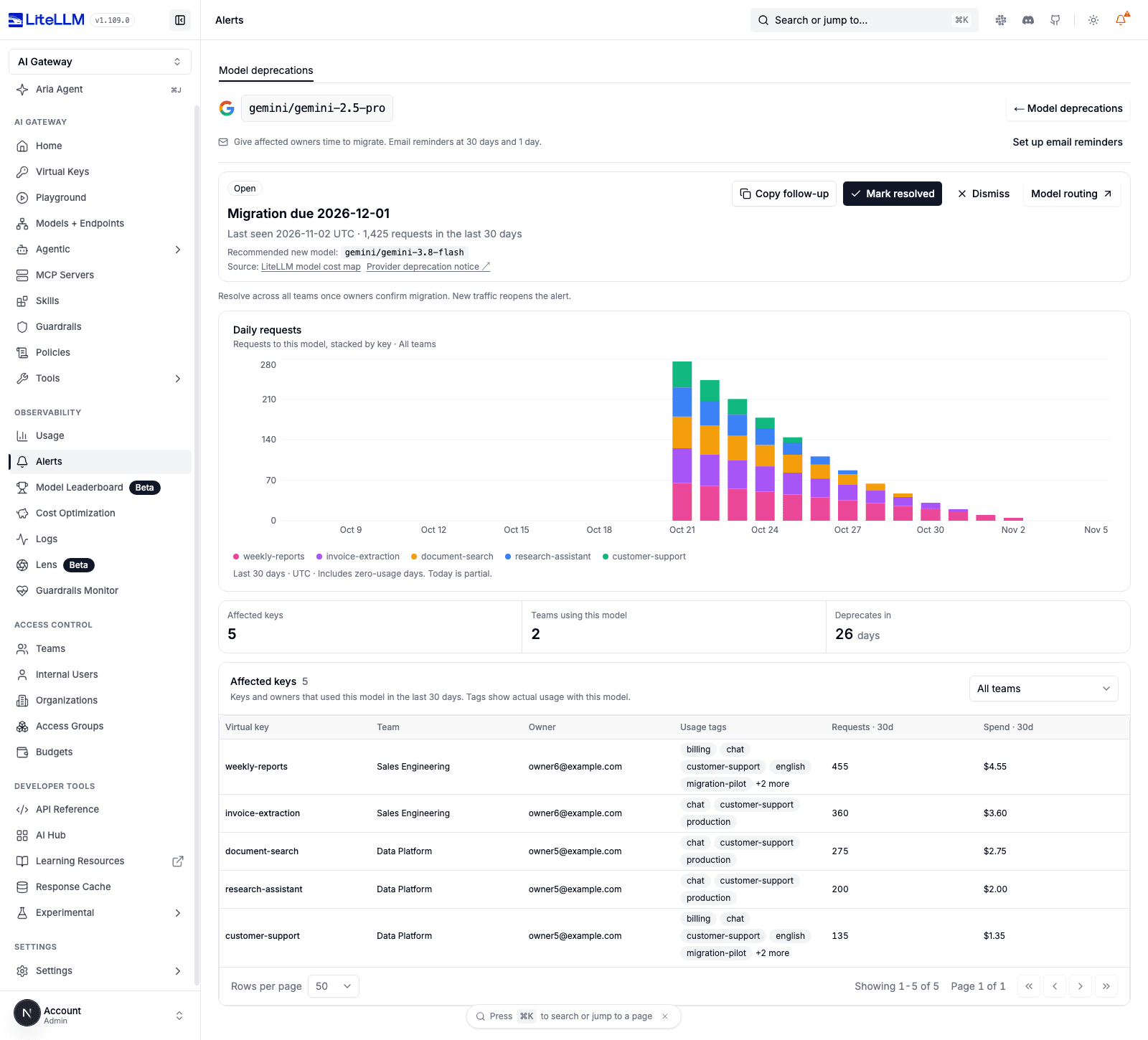
You do not need to wait for the 30-day total to reach zero. That total includes historical requests. Compare the recent daily bars instead, and check a period that covers your use case. A weekly batch job needs a longer verification window than a service that sends requests every minute.
In this example, customer support, research, document search, invoice extraction, and weekly reports each have a key. As an owner migrates a use case, its color drops out of the daily bars. The key stays in the 30-day history so you can verify what changed.
Recommended models
The alert shows the model to replace and the Recommended new model. LiteLLM reads the recommendation from its model cost map, or from the deployment's configured replacement. The UI identifies which source supplied it and links to the upstream provider's deprecation notice when one is recorded.
Use the provider notice to check the upstream deadline and migration guidance. The cost map records the recommendation; it does not establish that the new model meets your application's quality, latency, or cost requirements. Test the replacement with the workload behind each affected key before switching production traffic.
You can use Model routing to open the relevant model configuration. If your application chooses the model, update that application. Keep the alert open while owners make these changes.
Mark the alert resolved
Return to Daily requests after the owners switch their applications or routing. Check that traffic to the old model reaches zero across the affected keys. Confirm the migration with owners of infrequent jobs before closing it.
Click Mark resolved when that work is complete. LiteLLM moves the alert to Resolved, so your open inbox shows the migrations that still need attention. New requests to the model reopen the alert. The same example migration after marking it resolved. Closing the alert records the team's decision; it does not change model routing.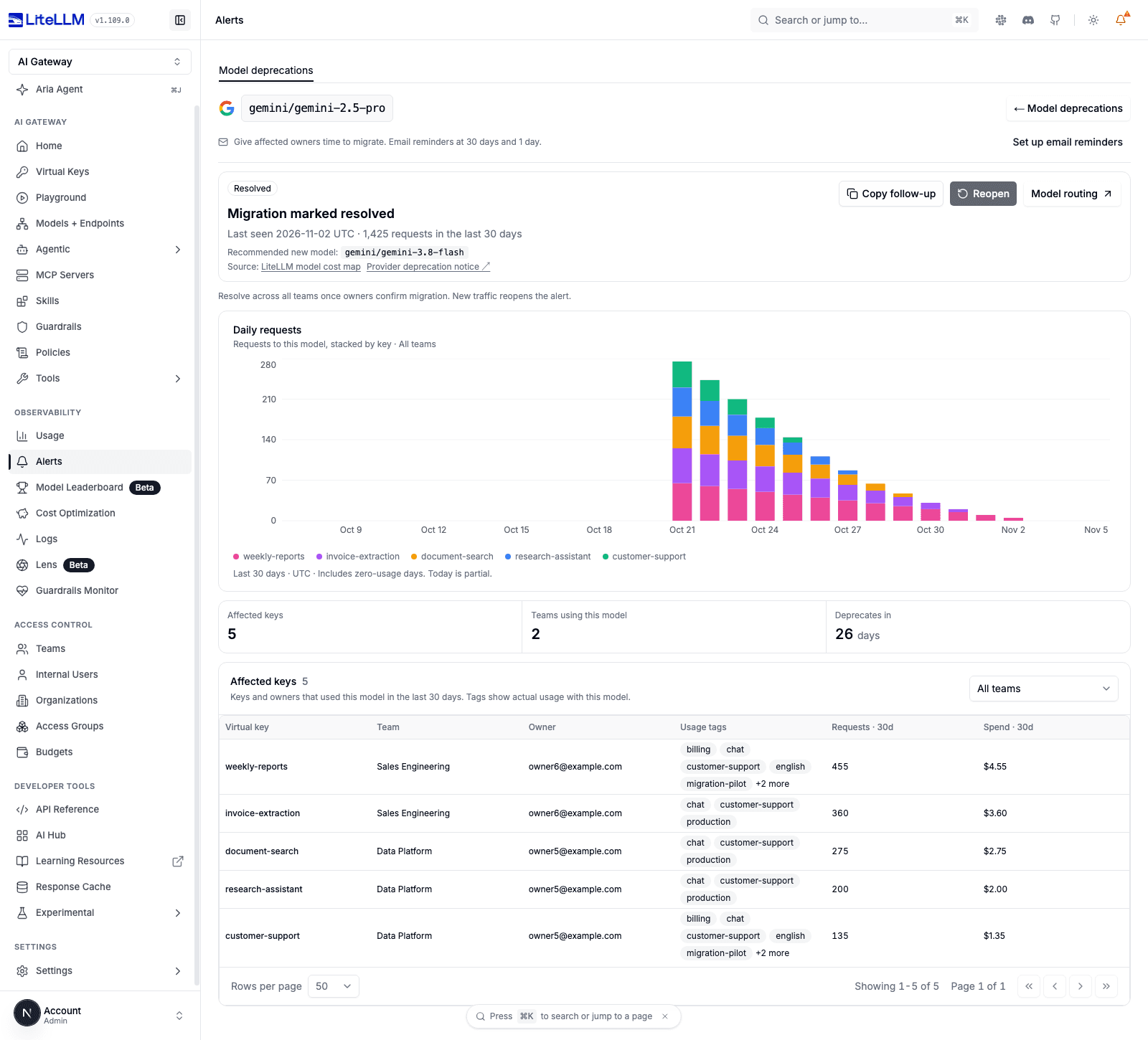
For help operating LiteLLM across production teams and use cases, talk to us. Read more about gateway alerting, email notifications, and model routing.