
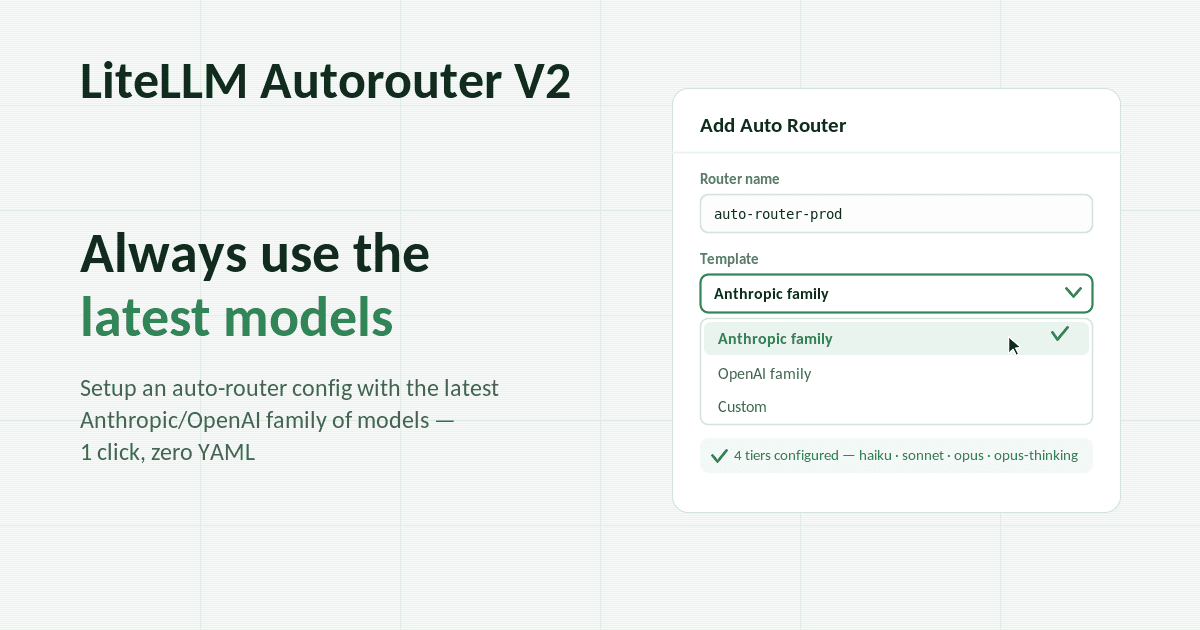
We've made it easier than ever to setup and test your Auto-Router, and with customizable tier names + classifier system prompts you can go beyond complexity routing.
Everything below ships in v1.97.x.
Get early access, work directly with the LiteLLM team, and influence the roadmap with your production traffic.
Apply to Become a Design PartnerAlready testing it? Share your results in discussion #32168.
Add an Auto Router (Models + Endpoints → Auto Router)
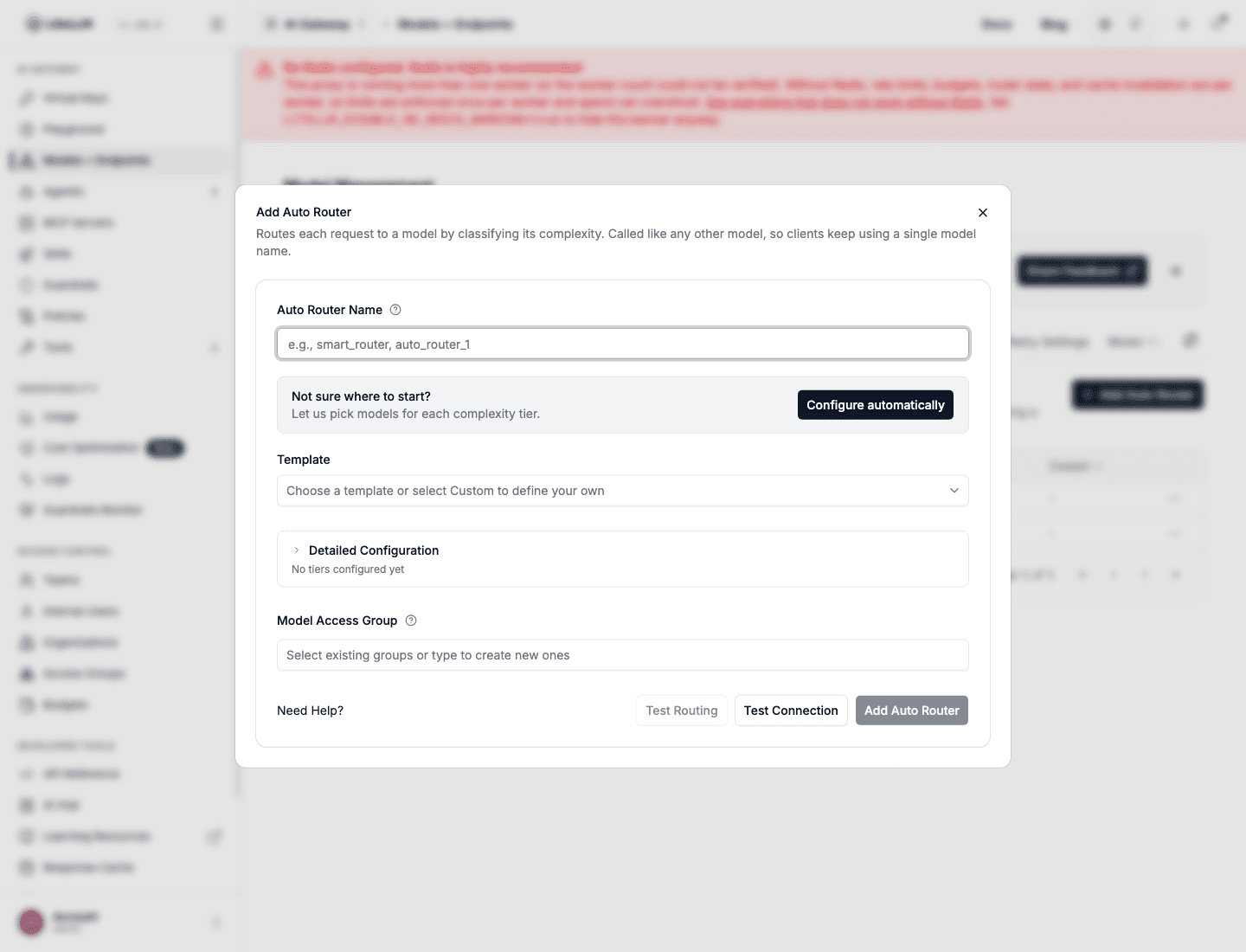
- In the LiteLLM Dashboard, go to Models + Endpoints and open the Auto Router tab. Add a new Auto Router model, or enable and configure an existing one.
- Enter an Auto Router name, then select Configure automatically or choose a template. Review the generated tiers, test routing, and save.
- Configure automatically checks the models your proxy already serves, selects the best available models for all four tiers, and fills in the form for you
- Picking a family builds the whole config for you with the latest models in that family, so every tier is on current models without writing any YAML
- The detail collapses behind a one-line tier summary; presets that reference a model your proxy doesn't serve grey out and tell you which one is missing
- More families are coming; today Anthropic and OpenAI are covered, and Custom is there for everything else
Let your agent set up the router
Paste this into Claude Code, Codex, Cursor, or any agent with shell access:
run curl -fsSL https://docs.litellm.ai/skills/auto-router and follow the instructions
- It reads the models your proxy already serves, then interviews you for the router name and the model behind each tier
- It writes the config for you, whether your proxy is file-based or DB-managed
- Before finishing it lists the defaults it left in place, with what changing each one buys, and asks whether you want any changed
Test Routing in the UI during setup
- Test Routing now sits beside Test Connection on the Add Auto Router form
- Send a prompt, see the tier it lands in and why, against the config currently on screen
- Nothing is created and nothing is sent to the routed model, so it costs nothing beyond your LLM classifier (if enabled)
Replace the classifier's system prompt
The LLM classifier shipped with one built-in rubric, so the router could only grade complexity. classifier_llm_config.system_prompt now allows you to define your own routing criteria, whether you want a more in-depth prompt for complexity or routing based on another criterion such as data sensitivity or model capability (vision, audio, image).
classifier_fallbackdecides what happens when classification fails: the heuristic scorer, or straight todefault_model
Customize your tiers
Along with the above change, you can now change the tier names from the default: SIMPLE / MEDIUM / COMPLEX / REASONING. If your team prefers Fast / Standard / Premium / Deep or Image / Video / Audio / Text, an optional tier_labels map renames them.
- Names change in the dashboard, the spend logs, and the LLM classifier's rubric, so the classifier reasons in your vocabulary
- Display-only. Config keys stay canonical, routing behavior doesn't move, and API callers never see these names
- Partial maps are fine; unlisted tiers keep the default name
Configurable reminder markers, easy OpenClaw integration
The router strips harness-injected context before classifying, so a token-budget note doesn't get graded as the user's actual question. That marker pair was hardcoded to <system-reminder>; a new reminder_markers field lets harnesses like OpenClaw use their own markers.
complexity_router_config:
  reminder_markers:
    - "<<<begin_ctx>>>"
    - "<<<end_ctx>>>"
Try it
Start with the one-line agent command, or go to Models + Endpoints → Auto Router in the dashboard to add or enable an Auto Router model. Questions and results in discussion #32168, or apply to be a design partner to work on this with us directly.
Full reference on the Auto Routing docs page.