OpenAI Fast & Ultrafast mode
Use service_tier: "priority" for Fast mode or service_tier: "ultrafast" for Ultrafast on GPT-6 Astra or GPT-6.1 Sol. You can set the tier as a deployment default in the Admin UI or config.yaml, or choose it per request. The examples below use the Responses API.
The walkthrough creates gpt-6-astra-ultrafast for Astra Ultrafast, with a Fast alternative named gpt-6.1-sol-fast. These gateway aliases are names you choose; the service_tier parameter selects the processing mode.
Supported models and availability
Fast mode
OpenAI renamed Priority processing to Fast mode. Both service_tier: "priority" and service_tier: "fast" select it. This guide uses priority, which also keeps Codex's /fast command.
The following models were verified with completed Responses API calls through LiteLLM on October 6, 2026. Each returned a Fast processing tier:
| OpenAI model ID | LiteLLM upstream model | Returned service_tier |
|---|---|---|
gpt-6-astra | openai/gpt-6-astra | fast |
gpt-6.1-sol | openai/gpt-6.1-sol | fast |
gpt-6-sol | openai/gpt-6-sol | fast |
gpt-6-luna | openai/gpt-6-luna | fast |
gpt-5.6-sol | openai/gpt-5.6-sol | priority |
gpt-5.6-terra | openai/gpt-5.6-terra | priority |
gpt-5.6-luna | openai/gpt-5.6-luna | priority |
These are the current models tested for this guide, not an exhaustive list. See OpenAI's Fast pricing table for additional supported models. Fast mode also supports Chat Completions. It is unavailable with EU data residency for the GPT-6 models above; check OpenAI's regional requirements.
Ultrafast mode
Use GPT-6 Astra (openai/gpt-6-astra) or GPT-6.1 Sol (openai/gpt-6.1-sol) with service_tier: "ultrafast". OpenAI's Ultrafast guide lists both models as of October 10, 2026, and LiteLLM's cost map carries *_ultrafast rates for both. A completed Responses API call through LiteLLM on Astra returned service_tier: "ultrafast" in testing. The Ultrafast setup in this guide uses Astra; for Sol, swap in openai/gpt-6.1-sol and a public name such as gpt-6.1-sol-ultrafast.
OpenAI makes Ultrafast available to all API users with low initial rate limits. Use the Responses API over HTTP or WebSocket. Ultrafast supports US data residency and global processing only; EU and other non-US regional processing endpoints are not supported. See OpenAI's Ultrafast guide for current availability and limits.
Your OpenAI account must support the selected tier for the model. Adding a tier to LiteLLM's catalog does not enable it at OpenAI, and Fast mode support does not imply Ultrafast support.
Before you start
Use a recent LiteLLM release with Responses API support, an OpenAI API credential with access to the selected model and available credits, and permission to add models to your gateway. The UI walkthrough below was captured on LiteLLM v1.105.0. For a new gateway, follow the Admin UI quickstart first.
Both modes cost more than Standard. Check OpenAI's Fast pricing and Ultrafast pricing. For LiteLLM spend tracking, confirm that your model's cost-map entry has the applicable *_priority rates for Fast or *_ultrafast rates for Ultrafast, including input, output, caching, and long-context rates. If pricing is missing or differs from your agreement, configure custom pricing before relying on spend totals or budgets.
Set up in the Admin UI
1. Select the model and credentials
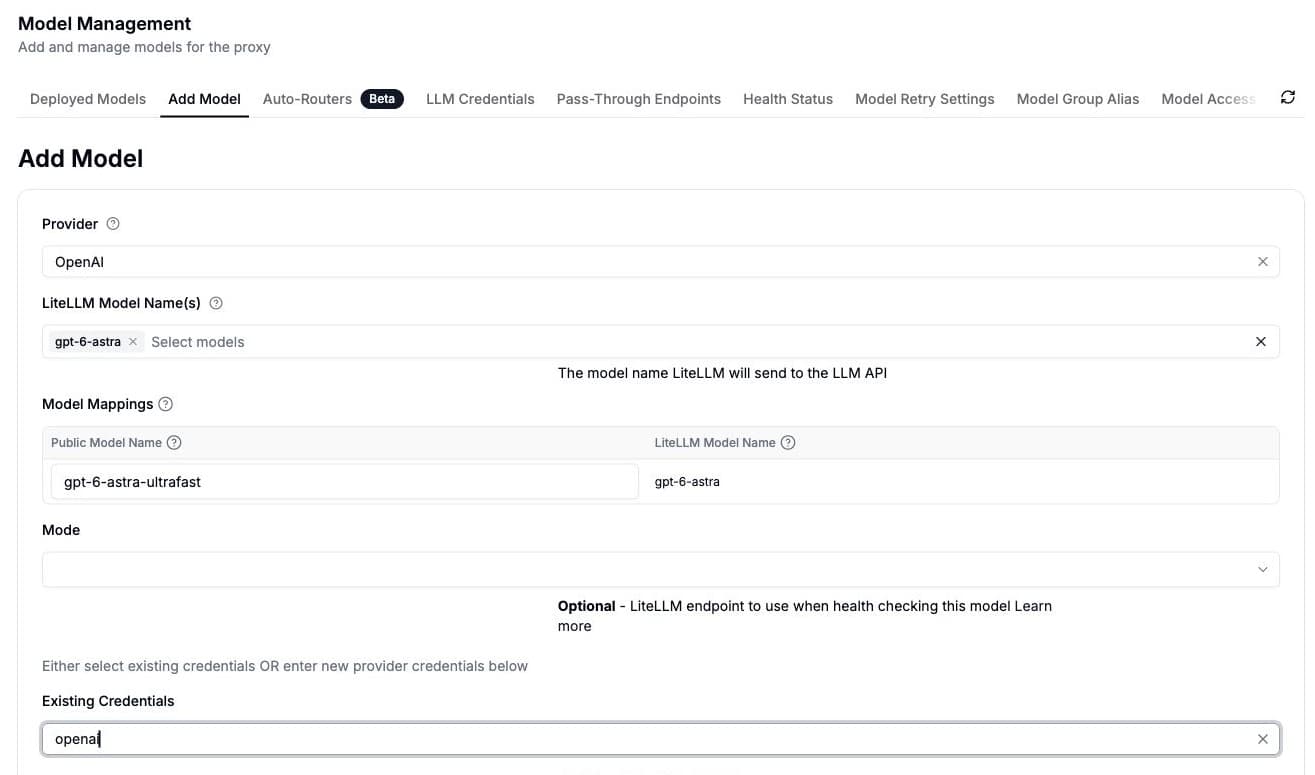
Open Models + Endpoints, then Add Model. Choose OpenAI as the provider and gpt-6-astra under LiteLLM Model Name(s). In Model Mappings, set Public Model Name to gpt-6-astra-ultrafast.
For Fast mode, select a model from the Fast table above, such as gpt-6.1-sol, and use a public name such as gpt-6.1-sol-fast. The model-selection screenshot shows Astra; the Fast settings are shown separately below.
Select your OpenAI credential under Existing Credentials, or enter your OpenAI API key in the provider credential fields. The screenshot uses an existing credential named openai; use your own credential's name.
Leave Mode blank for now. In v1.105.0, that dropdown does not include Responses; set it through Model Info in the next step.
2. Set the service tier
Expand Advanced Settings and choose the settings for your mode:
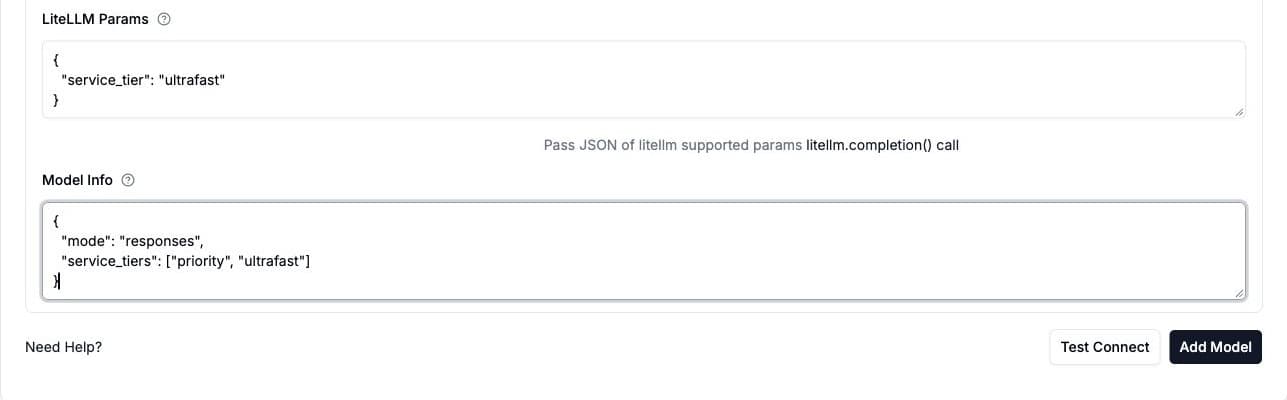
service_tier (singular) in LiteLLM Params selects the processing mode. service_tiers (plural) in Model Info is an optional list of modes advertised to clients such as Codex.
- Ultrafast (Astra)
- Fast
Enter this JSON in LiteLLM Params:
{
  "service_tier": "ultrafast"
}
Enter this JSON in Model Info:
{
  "mode": "responses",
  "service_tiers": ["priority", "ultrafast"]
}
Enter this JSON in LiteLLM Params:
{
  "service_tier": "priority"
}
Enter this JSON in Model Info:
{
  "mode": "responses",
  "service_tiers": ["priority"]
}
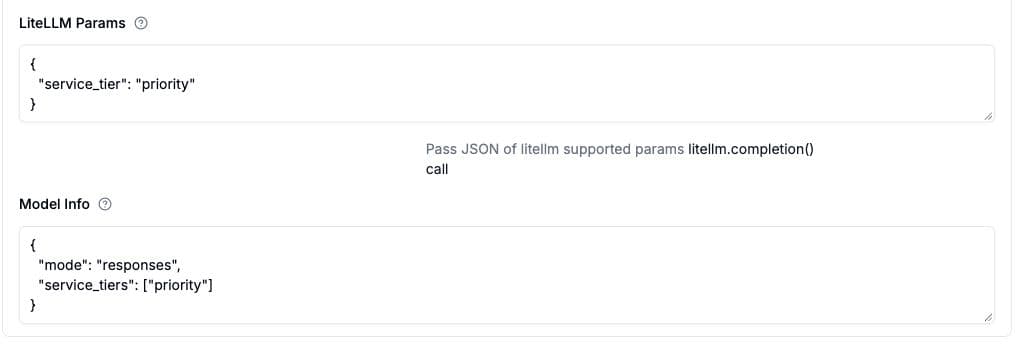
mode: "responses" makes the connection test use the Responses endpoint.
3. Test and save
Click Test Connect. The test should send the selected upstream model and service_tier (priority for Fast, ultrafast for Astra Ultrafast) to OpenAI's /v1/responses endpoint. Resolve any credential, quota, or access errors shown by the test, then click Add Model to save.
Under Deployed Models, search for the public name you configured, open its model ID, and select Raw JSON. Confirm that litellm_params.service_tier matches your chosen tier and model_info.mode is "responses". Use a virtual key with access to this public model name for the requests below.
Set up with config.yaml
Add the following deployment to your gateway configuration as an alternative to adding it in the UI:
- Ultrafast (GPT-6 Astra)
- Fast (GPT-6.1 Sol)
model_list:
  - model_name: gpt-6-astra-ultrafast
    litellm_params:
      model: openai/gpt-6-astra
      api_key: os.environ/OPENAI_API_KEY
      service_tier: ultrafast
    model_info:
      mode: responses
      service_tiers: ["priority", "ultrafast"]
model_list:
  - model_name: gpt-6.1-sol-fast
    litellm_params:
      model: openai/gpt-6.1-sol
      api_key: os.environ/OPENAI_API_KEY
      service_tier: priority
    model_info:
      mode: responses
      service_tiers: ["priority"]
Set OPENAI_API_KEY in the gateway's environment and restart with the updated configuration. For a local proxy installation, start it with litellm --config config.yaml; see proxy configuration for deployment options.
The openai/ prefix selects the upstream provider. Clients call the selected deployment's public model_name, such as gpt-6-astra-ultrafast. Keep the provider key on the gateway; clients authenticate with their LiteLLM virtual keys.
Send a request through the gateway
The requests below use the Astra Ultrafast alias. For the Fast deployment, use model: "gpt-6.1-sol-fast" and service_tier: "priority" instead.
Set LITELLM_BASE_URL to your gateway URL without a trailing /v1, and LITELLM_API_KEY to a virtual key that can access the model:
export LITELLM_BASE_URL="http://localhost:4000"
export LITELLM_API_KEY="<your-litellm-virtual-key>"
- curl
- OpenAI Python SDK
curl "${LITELLM_BASE_URL}/v1/responses" \
  -H "Authorization: Bearer ${LITELLM_API_KEY}" \
  -H "Content-Type: application/json" \
  -d '{
    "model": "gpt-6-astra-ultrafast",
    "service_tier": "ultrafast",
    "input": "Say hello in one sentence."
  }'
Install or upgrade openai, then run:
import os
from openai import OpenAI

client = OpenAI(
    base_url=os.environ["LITELLM_BASE_URL"].rstrip("/") + "/v1",
    api_key=os.environ["LITELLM_API_KEY"],
)

response = client.responses.create(
    model="gpt-6-astra-ultrafast",
    service_tier="ultrafast",
    input="Say hello in one sentence.",
)

print(response.output_text)
print(response.service_tier)
Both examples explicitly request a tier. If the client omits service_tier, the deployment default above supplies it. An explicit tier in the request overrides that default. To choose Fast or Ultrafast only for selected calls, leave service_tier out of the deployment and send it on those calls.
Use the LiteLLM Python SDK directly
Without a gateway, set OPENAI_API_KEY in your application's environment and call the upstream model with litellm.responses():
import litellm

response = litellm.responses(
    model="openai/gpt-6-astra",
    service_tier="ultrafast",
    input="Say hello in one sentence.",
)

print(response)
For Fast mode, use model="openai/gpt-6.1-sol" and service_tier="priority", or another model from the Fast table above.
Offer /fast and /ultrafast in Codex
Use model_info.service_tiers: ["priority"] to offer /fast. For Astra or GPT-6.1 Sol, use ["priority", "ultrafast"] to offer both /fast and /ultrafast. Codex CLI 0.159 or newer also needs model_catalog_url pointed at your gateway's /v1/models endpoint and [features] api_key_model_discovery = true. Follow the Codex model catalog setup, select your gateway model, then choose a mode.
For a model where users toggle modes on and off, omit the deployment's litellm_params.service_tier and keep model_info.service_tiers. Otherwise, a client that stops sending a tier still inherits the deployment's default. Advertising a tier does not grant OpenAI access to it.
Verify and troubleshoot
Check the completed response's service_tier field to confirm the tier that served the request: fast or priority for Fast mode, and ultrafast for Ultrafast. OpenAI's Fast guide explains the returned tier names and when traffic ramp limits can downgrade a Fast request to default. For streaming, inspect the response on the response.completed event. A saved model name, a catalog entry, or an outgoing request alone does not confirm the served tier.
| Symptom | What to check |
|---|---|
insufficient_quota or credit_balance_exhausted | Check the OpenAI account's credits and billing. A LiteLLM virtual-key budget does not fund the upstream account. |
Invalid service_tier argument, or the provider rejects the model or tier | Check the supported models, account access, regional endpoint, and requested tier. Ultrafast is limited to GPT-6 Astra and GPT-6.1 Sol. Model access alone does not guarantee access to every tier. |
| Fast or Ultrafast requests appear to cost the same as Standard | Confirm the model's *_priority or *_ultrafast pricing fields, or configure custom pricing. Provider access and LiteLLM cost tracking are separate. |
| The request uses a different tier | Inspect the client's service_tier; it overrides the deployment default. Confirm the selected alias routes to the intended deployment. |
A Fast request returns service_tier: "default" | OpenAI can downgrade requests when traffic ramps too quickly. Check the provider's ramp limits; HTTP 200 alone does not prove Fast processing. |
Codex does not show /fast or /ultrafast | Check both catalog settings and the model's service_tiers. If several deployments share an alias, configure the list on each. See the Codex guide for catalog caching and version requirements. |
The examples use HTTP Responses requests. For repeated agent tool calls, OpenAI recommends a persistent WebSocket connection to reduce connection overhead; see LiteLLM's Responses WebSocket guide.