Valkey - Vector Store
Search documents you have already indexed in Valkey through LiteLLM's unified vector store API, so that any virtual key can run retrieval against your datastore without ever holding your Valkey credentials.
LiteLLM only reads from Valkey; building and loading the index stays yours. Each search embeds the query with the model you registered, runs a KNN FT.SEARCH against your index, and returns the same OpenAI-shaped results every other provider returns, scored 1 - cosine distance so higher is closer.
Quick Start
You need three things:
- A Valkey server with the valkey-search module loaded
- An embedding model (the one that embedded your documents)
- An
FTindex over your documents
1. Turn on vector search in Valkey
Valkey by itself is a key-value store and knows nothing about vectors. Vector search comes from valkey-search, a module that adds the FT.* command family (Valkey docs), and it has to be loaded on your server. LiteLLM adds no Python dependency for this: it talks to the module with the Redis client the gateway already ships.
The quickest way to get a server locally is the valkey-bundle image, which has the module preloaded:
docker run -d -p 6379:6379 valkey/valkey-bundle:latest
Managed ElastiCache for Valkey (Valkey 8.2 on node-based clusters) and MemoryDB already ship the module. Cluster mode is fine: LiteLLM sends FT.SEARCH to whichever node the endpoint resolves to, and valkey-search itself fans the query out across shards and merges the results. On a server you run yourself, start it with valkey-server --loadmodule /path/to/libsearch.so.
If the module is missing, LiteLLM connects fine and then every search fails, because the server rejects the command it has never heard of:
litellm.APIConnectionError: unknown command 'FT.SEARCH', with args beginning with:
'my-search-index' '*=>[KNN 3 @embedding $vec AS vector_distance]' ...
2. Store your documents the way LiteLLM reads them
Each document is a Valkey HASH with a text field (text by default) and a FLOAT32 vector field (embedding by default), and an FT.CREATE index over those keys is what FT.SEARCH queries. Valkey hashes have no schema, so LiteLLM cannot guess which field is which; the names you register must match your data.
FT.CREATE my-search-index ON HASH PREFIX 1 kb: \
  SCHEMA embedding VECTOR HNSW 6 TYPE FLOAT32 DIM 1536 DISTANCE_METRIC COSINE
DIM must equal your embedding model's dimensions (1536 for text-embedding-3-small). Embed and write the documents with the same model you will register in LiteLLM:
import struct

import litellm
from redis import Redis

client = Redis(host="localhost", port=6379)

docs = {
    "kb:refunds": "Refunds are issued back to the original payment method and normally settle within five business days.",
    "kb:shipping": "Standard shipping takes three to five business days inside the continental United States.",
}

response = litellm.embedding(model="openai/text-embedding-3-small", input=list(docs.values()))

for (key, text), item in zip(docs.items(), response.data):
    embedding = item["embedding"]
    client.hset(key, mapping={"text": text, "embedding": struct.pack(f"<{len(embedding)}f", *embedding)})
A different model returns wrong results silently; a different dimension fails with query vector blob size (N) does not match index's expected size (M).
3. Register the index with LiteLLM
Registering tells LiteLLM where the index is and which model embeds queries; it creates nothing in Valkey. Add the embedding model under Models first, named after the provider's model (text-embedding-3-small), since LiteLLM reuses that model's credentials but sends its name to the provider.
- Admin UI
- config.yaml
- Management API
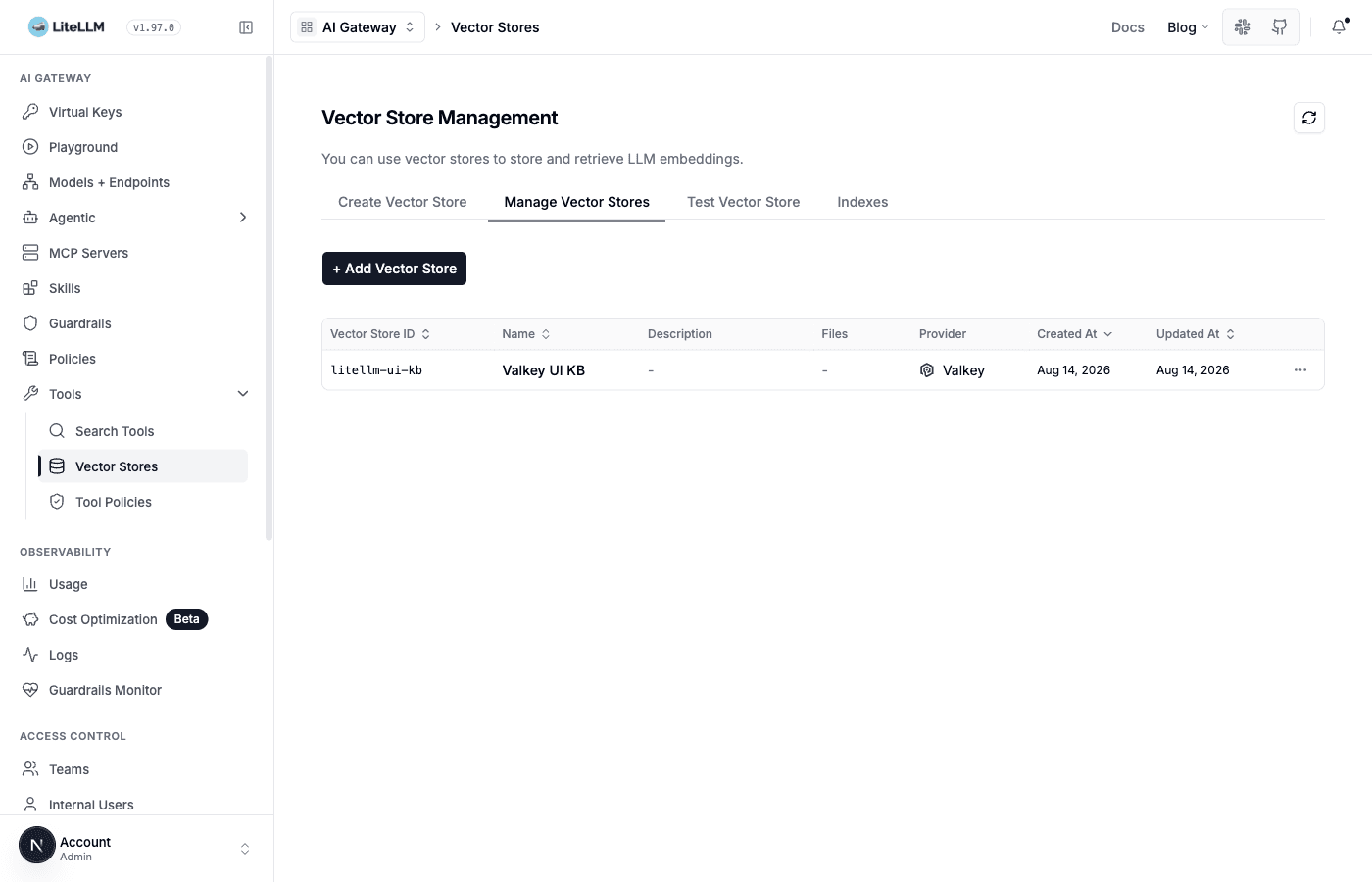
Open Tools > Vector Stores, go to the Manage Vector Stores tab, and click + Add Vector Store.
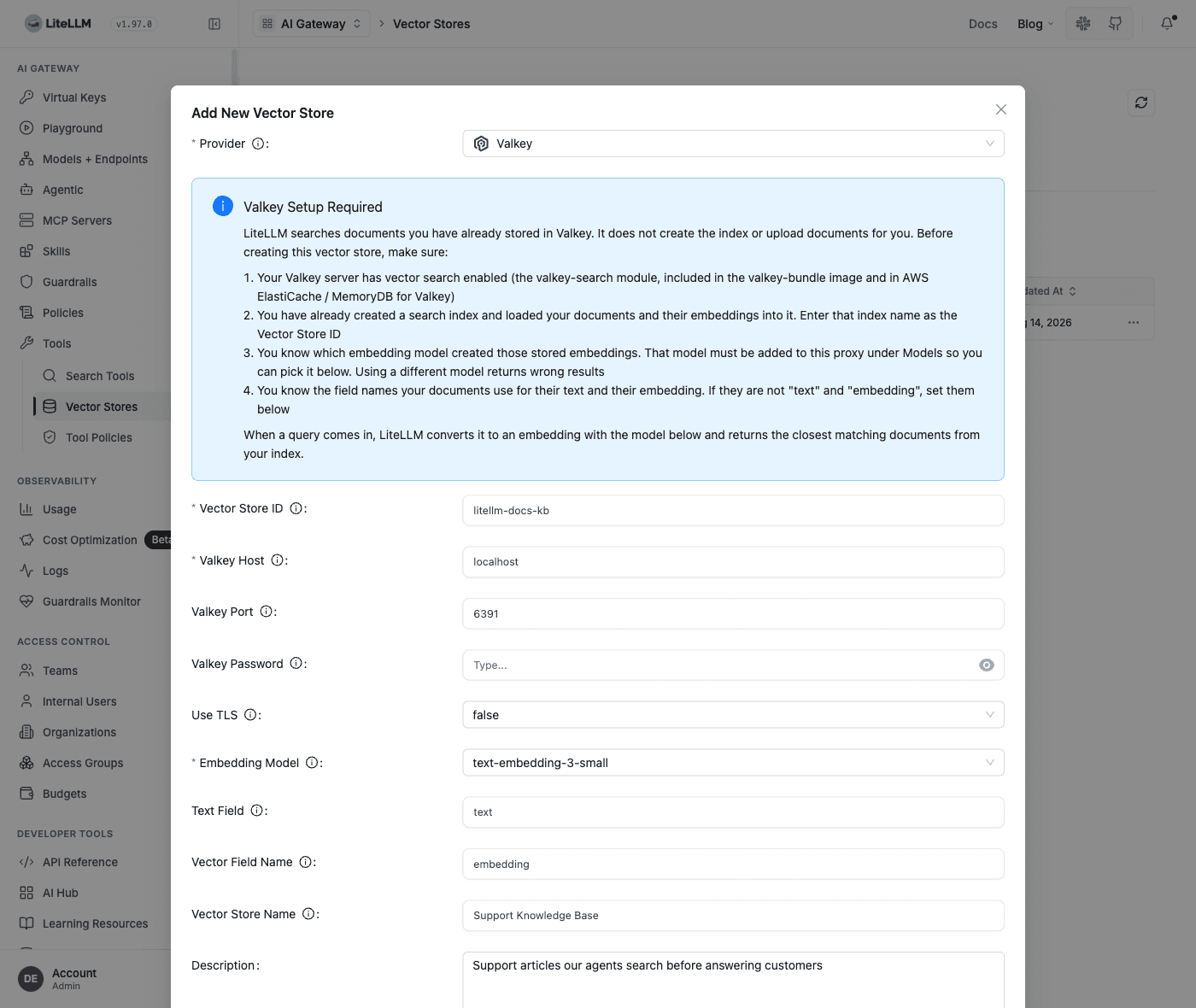
Pick Valkey as the provider. The form then explains what it expects and shows the connection fields. Enter the name of your FT index as the Vector Store ID, fill in the host and port, and choose the embedding model that produced the vectors already sitting in the index. Leave Text Field and Vector Field Name alone unless your hashes use different names.
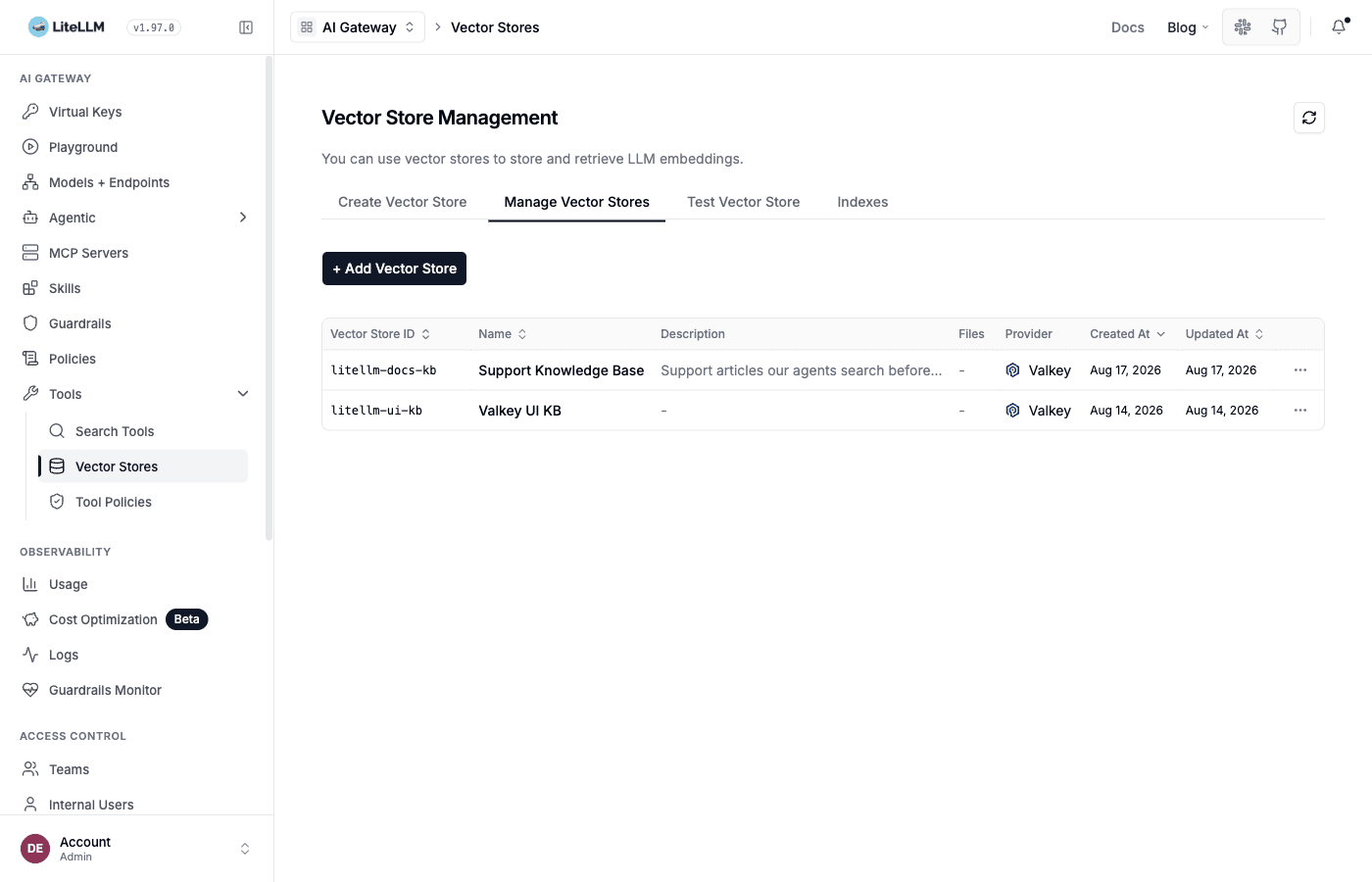
Click Create and the store appears in the table, ready to search:
Creating a store does not test the connection. A wrong host, port, or index name is only reported on the first search, so run one from the Test Vector Store tab straight away.
model_list:
  - model_name: openai/text-embedding-3-small
    litellm_params:
      model: openai/text-embedding-3-small
      api_key: os.environ/OPENAI_API_KEY

vector_store_registry:
  - vector_store_name: support-knowledge-base
    litellm_params:
      vector_store_id: my-search-index
      custom_llm_provider: valkey
      valkey_host: my-valkey.example.com
      valkey_port: 6379
      valkey_password: os.environ/VALKEY_PASSWORD
      valkey_ssl: true
      litellm_embedding_model: openai/text-embedding-3-small
litellm --config /path/to/config.yaml
curl -X POST 'http://localhost:4000/vector_store/new' \
  -H "Authorization: Bearer $LITELLM_API_KEY" \
  -H 'Content-Type: application/json' \
  -d '{
    "vector_store_id": "my-search-index",
    "custom_llm_provider": "valkey",
    "vector_store_name": "Support Knowledge Base",
    "litellm_params": {
      "valkey_host": "my-valkey.example.com",
      "valkey_port": 6379,
      "litellm_embedding_model": "openai/text-embedding-3-small"
    }
  }'
The store is written to the LiteLLM database and is searchable immediately, with no restart. See Managed Vector Stores for the rest of the management API.
4. Test the store
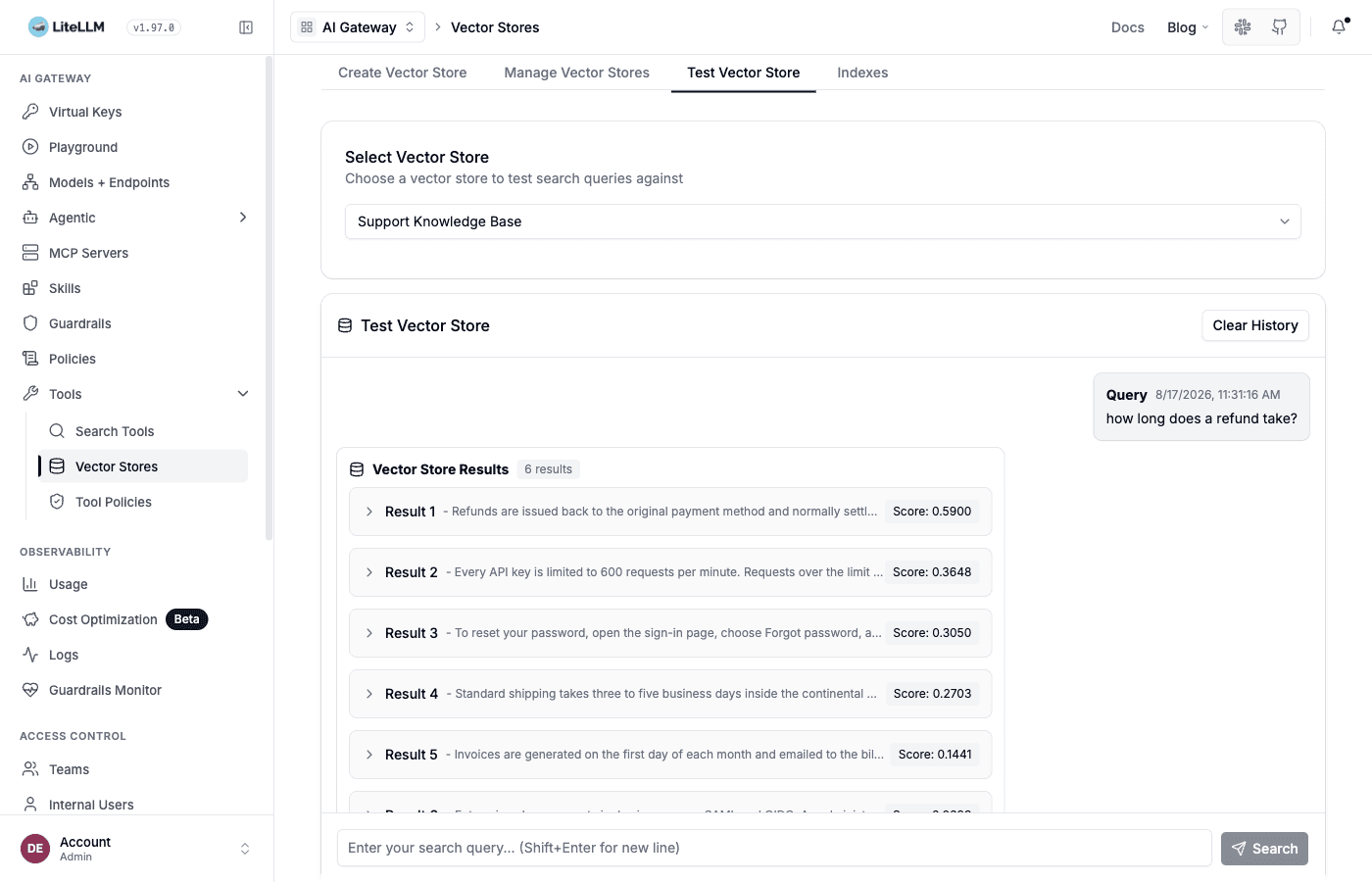
In the Admin UI, the Test Vector Store tab runs a real search against the registered store and shows each hit with its score, which is the fastest way to confirm the connection, the index name, and the embedding model all line up:
The same search over HTTP:
curl -X POST 'http://localhost:4000/v1/vector_stores/my-search-index/search' \
  -H "Authorization: Bearer $LITELLM_API_KEY" \
  -H 'Content-Type: application/json' \
  -d '{"query": "how long does a refund take?", "max_num_results": 3}'
{
  "object": "vector_store.search_results.page",
  "search_query": "how long does a refund take?",
  "data": [
    {
      "score": 0.5899661779400001,
      "content": [
        {
          "text": "Refunds are issued back to the original payment method and normally settle within five business days. Contact support if the money has not arrived after that.",
          "type": "text"
        }
      ],
      "file_id": "kb:refunds",
      "filename": "kb:refunds"
    },
    {
      "score": 0.36476153135300005,
      "content": [
        {
          "text": "Every API key is limited to 600 requests per minute. Requests over the limit return HTTP 429 with a Retry-After header telling you how long to wait.",
          "type": "text"
        }
      ],
      "file_id": "kb:rate-limits",
      "filename": "kb:rate-limits"
    }
  ]
}
file_id and filename are the Valkey keys the hits came from. max_num_results defaults to 10 and has to be between 1 and 50.
From the SDK, pass the connection settings inline instead of registering the store:
import litellm

response = litellm.vector_stores.search(
    vector_store_id="my-search-index",
    query="how long does a refund take?",
    custom_llm_provider="valkey",
    valkey_host="my-valkey.example.com",
    litellm_embedding_model="openai/text-embedding-3-small",
    max_num_results=3,
)
litellm.vector_stores.asearch is the async equivalent. Both need the redis package, which the proxy already installs; in a bare SDK environment run pip install redis.
Once a store is registered, any LiteLLM feature that takes a vector store id can use it, including RAG in /chat/completions through tools: [{"type": "file_search", "vector_store_ids": ["my-search-index"]}].
Settings reference
Defaults cover most of this table. What decides whether a search finds anything is the index name, the host, the embedding model, and the two field names.
| Setting | UI label | Required | What to put in it |
|---|---|---|---|
vector_store_id | Vector Store ID | Yes | The name of the FT index, exactly as you passed it to FT.CREATE. This is not a free-form label; an unknown name fails with Index with name '...' not found in database 0 |
valkey_host | Valkey Host | Yes | The bare hostname or IP, with no scheme and no port, so my-valkey.example.com rather than redis://my-valkey.example.com:6379 |
valkey_port | Valkey Port | No | Defaults to 6379. Change it only if your server listens somewhere else |
valkey_password | Valkey Password | No | Only if the server requires AUTH. Leave empty otherwise |
valkey_ssl | Use TLS | No | Defaults to false. Set it to true for ElastiCache or MemoryDB clusters with in-transit encryption, which is what makes LiteLLM connect with rediss:// |
litellm_embedding_model | Embedding Model | Yes | The exact model that produced the vectors in the index. A different model returns plausible but wrong results, and a different dimension errors |
valkey_text_field | Text Field | No | Defaults to text. Must match the hash field holding the readable text, or every result comes back with empty content |
valkey_embedding_field | Vector Field Name | No | Defaults to embedding. Must match the field your index was created on |
litellm_embedding_config | n/a | No | Extra arguments for the embedding call such as api_key or api_base. On the proxy you can normally omit it, because LiteLLM resolves those from the registered model |
Troubleshooting
unknown command 'FT.SEARCH' means the server has no vector search. Run valkey-cli FT._LIST: a server with the module answers with its indexes, and one without it repeats the same unknown command error. A plain valkey/valkey image is the usual culprit.
query vector blob size (N) does not match index's expected size (M) means the embedding model registered on the store returns a different number of dimensions than the index was created with. Both numbers are byte counts, so divide by 4 to see the dimensions being compared, then either register the model that built the index or rebuild the index at the new dimension.
Results arrive with empty text means the hits are real but valkey_text_field names a field your hashes do not have. Run HGETALL on one of the returned keys and set the field to whatever holds the prose.
Connection refused, or a search that hangs and then fails, usually means the wrong port or a security group that does not allow the gateway through. LiteLLM waits 5 seconds to connect and 30 seconds for the command, so an unreachable host fails quickly rather than pinning a worker.
Ranking that looks random points at the embedding model. Nothing errors when the query is embedded by a different model than the documents were, so compare what the store is registered with against what your ingestion job actually used.
Not supported
Valkey vector stores are search-only. LiteLLM cannot create an index (POST /v1/vector_stores), upload files, or run /rag/ingest against Valkey, which is why Valkey is absent from the Create Vector Store tab in the Admin UI; build and populate the index with FT.CREATE and HSET yourself. The filters parameter on search is not implemented either, and passing it raises an error rather than being silently ignored.
A Valkey server with the same module can also back LiteLLM's semantic cache, which is a separate feature with its own index that LiteLLM does create and write to.