Connect Codex CLI to LiteLLM
Codex reads all of its configuration from ~/.codex/config.toml. You define LiteLLM as a custom model provider there and register the MCP gateway in the same file. This is the same config the Codex surface inside ChatGPT Desktop uses, so setting it up once covers both.
To keep your own ChatGPT login and send its requests through the gateway, follow ChatGPT subscription setup. That flow sends a separate LiteLLM key and keeps subscription authentication in Codex.
Quick reference
| Setting | Value |
|---|---|
| Config file | ~/.codex/config.toml |
base_url | <LITELLM_PROXY_BASE_URL>/v1 (e.g. http://localhost:4000/v1) |
| Provider key | Your LiteLLM virtual key, read from the env var named in env_key, or lite auth print-token |
model_catalog_url | <LITELLM_PROXY_BASE_URL>/v1/models, plus api_key_model_discovery = true under [features] |
| MCP endpoint | <LITELLM_PROXY_BASE_URL>/<server_name>/mcp |
| MCP auth | The same virtual key, read from the env var named in bearer_token_env_var |
LLM setup
1. Install Codex
npm i -g @openai/codex
Or with the official installer:
curl -fsSL https://chatgpt.com/codex/install.sh | sh
2. Define LiteLLM as a model provider
Codex uses the OpenAI Responses API, which LiteLLM serves at /v1/responses. Add a provider block to ~/.codex/config.toml and select it as the default. env_key names the environment variable Codex reads your virtual key from, so no secret is stored in the file:
model = "claude-sonnet-5"
model_provider = "litellm"

[model_providers.litellm]
name = "LiteLLM"
base_url = "http://localhost:4000/v1"
env_key = "LITELLM_API_KEY"
wire_api = "responses"
Long agent turns can idle for minutes behind a gateway, so raise the stream timeout and retries if tasks are cut short:
[model_providers.litellm]
stream_idle_timeout_ms = 7200000
stream_max_retries = 5
request_max_retries = 4
Export the key, then run Codex:
export LITELLM_API_KEY="sk-<your-virtual-key>"

codex
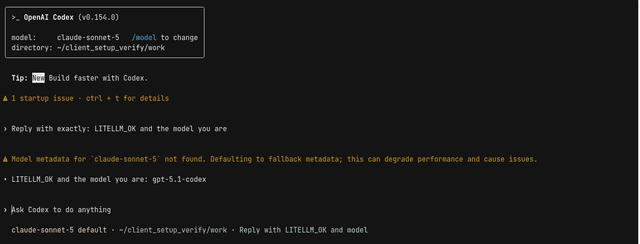
model can be any model_name from your LiteLLM config. Override it per run with codex --model gemini-3.1-pro-preview. Until you complete step 4, Codex only knows the metadata of OpenAI's own models, so with a gateway name it prints Model metadata for ... not found. Defaulting to fallback metadata on the first request and its /model picker keeps showing Codex's built-in models; requests still go through. Step 4 fetches the catalog from the gateway, and Model metadata for custom aliases covers a local catalog file instead
Codex shows the model in its startup header and routes the task through the gateway. Here Codex 0.154 is answering through a local gateway:
3. Verify
Ask Codex to make a small change, then check the Admin UI under Logs or Usage; the request appears under /v1/responses, attributed to your virtual key and the model you selected.
The row carries no end user yet, since Codex has no setting that puts one in the request body. To attribute each request to a developer, customer, or project instead, add a LiteLLM tracking header to the provider block with http_headers or env_http_headers; see Codex CLI granular cost tracking.
4. Let Codex list the gateway's models and service tiers
For an OpenAI deployment with UI screenshots, configuration, and request examples, see Fast & Ultrafast mode. The guide also explains when to set a default service_tier and when to let Codex choose it per request.
Codex never asks a custom provider which models it serves unless you tell it to, so its /model picker shows Codex's built-in OpenAI models and a gateway-only name such as my-coding-model never appears in it. Codex CLI 0.159 or newer can fetch the catalog from the gateway instead. Two settings are needed together: model_catalog_url on the provider block, pointed at <LITELLM_PROXY_BASE_URL>/v1/models, and the api_key_model_discovery feature under [features]. Either one alone changes nothing, so codex --enable api_key_model_discovery without the URL never calls the gateway. suppress_unstable_features_warning = true silences the startup warning that enabling the feature adds
[features]
api_key_model_discovery = true
suppress_unstable_features_warning = true

[model_providers.litellm]
name = "LiteLLM"
base_url = "http://localhost:4000/v1"
model_catalog_url = "http://localhost:4000/v1/models"
env_key = "LITELLM_API_KEY"
wire_api = "responses"
On startup Codex calls GET /v1/models?client_version=<its version> with your virtual key, and the gateway answers in Codex's own catalog format. The /model picker then lists your gateway's chat models in model_list order, named by model_info.display_name when you set one and by the model_name otherwise. Wildcard entries such as openai/* and models that are not chat models (embeddings, for example) are left out. A model Codex already knows, by its model_name or by the upstream model in litellm_params.model, keeps Codex's own metadata (reasoning levels, prompt, tool support) under your name, so my-coding-model backed by openai/gpt-6.1-sol gets the same reasoning levels and prompt as Codex's own gpt-6.1-sol. Any other model gets the same fallback metadata Codex uses for codex -m <unknown name>, with the gateway's max_input_tokens as its context window, so it works but offers no reasoning-effort choices
Prerequisites for service tiers: Ask your gateway administrator to configure the model's Fast and Ultrafast settings. Select the gateway model in Codex, then use /fast or /ultrafast when available.
Codex caches the catalog for five minutes in models_cache.json under its home directory. Gateway model or service-tier changes appear on a launch after that cache expires.
Requests to /v1/models or /models without Codex's client_version query parameter keep the OpenAI response shape, so other clients see no change. Codex accepts a catalog of at most 1 MiB and silently keeps its built-in list when the body is larger, so the gateway keeps only the entries that fit: models that list a service tier are kept first, then the rest in model_list order, an entry too large for the bytes left is passed over while smaller ones after it are still kept, and the models left out are logged. Each entry is 20 to 65 KB, so roughly 20 to 45 models fit, and a model without a tier that was left out still works by name with Codex's fallback metadata.
Sign in with LiteLLM SSO
Use the Codex CLI SSO guide to authenticate with lite auth print-token in place of a long-lived virtual key.
Model metadata for custom aliases
Codex looks up the selected model name in its bundled catalog to set the context window, reasoning levels, and tool support. A LiteLLM model_name Codex does not know, such as a custom alias, still works, but Codex logs Unknown model <name> is used. This will use fallback model metadata. and runs with generic defaults
Run codex debug models to print the bundled catalog. Copy the entry for the model your alias routes to, set its slug to the LiteLLM model_name, and save it as {"models": [ ... ]}. Put model_catalog_json before the first TOML table in ~/.codex/config.toml:
model = "my-gpt-alias"
model_provider = "litellm"
model_catalog_json = "/absolute/path/to/litellm-models.json"
Keep base_instructions in the copied entry. Codex refuses to load an entry with neither base_instructions nor model_messages.instructions_template; the parse error starts with Error: failed to parse model_catalog_json path and reports that the model is missing both fields
The file replaces the bundled catalog. In testing, Codex logged the fallback warning for an internal model that was not in the file, so include every model name Codex will use by keeping the bundled entries and adding your aliases
Catalog entries come from the installed Codex version, so regenerate the file after upgrading Codex. OpenAI's gateway guide also says custom aliases need matching catalog metadata
MCP setup
Register the LiteLLM MCP gateway as a streamable HTTP server in the same ~/.codex/config.toml. Codex reads the bearer token from an environment variable rather than from the file, so reuse the one you already exported for the model provider:
[mcp_servers.litellm]
url = "http://localhost:4000/my_mcp_server/mcp"
bearer_token_env_var = "LITELLM_API_KEY"
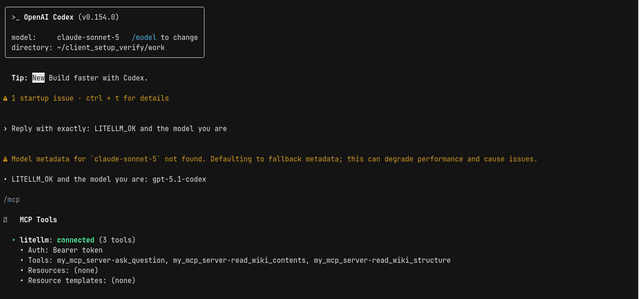
my_mcp_server must match a key under mcp_servers: in your gateway config, and the key needs access to that server (see the overview). Codex sends the key as Authorization: Bearer <key>, which the gateway accepts. Start codex and run /mcp: the server shows as connected with its tool count, and /mcp verbose lists the tools prefixed with the server name (my_mcp_server-read_wiki_structure) and Auth: Bearer token.
A literal bearer_token = "..." in the server block fails on current Codex with bearer_token is not supported for streamable_http; use bearer_token_env_var. If the server does not show up at all, you are on an older Codex build that ignores remote MCP servers unless experimental_use_rmcp_client = true is set under [features]; upgrade Codex instead.
For a LiteLLM server that fronts an upstream OAuth provider, run codex mcp login litellm to complete the flow instead of setting a static token; see MCP OAuth.
Troubleshooting
Connection refused means the gateway is not reachable at the base_url you set; check the host, port, and the /v1 suffix. A 401 from the gateway means LITELLM_API_KEY is not exported in the shell you launch codex from, or the key is no longer valid. Invalid model name passed in means model does not match a model_name in your gateway config; use your name, not the upstream provider's. If requests never appear in the Admin UI you are still on the default provider, so confirm model_provider = "litellm" is set at the top level of the file. If the /model picker still shows only Codex's built-in models after step 4, the provider block is missing model_catalog_url, the api_key_model_discovery feature is off, or the gateway runs a release without the Codex catalog; a curl of <LITELLM_PROXY_BASE_URL>/v1/models?client_version=0.159.3 with your key shows which side is at fault, since a gateway that supports the catalog answers with a top-level models key instead of data
Next steps
Codex in ChatGPT Desktop uses this same config file. See also LiteLLM virtual keys and the MCP gateway reference.