UI Spend Log Settings
Configure spend log behavior directly from the Admin UI, with no config file edits or proxy restart required. This helps for cloud deployments where updating the config is difficult or requires a long release process.
Overview
Previously, spend log options (such as storing request/response content and retention period) had to be set in proxy_config.yaml under general_settings. Changing them required editing the config and restarting the proxy, which was a pain point for users, especially in cloud environments, who don't have easy access to the config or whose deployment process makes config updates slow.
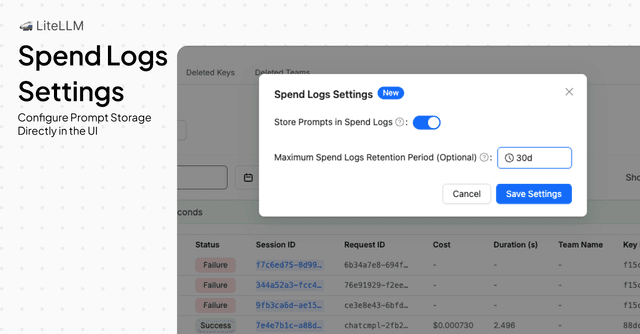
UI Spend Log Settings lets you:
- Store prompts in spend logs – Enable or disable storing request and response content in the spend logs table (only affects logs created after you change the setting)
- Set retention period – Configure how long spend logs are kept before automatic cleanup (e.g.
7d,30d) - Apply changes immediately – No proxy restart needed; settings take effect for new requests as soon as you save
Settings changed in the UI override the values in your config file. For example, if store_prompts_in_spend_logs is explicitly set to false in general_settings, turning it on in the UI will still enable storing prompts. Use the UI when you want runtime control without redeploying.
Settings You Can Configure
| Setting | Description |
|---|---|
| Store Prompts in Spend Logs | When enabled, request messages and response content are stored for new spend logs so you can view them in the Logs UI. Logs created before you enabled this will not have request/response content. When disabled, only metadata (e.g. tokens, cost, model) is stored for new logs. |
| Retention Period | Maximum time to keep spend logs before they are automatically deleted (e.g. 7d, 30d). Optional; if not set, logs are retained according to your config or default behavior. |
The same options can be set in config via general_settings (store_prompts_in_spend_logs, maximum_spend_logs_retention_period). Values set in the UI take precedence.
How to Configure Spend Log Settings in the UI
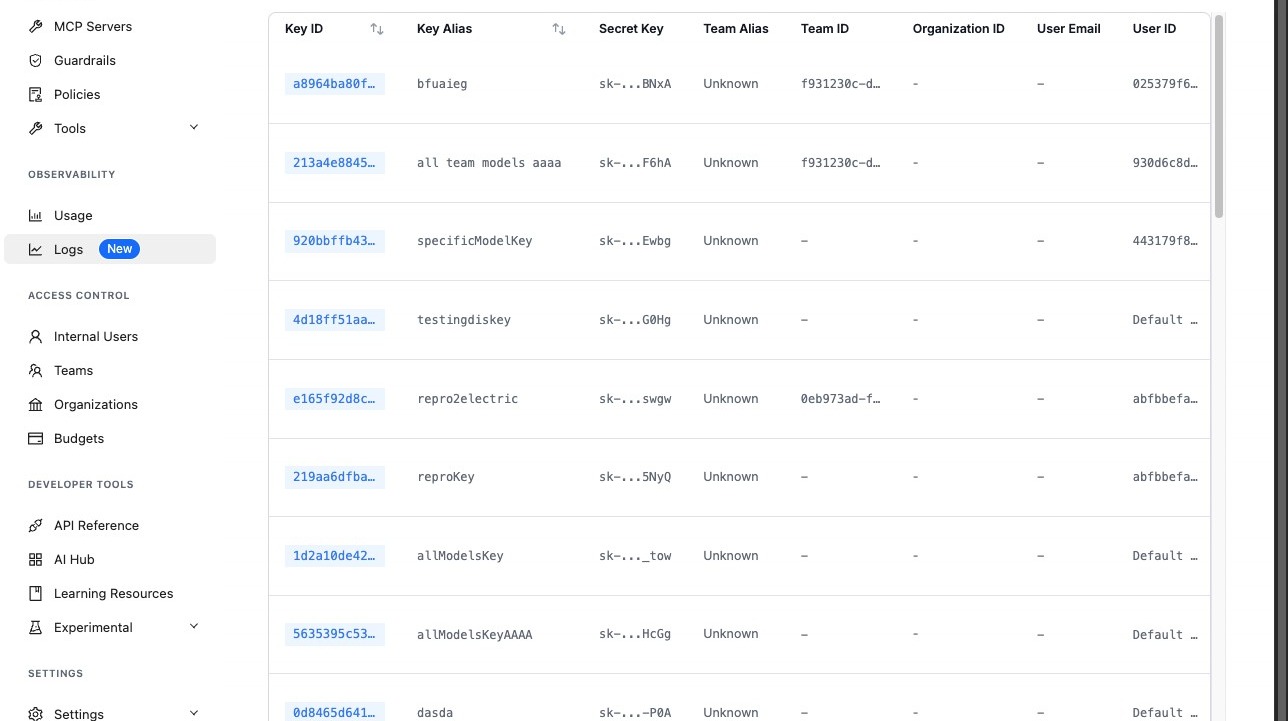
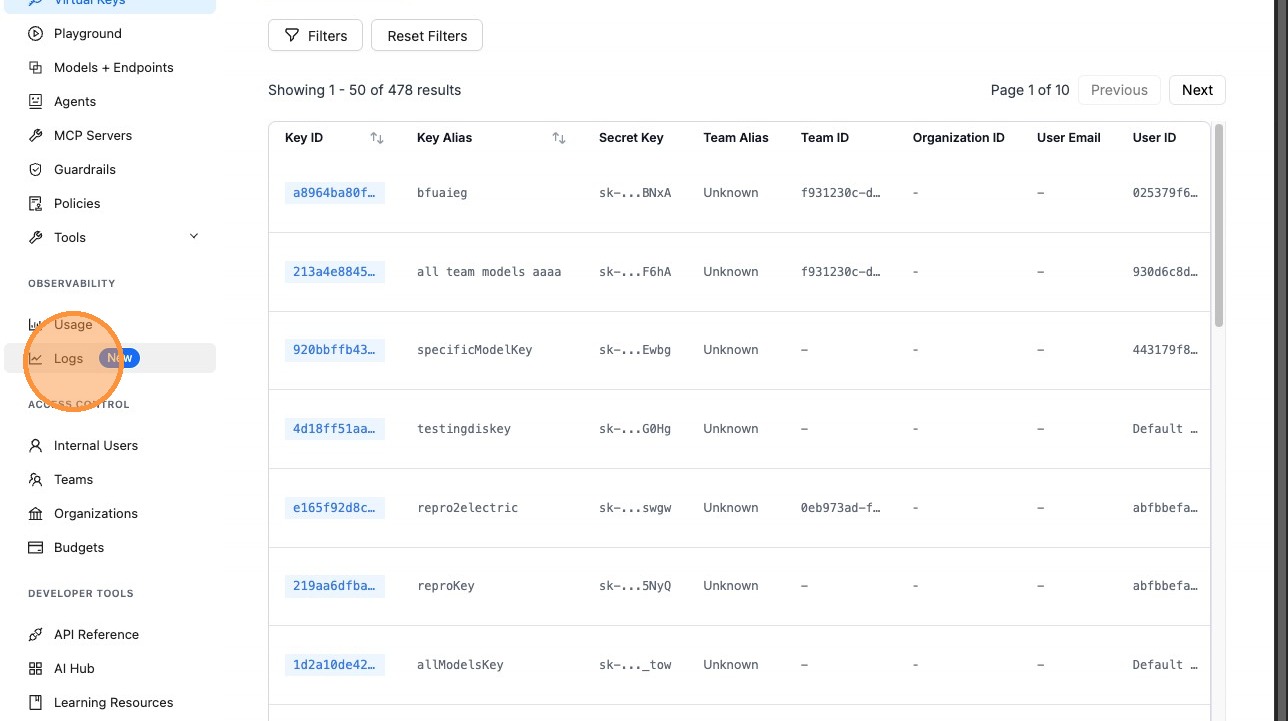
1. Open the Logs page
Navigate to the Admin UI (e.g. http://localhost:4000/ui or your PROXY_BASE_URL/ui) and click Logs.
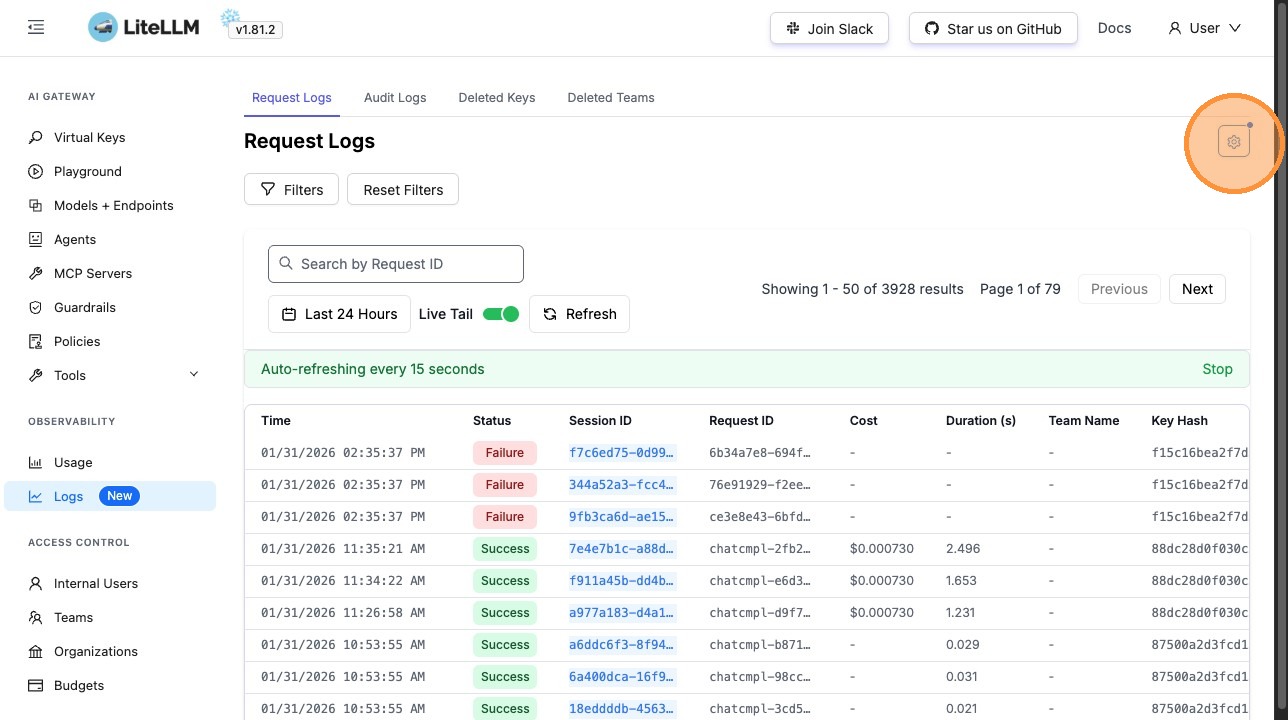
2. Open Logs settings
Click the Settings (gear) icon on the Logs page to open the spend log settings panel.
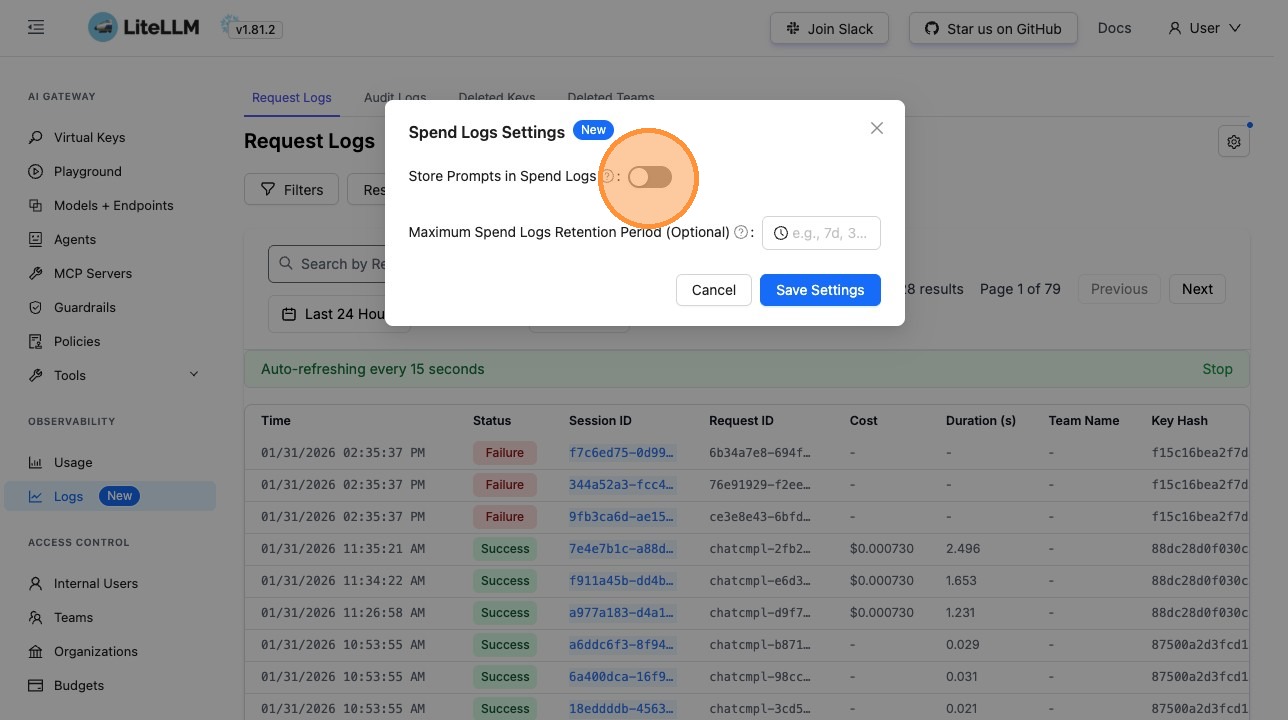
3. Enable Store Prompts in Spend Logs (optional)
Turn on Store Prompts in Spend Logs if you want request and response content to be stored for new requests and visible when you open those log entries. This only affects logs created after you enable it; existing logs will not gain request/response content. Leave it off if you only need metadata (tokens, cost, model, etc.).
4. Set the retention period (optional)
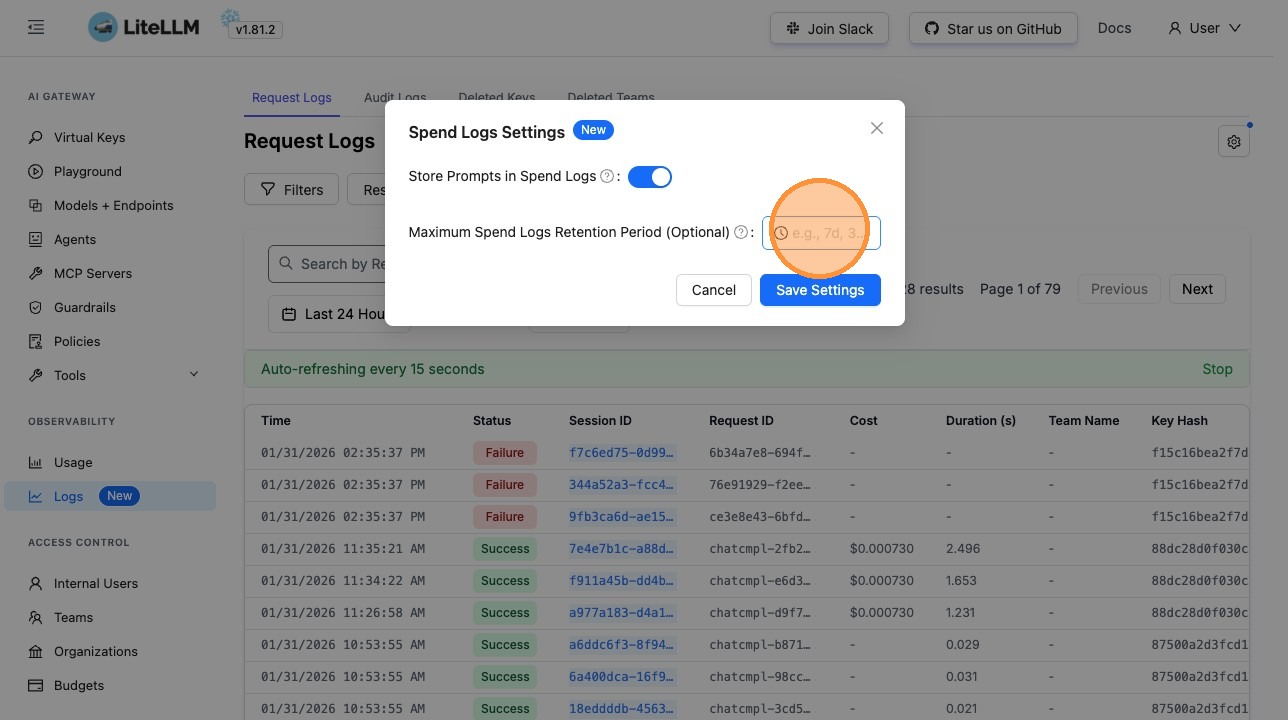
Optionally set the Retention Period (e.g. 7d, 30d) to control how long spend logs are kept before automatic cleanup. Uses the same format as the config option maximum_spend_logs_retention_period.
5. Save settings
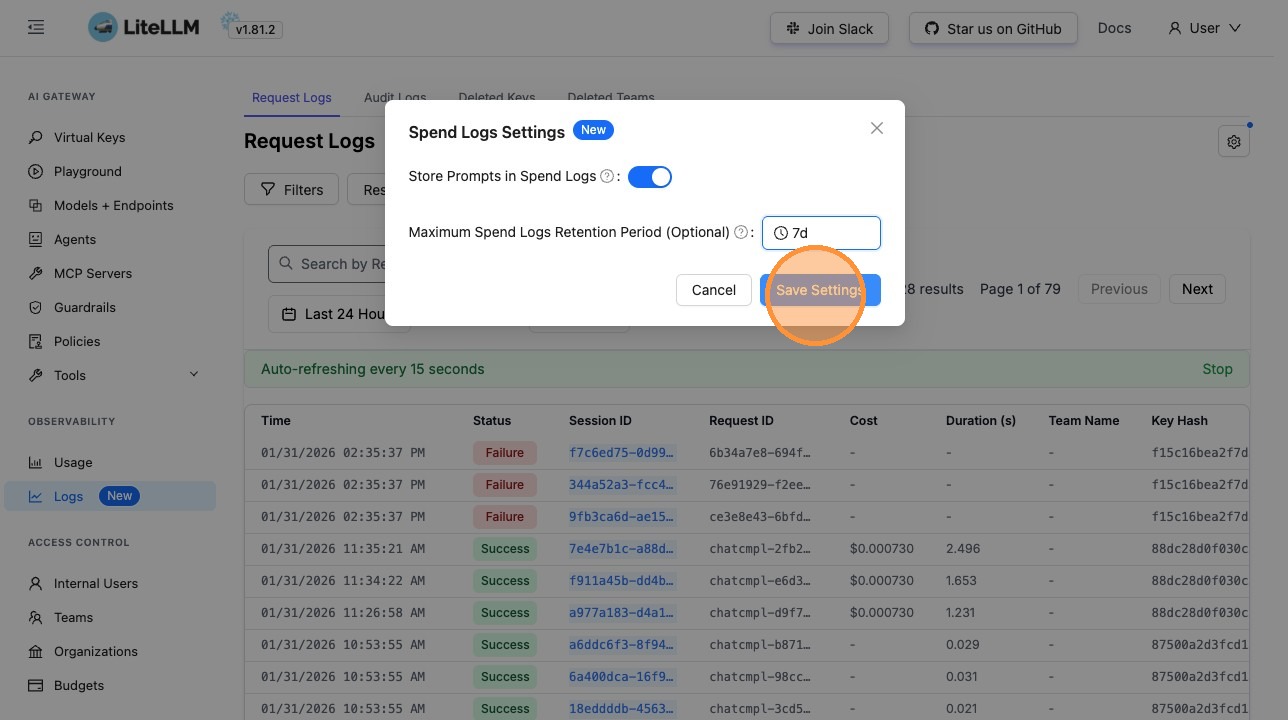
Click Save Settings. Changes take effect immediately for new requests; no proxy restart is required. Existing logs are not updated.
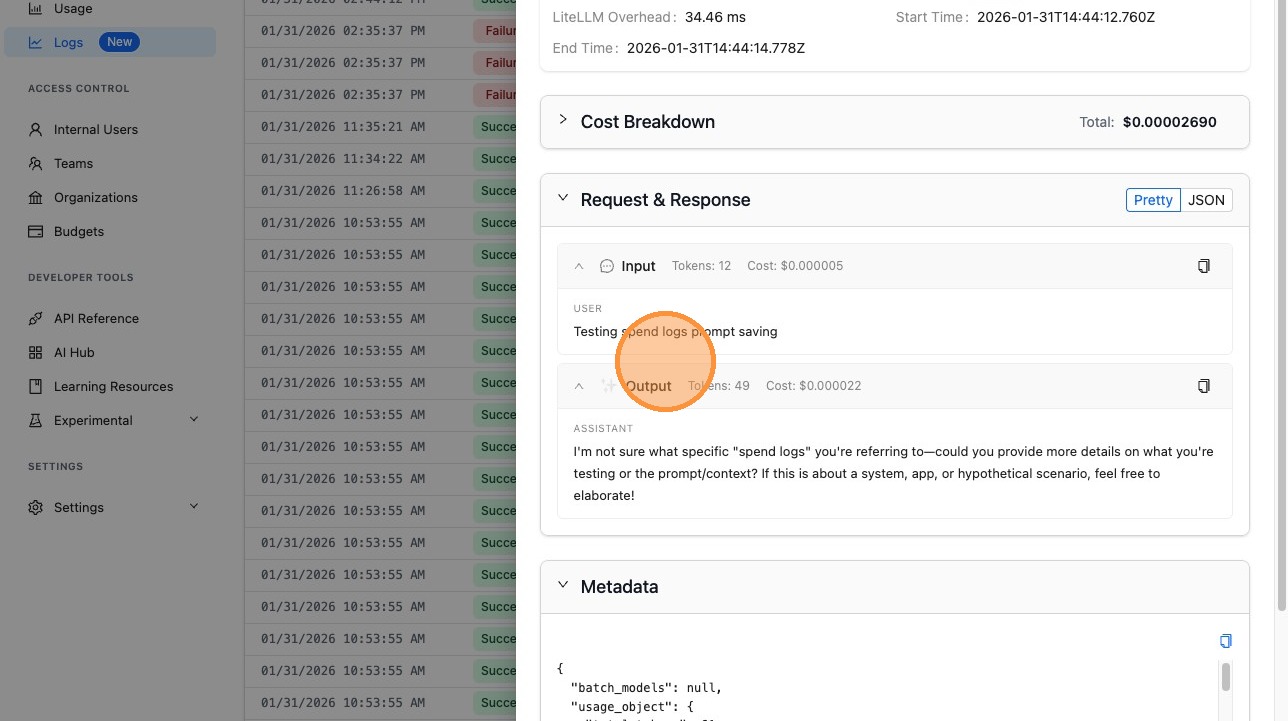
6. Verify: view request and response in a log
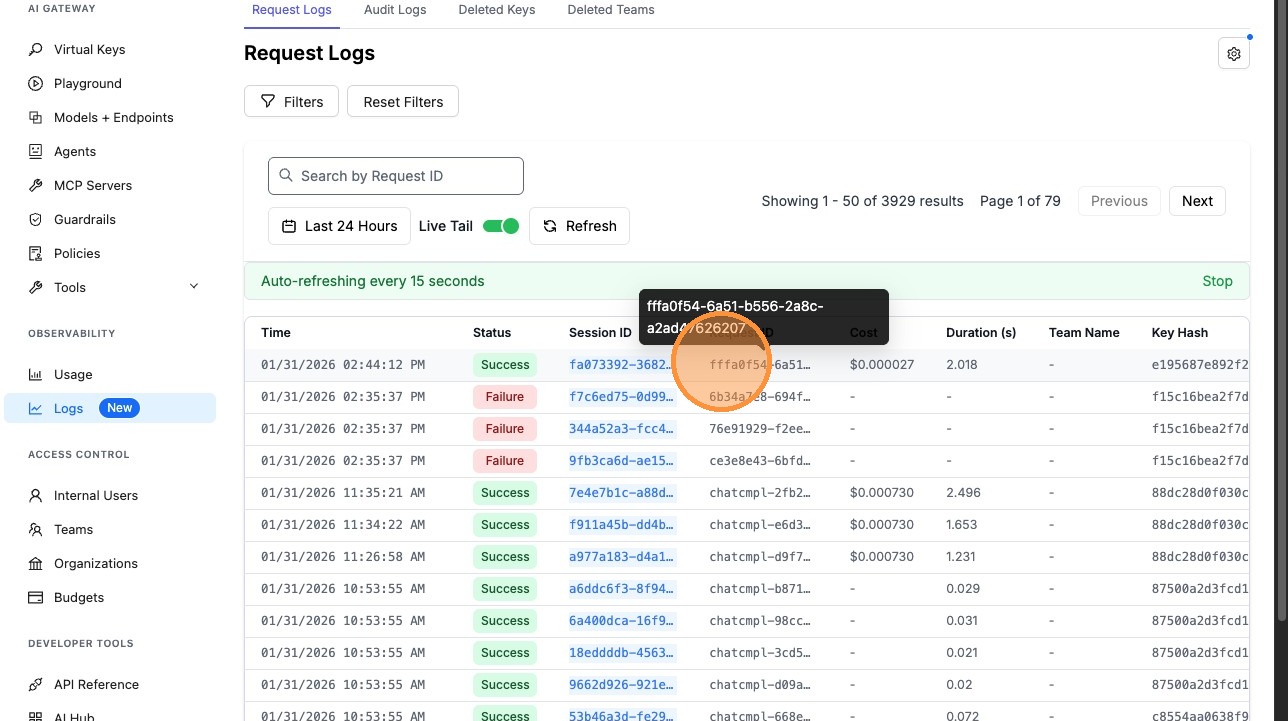
After enabling Store Prompts in Spend Logs, make a new request through the proxy, then open that log entry (or any other log created after you enabled the setting). The log details view will include the request and response content. Logs that existed before you turned the setting on will not have this content.
Use Cases
Cloud and managed deployments
When the proxy runs in a managed or cloud environment, config may be in a separate repo, require a long release, or be controlled by another team. Using the UI lets you change spend log behavior (e.g. enable prompt storage for debugging or set retention) without going through that process.
Quick toggles for debugging
Temporarily enable Store Prompts in Spend Logs to inspect request/response content on new requests when debugging, then turn it off again from the UI without editing config or restarting. Only logs created while the setting was on will contain the content.
Retention without redeploying
Adjust how long spend logs are retained (e.g. shorten to reduce storage or extend for compliance) and have the new retention period and cleanup job take effect immediately.
Related Documentation
- Getting Started with UI Logs – Overview of what gets logged and config-based options
- Config Settings –
store_prompts_in_spend_logs,disable_spend_logs,maximum_spend_logs_retention_periodingeneral_settings - Spend Logs Deletion – How retention and cleanup work