Customer Usage
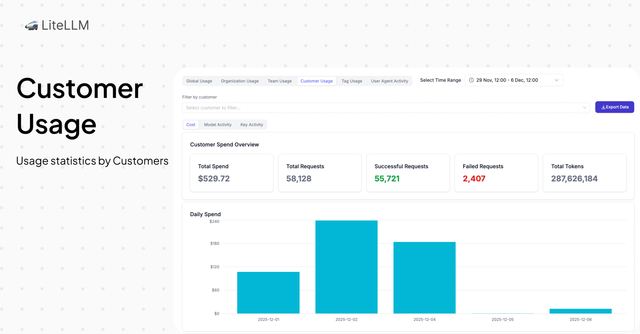
Track and visualize end-user spend directly in the dashboard. Monitor customer-level usage analytics, spend logs, and activity metrics to understand how your customers are using your LLM services.
This feature is available in v1.80.8-stable and above.
Overview
Customer Usage enables you to track spend and usage for individual customers (end users) by passing an ID in your API requests. This allows you to:
- Track spend per customer automatically
- View customer-level usage analytics in the Admin UI
- Filter spend logs and activity metrics by customer ID
- Set budgets and rate limits per customer
- Monitor customer usage patterns and trends
How to Track Spend
Track customer spend by including a user field in your API requests or by passing a customer ID header. The customer ID will be automatically tracked and associated with all spend from that request.
- Request Body
- Request Header
Using Request Body
Make a /chat/completions call with the user field containing your customer ID:
curl -X POST 'http://0.0.0.0:4000/chat/completions' \
  --header 'Content-Type: application/json' \
  --header "Authorization: Bearer $LITELLM_API_KEY" \
  --data '{
    "model": "gpt-5.6-luna",
    "user": "customer-123",
    "messages": [
      {
        "role": "user",
        "content": "What is the capital of France?"
      }
    ]
  }'
Using Request Headers
You can also pass the customer ID via HTTP headers. This is useful for tools that support custom headers but don't allow modifying the request body (like Claude Code with ANTHROPIC_CUSTOM_HEADERS).
LiteLLM automatically recognizes these standard headers (no configuration required):
x-litellm-customer-idx-litellm-end-user-id
curl -X POST 'http://0.0.0.0:4000/chat/completions' \
  --header 'Content-Type: application/json' \
  --header "Authorization: Bearer $LITELLM_API_KEY" \
  --header 'x-litellm-customer-id: customer-123' \
  --data '{
    "model": "gpt-5.6-luna",
    "messages": [
      {
        "role": "user",
        "content": "What is the capital of France?"
      }
    ]
  }'
Using with Claude Code
Claude Code supports custom headers via the ANTHROPIC_CUSTOM_HEADERS environment variable. Set it to pass your customer ID:
export ANTHROPIC_BASE_URL="http://0.0.0.0:4000/v1/messages"
export ANTHROPIC_API_KEY="sk-<your-api-key>"
export ANTHROPIC_CUSTOM_HEADERS="x-litellm-customer-id: my-customer-id"
Now all requests from Claude Code will automatically track spend under my-customer-id.
The customer ID will be automatically upserted into the database with the new spend. If the customer ID already exists, spend will be incremented.
Example using OpenWebUI
See the Open WebUI tutorial for detailed instructions on connecting Open WebUI to LiteLLM and tracking customer usage.
How to View Spend
View Spend in Admin UI
Navigate to the Customer Usage tab in the Admin UI to view customer-level spend analytics:
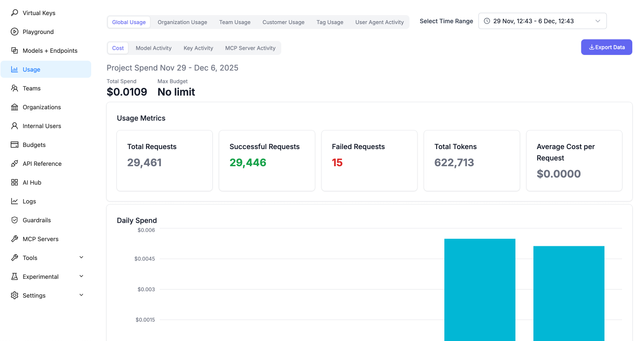
1. Access Customer Usage
Go to the Usage page in the Admin UI (PROXY_BASE_URL/ui/?login=success&page=new_usage) and click on the Customer Usage tab.
2. View Customer Analytics
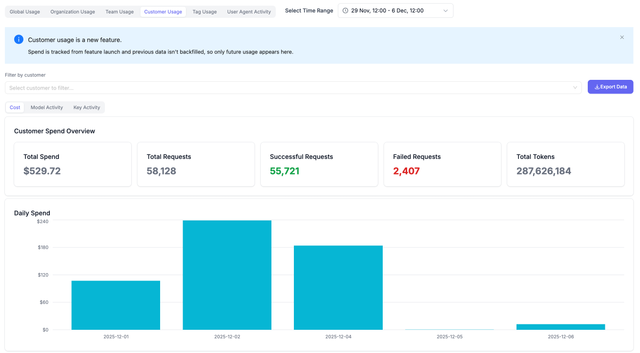
The Customer Usage dashboard provides:
- Total spend per customer: View aggregated spend across all customers
- Daily spend trends: See how customer spend changes over time
- Model usage breakdown: Understand which models each customer uses
- Activity metrics: Track requests, tokens, and success rates per customer
3. Filter by Customer
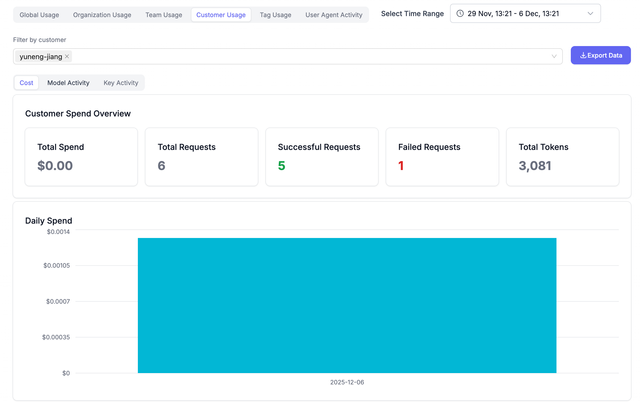
Use the customer filter dropdown to view spend for specific customers:
- Select one or more customer IDs from the dropdown
- View filtered analytics, spend logs, and activity metrics
- Compare spend across different customers
Use Cases
Customer Billing
Track spend per customer to accurately bill your end users:
- Monitor individual customer usage
- Generate invoices based on actual spend
- Set spending limits per customer
Usage Analytics
Understand how different customers use your service:
- Identify high-value customers
- Analyze usage patterns
- Optimize resource allocation
Related Features
- Customers / End-User Budgets - Set budgets and rate limits for customers
- Cost Tracking - Cost tracking and analytics
- Billing - Bill customers based on their usage