Getting Started with UI Logs
View Spend, Token Usage, Key, Team Name for Each Request to LiteLLM

Overview
| Log Type | Tracked by Default |
|---|---|
| Success Logs | ✅ Yes |
| Error Logs | ✅ Yes |
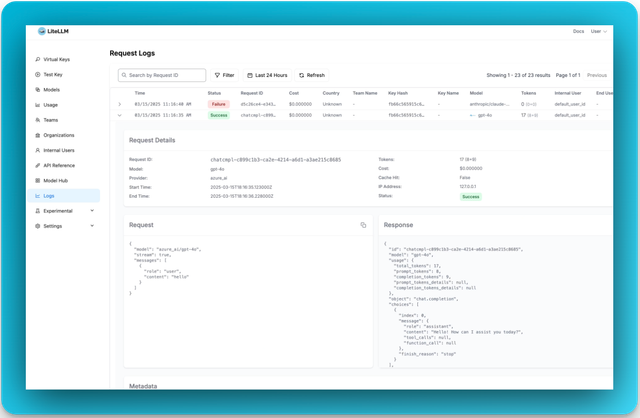
| Request/Response Content Stored | ❌ No by Default, opt in with store_prompts_in_spend_logs |
By default LiteLLM does not track the request and response content.
Tracking - Request / Response Content in Logs Page
If you want to view request and response content on LiteLLM Logs, you can enable it in either place:
- From the UI (no restart): Use UI Spend Log Settings, then open Logs → Settings → enable "Store Prompts in Spend Logs" → Save. Takes effect immediately and overrides config.
- From config: Add this to your
proxy_config.yaml(requires restart):
general_settings:
  store_prompts_in_spend_logs: true
Tracing Tools
View which tools were provided and called in your completion requests.
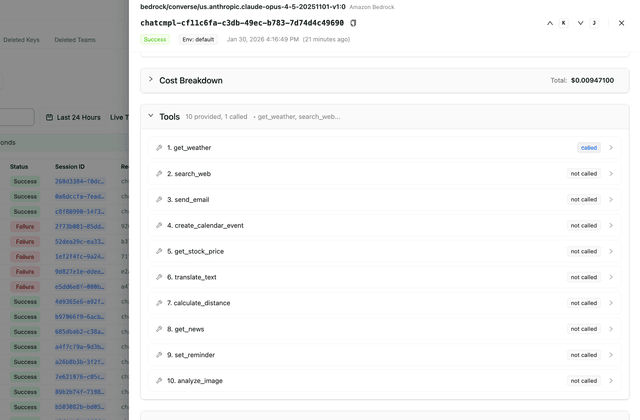
Example: Make a completion request with tools:
curl -X POST 'http://localhost:4000/chat/completions' \
  -H "Authorization: Bearer $LITELLM_API_KEY" \
  -H 'Content-Type: application/json' \
  -d '{
    "model": "gpt-6.1-sol",
    "messages": [{"role": "user", "content": "What is the weather?"}],
    "tools": [
      {
        "type": "function",
        "function": {
          "name": "get_weather",
          "description": "Get the current weather",
          "parameters": {
            "type": "object",
            "properties": {
              "location": {"type": "string"}
            }
          }
        }
      }
    ]
  }'
Check the Logs page to see all tools provided and which ones were called.
Stop storing Error Logs in DB
If you do not want to store error logs in DB, you can opt out with this setting
general_settings:
  disable_error_logs: True   # Only disable writing error logs to DB, regular spend logs will still be written unless `disable_spend_logs: True`
Stop storing Spend Logs in DB
If you do not want to store spend logs in DB, you can opt out with this setting
general_settings:
  disable_spend_logs: True   # Disable writing spend logs to DB
Choose which metadata fields are stored
Every LiteLLM_SpendLogs row carries a metadata JSON column. Most of it is usually model_map_information, the model's cost map entry copied into every row (about 7 KB). Use spend_logs_metadata_fields to choose which top-level keys of that column are written to the database. Set exactly one of include or exclude
general_settings:
  spend_logs_metadata_fields:
    exclude:
      - model_map_information
general_settings:
  spend_logs_metadata_fields:
    include:
      - user_api_key_alias
      - usage_object
      - cost_breakdown
An include list drops every key it does not name, including keys that only some rows carry, such as is_silent_experiment on mirrored calls.
When the setting is unset, every key is written, which is the default. Setting both lists, setting neither, naming a key that is not a LiteLLM_SpendLogs.metadata field, or using a dotted path such as usage_object.cache_read_input_tokens stops the proxy at startup. status and cold_storage_object_key are always written and cannot be excluded. The setting can also be changed without a restart through POST /config/field/update with config_type: general_settings, which rejects the same invalid values with a 400
Only the stored row is filtered. Daily spend tables, budgets and logging callbacks still receive every key. The proxy_server_request and response columns are not affected; store_prompts_in_spend_logs keeps controlling those. Rows written before the change keep their metadata until retention deletes them, and Postgres only returns the disk space after VACUUM FULL or pg_repack
Some keys are read back from stored rows. Leaving them out turns off the features below for the affected rows
| Key | What stops working for rows without it |
|---|---|
model_map_information | Nothing reads it from stored rows |
usage_object, cost_breakdown | Cost details in the log drawer and the prompt caching page |
error_information | Error code and error message filters on /spend/logs, and error details in the log drawer |
user_api_key_alias | The key alias filter on the Logs page and /spend/logs/ui |
user_api_key_team_id, user_api_key_user_id | Recovering the team and user of a deleted key from its spend logs |
guardrail_information | The guardrail panel in the log drawer and compression savings |
used_client_oauth_token | The OAuth token filter on /spend/logs |
Automatically Deleting Old Spend Logs
If you're storing spend logs, it might be a good idea to delete them regularly to keep the database fast.
You can set the retention period in either place:
- From the UI (no restart): UI Spend Log Settings, then Logs → Settings → set Retention Period → Save.
- From config: Add the following to your
proxy_config.yaml(requires restart):
general_settings:
  maximum_spend_logs_retention_period: "7d"  # Delete logs older than 7 days

  # Optional: how often to run cleanup
  maximum_spend_logs_retention_interval: "1d"  # Run once per day
Cleanup only runs when a retention period is set, and each run is bounded by how many rows it deletes per statement, how many statements it issues per table, and a wall-clock budget for the run as a whole. Defaults are 1000 rows per statement, 500 statements per table, and 5 minutes. A run that hits a bound stops there and resumes from the same cutoff on the next tick, so a large backlog drains over several runs
For the full set of knobs, the default schedule, and guidance for large tables, see Spend Logs Deletion
What gets logged?
Here's a schema breakdown of what gets logged.