LLM Access
Sign in as a proxy admin and add your models.
Give a team access
Open Teams and create a team, or select an existing team and open Settings → Edit Settings. Under Models, select the models the team needs and save.
Use the model names configured in LiteLLM, which can differ from the provider's model names.
Give an application access
Open Virtual Keys → Create New Key. Name the key, select the Team, and choose AI APIs as the key type.
Under Models, select the models the application needs, or choose All Team Models. Click Create Key. For production applications, use a service account key.
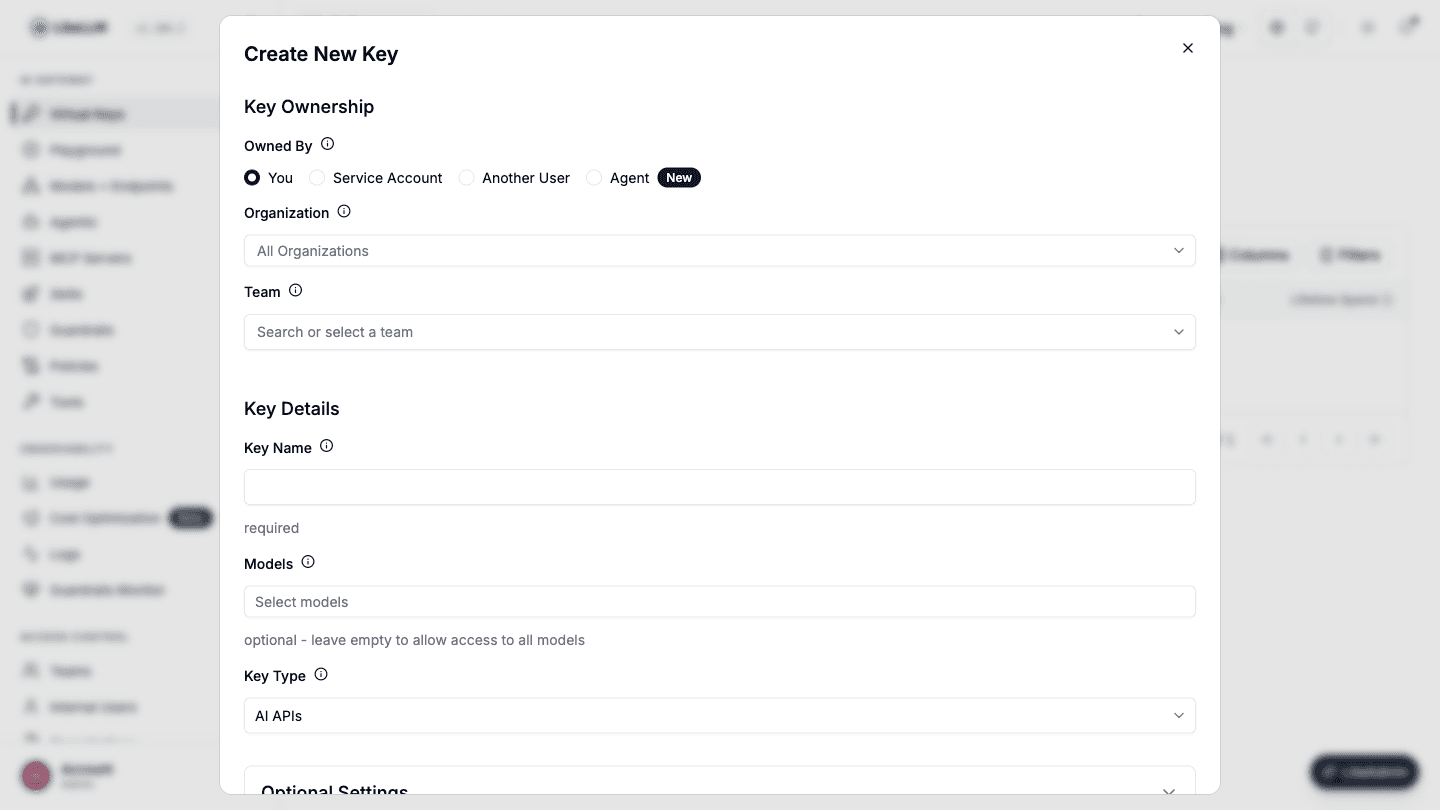
When models are selected directly, both the key and team must allow the model. Model access groups can grant additional models.
Manage access through your IdP
Sync users and teams, then assign model permissions to those teams. Applications can authenticate with IdP tokens through JWT key mapping.
Test access
Use the chat completion example with the application's static API credential or mapped JWT. An allowed model should succeed. A configured model outside its permissions should return a model access error.
Change or remove access
Edit the team's or key's Models selection and save. Remove any access group or wildcard grants that also allow the model.
Leaving a key's Models empty adds no restriction at the key level. To stop all requests from an application, open the key's actions menu and choose Block Key or Delete Key.