Profiles
Profiles group an agent's runs by the task it handles. Use them to see which tasks account for most runs or spend, then inspect the requests, cost, and latency for each model deployment
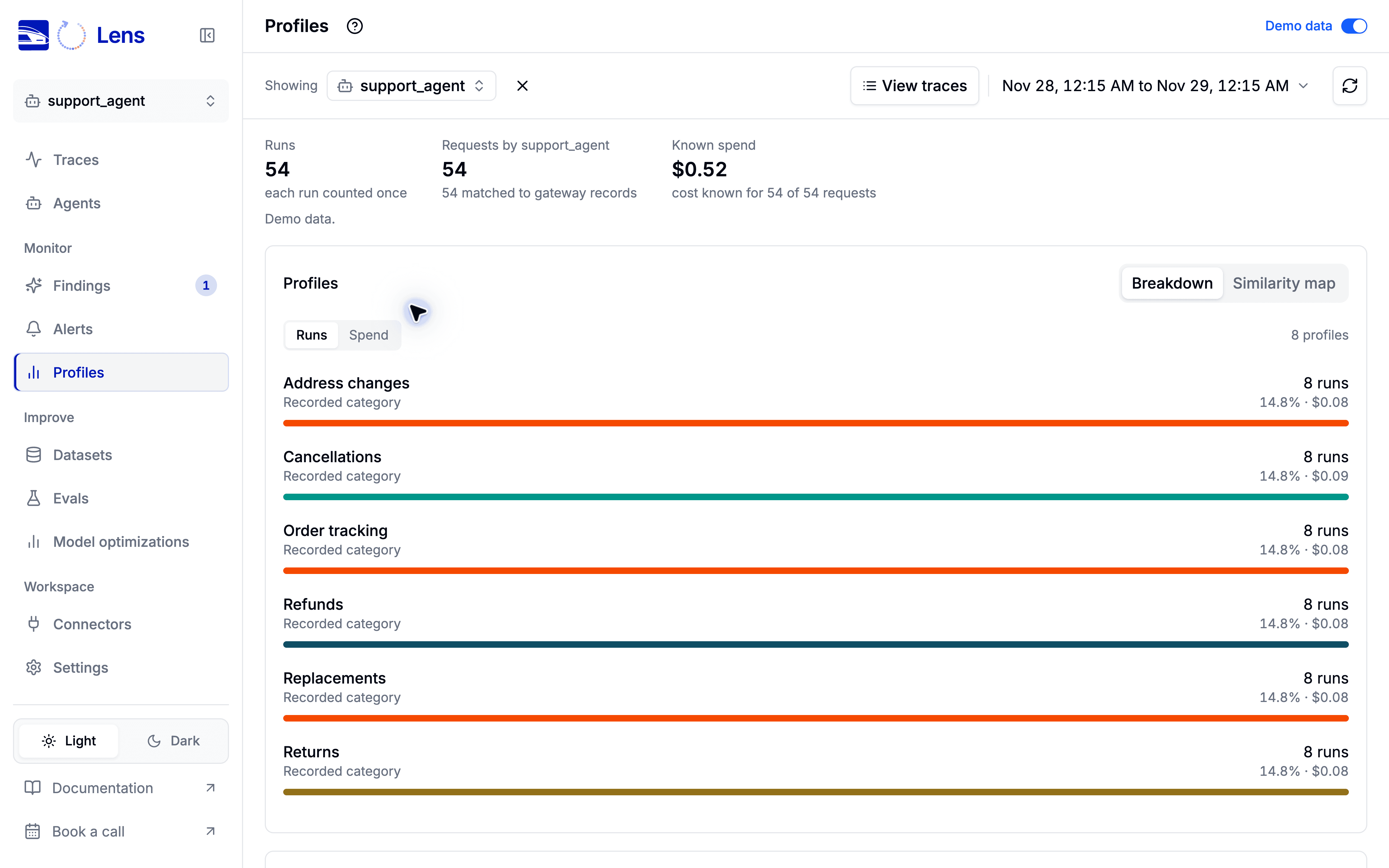
Demo data from the Lens UI preview
See your agent's tasks
You need recorded agent traces. Open Profiles and select an agent in the central dropdown or the sidebar. Choose a time range, then rank the breakdown by Runs or Spend
If your traces already record task_category or scenario, Lens uses those values without model setup. Open a category to see its description, usage by model, and recent runs. Select a run to inspect its trace. Investigate these runs prepares an investigation with the agent, profile, and lookback selected; it does not start analysis
Cost requires matching gateway billing records. Missing cost is shown as unavailable or partial, rather than zero
Discover categories from traces
Task discovery is optional. A proxy administrator needs a connected LiteLLM gateway with three available models: a chat model for discovery, an embedding model, and a Decisions model for classification. See Profile model setup for the server connection requirements
In Profiles > Task discovery, choose and save the models. Select a date range containing at least 20 eligible runs without a recorded category. Set a sample size between 20 and 500, then choose Discover categories. Counting runs or saving models does not call a model; starting discovery does
Review the resulting categories, then choose Start classifying new runs. You can also classify the discovery range. Otherwise older runs remain Unclassified. Discovery and classification send captured content to the configured models and incur provider charges
Understand the views
Breakdown includes every counted run. Similarity map plots only the discovery samples with saved embedding positions. Recorded categories and later classifications can have runs without map positions
The deployment heatmap compares requests, average cost, and p95 latency. It does not judge answer quality. Use Model optimizations for that comparison
Not configured means discovery is not active. Unclassified means a run has no saved category assignment. Unknown means it did not fit an active category, or lacked a request to classify. If discovery cannot start, widen the time range or send more uncategorized runs, then choose Refresh count