Findings
Findings collect problems that investigations discover across your agent's runs. Each finding explains what happened, suggests a fix, and links to the captured evidence. Use Alerts for individual runs that match a specific rule or signal
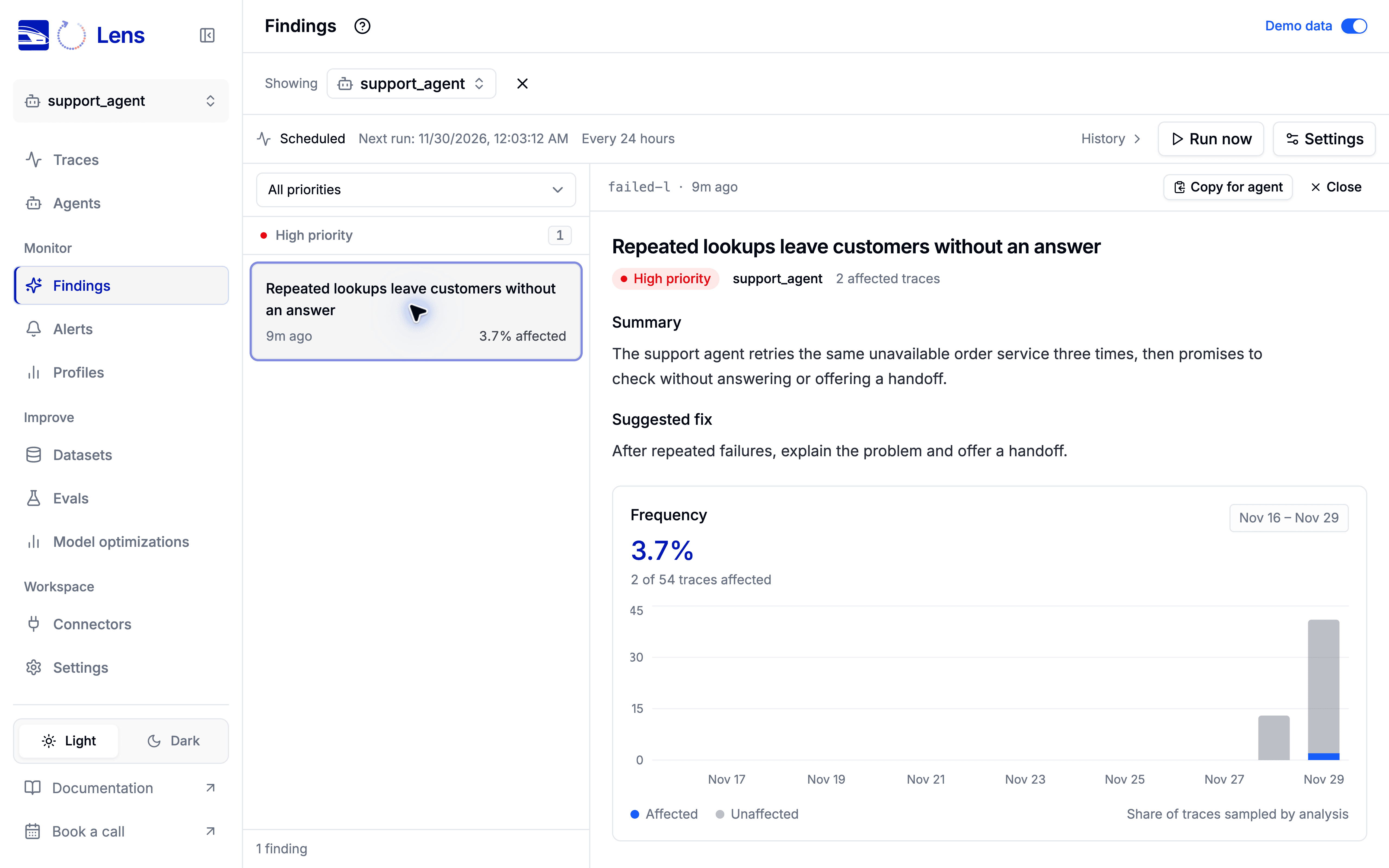
Demo data from the Lens UI preview
Get your first finding
You need administrator access, agent traces, and an analysis model. Open Settings > Models & analysis to check the connection. If no model is available, follow Configure analysis models. Analysis sends selected trace content to that model and incurs provider charges
Once a model is connected, Lens creates one daily investigation for each agent that is not already covered by an investigation. The first run waits for 10 eligible production traces from the last 24 hours. Evaluation traffic does not count. Existing investigations keep their schedules
Open Findings and choose your agent. The thin bar above the list shows the investigation's state and next run. Run now starts a review with its saved settings. Settings lets you change the expected behavior, checks, model, schedule, or monthly budget
With All agents selected, choose View all investigations to see each investigation and its history. With one agent selected, choose History in the schedule bar. See Investigations for custom reviews and past runs
Review a finding
Select a finding to read Summary and Suggested fix. Frequency shows the affected share of the sampled traces. It is not a measurement of every production run. Open View span beside an example to inspect the quoted step in its original trace
After fixing a problem, choose Mark resolved. If the behavior is intentional, explain it under What should Lens remember? and choose This is expected. Lens uses that feedback in later investigations for the same investigation
The sidebar badge counts unread findings, up to 9+. Opening a finding marks it read in this browser. Read status does not resolve the issue
If nothing appears
Check Showing above the results: the agent selection applies to this page. An agent waiting for traces needs more eligible activity. A configuration warning needs an administrator to check Models & analysis. If a review completed without a finding, open its history to see what it reviewed; an empty list does not mean the review failed
To receive new findings in a channel, connect Slack