Connect Claude Desktop & Cowork to LiteLLM with a virtual key
Claude Desktop and Cowork use the same gateway settings. This guide configures them with a LiteLLM virtual key; the connection also applies to Code sessions and to Chat when enabled. See Claude's third-party deployment overview and official gateway configuration guide for the shared client settings. For identity-provider sign-in, use Desktop & Cowork SSO.
Virtual-key walkthrough
Quick reference
| Setting | Value |
|---|---|
| Inference provider | Gateway |
| Credential kind | Static API key |
| Gateway base URL | <LITELLM_PROXY_BASE_URL> (e.g. http://localhost:4000) |
| Gateway API key | Your LiteLLM virtual key, auth scheme Bearer |
| MCP endpoint | <LITELLM_PROXY_BASE_URL>/mcp, or <LITELLM_PROXY_BASE_URL>/<server_name>/mcp for one server |
| MCP auth header | x-litellm-api-key: Bearer <virtual key> |
LLM setup
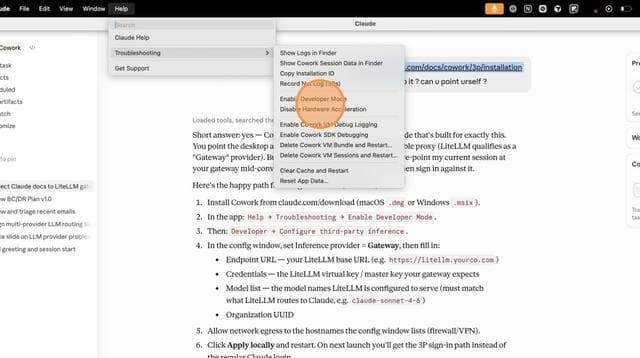
1. Enable Developer Mode
Open Claude's in-app configuration window by enabling Help -> Troubleshooting -> Enable Developer Mode.
2. Open Configure Third-Party Inference
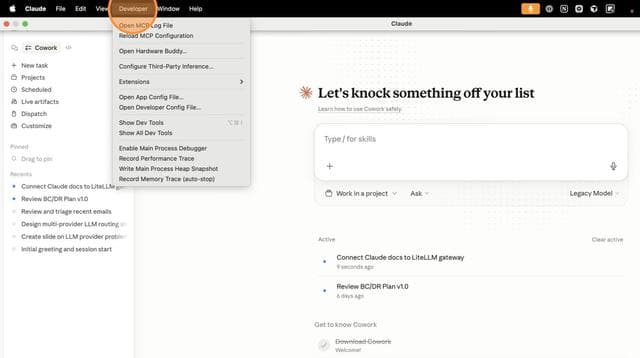
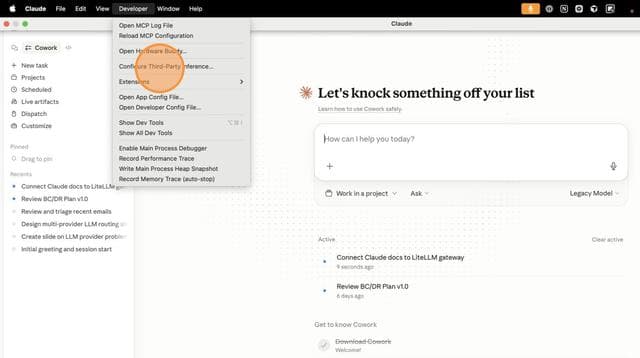
Open the Claude menu, click Developer, then Configure Third-Party Inference...
3. Enter your gateway URL and virtual key
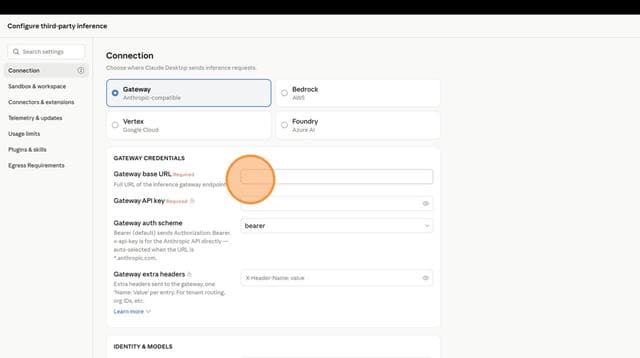
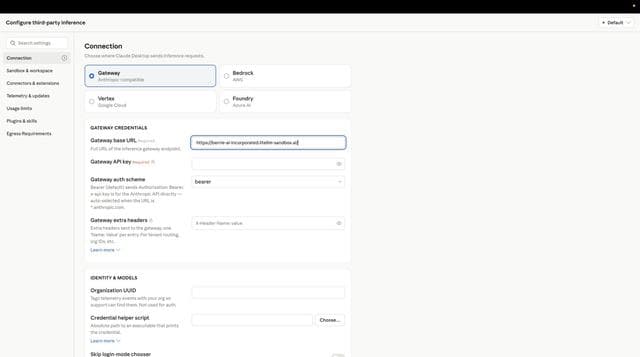
In the Connection section set Inference provider to Gateway and Credential kind to Static API key, put your LiteLLM proxy URL in Gateway base URL and your virtual key in Gateway API key, and leave Gateway auth scheme at bearer (LiteLLM also accepts x-api-key). Click Apply Changes (called Apply locally in older versions).
Create the virtual key from the Admin UI under Virtual Keys -> + Create New Key if you do not have one. Scope it to the Claude models and give it a max_budget; everyone using the same key shares that budget.
4. Verify
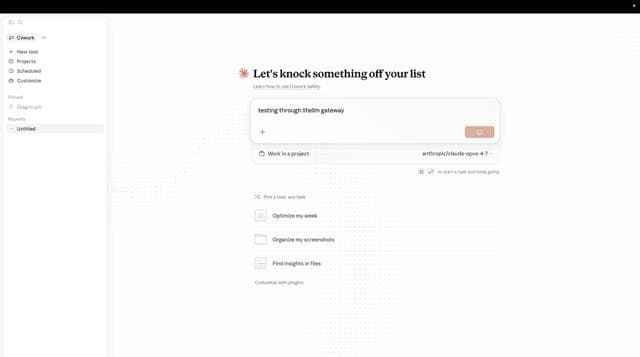
Restart Claude Desktop. The model picker is built from GET /v1/models on your gateway and keeps the model_name values that contain claude or anthropic, so name your deployments accordingly. Start a task, then confirm the request in the Admin UI under Logs or Usage, attributed to your virtual key.
Managed configuration
Use Export in the configuration window to create a profile for your fleet. The gateway settings are inferenceProvider: gateway, inferenceCredentialKind: static, inferenceGatewayBaseUrl, and inferenceGatewayApiKey, with inferenceGatewayAuthScheme: bearer (or x-api-key if you selected that scheme). See Claude's configuration reference for platform-specific managed settings.
Devices using the same key share its model permissions and budget. Rotate that key by updating the managed profile. Requests appear under the key in Logs and Usage.
MCP setup
The MCP screenshots below use Claude Desktop 2.2553.13 on Linux and a local demonstration gateway. Menu labels can differ by app version.
1. Add the gateway connector
Open Configure Third-Party Inference and find Connectors. Add a server named litellm, select Streamable HTTP, and enter http://localhost:4000/mcp as the URL. Replace the base URL with your gateway address. This endpoint exposes the servers your key can access.
Set the header x-litellm-api-key to Bearer <your virtual key>. Grant the key access to that MCP server as described in the overview. In the exported configuration, this is an entry in managedMcpServers:
[
  {
    "name": "litellm",
    "transport": "http",
    "url": "http://localhost:4000/mcp",
    "headers": {"x-litellm-api-key": "Bearer sk-<your-virtual-key>"}
  }
]
2. Test the connection
Click Sign in & test (called Test this connection in some versions). Claude runs MCP initialization and tool discovery with the URL and credentials you entered, then displays the discovered tools or a connection error. Check that the tools belong to the intended server before saving the configuration.
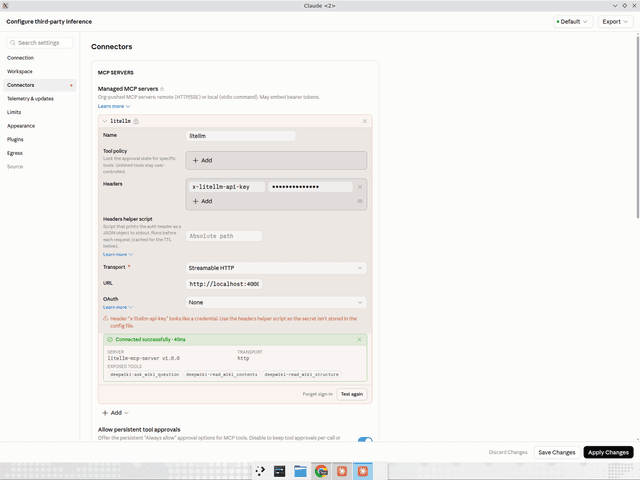
Use your own virtual key in this field. Claude may flag a static authentication header as credential-like. For rotating credentials, see Claude's MCP headers helper guide.
3. Verify in Cowork
Apply the configuration and restart Claude Desktop. Start a Cowork task that uses a read-only tool from the connector, approve it if prompted, and check that the tool returns a result. Tools use the <server>-<tool> naming convention.
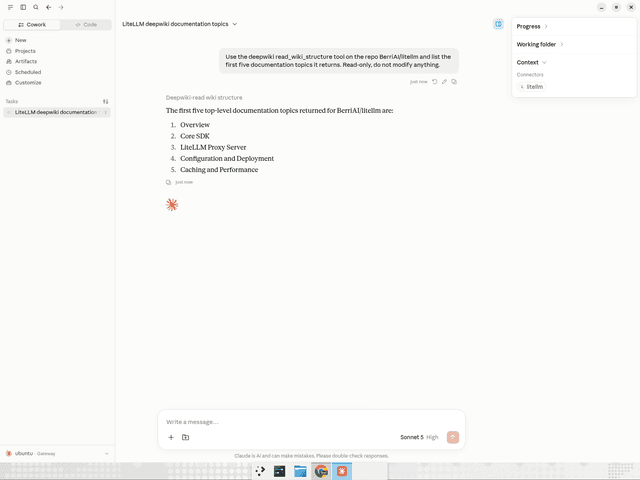
To select one server, use /<server_name>/mcp instead. The MCP configuration reference covers endpoint selection, server filtering, and authentication.
Claude Desktop's built-in connectors (github, microsoft365, websearch) run inside the app against those vendors' APIs and never pass through LiteLLM; only url entries do. For servers that need the user's own upstream login, set "oauth": true on the per-server URL and let LiteLLM run the flow; see MCP OAuth passthrough. Claude's MCP configuration guide covers headersHelper, OAuth, and per-tool policies.
Next steps
Desktop & Cowork SSO for identity-provider sign-in; Auto Router with Claude Code and Claude Desktop; MCP gateway reference.