Fee/Price Margin on LLM Costs
Apply percentage-based or fixed-amount margins to specific providers or globally. This is useful for enterprises that need to add operational overhead costs to bill internal consumers.
When to Use This Feature
If your Generative AI platform involves various operational and architectural overheads, along with infrastructure costs, you may need the capability to apply an additional fee or margin to the total LLM costs.
Common use cases:
- Internal chargebacks - Add operational overhead costs when billing internal teams
- Cost recovery - Recover infrastructure, support, and platform maintenance costs
Setup Margins via UI
This walkthrough shows how to add a provider margin and view the cost breakdown in the LiteLLM UI.
Step 1: Navigate to Settings
From the LiteLLM dashboard, click on Settings in the left sidebar.

Step 2: Open Cost Tracking
Click on Cost Tracking to access the cost configuration options.

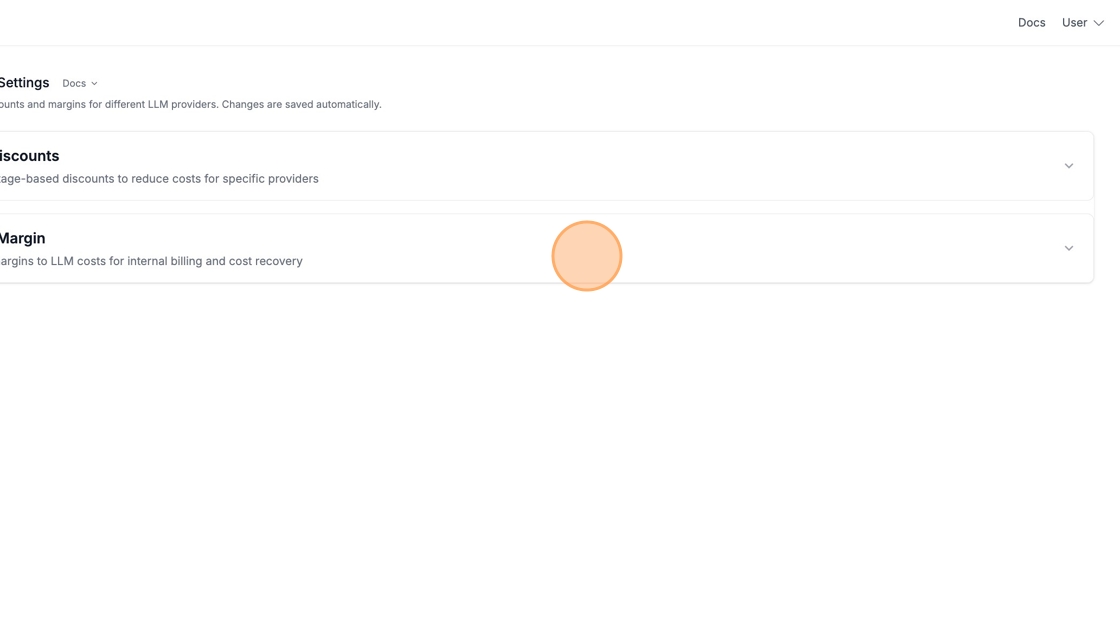
Step 3: Select Fee/Price Margin
Click on Fee/Price Margin - this section allows you to add fees or margins to LLM costs for internal billing and cost recovery.
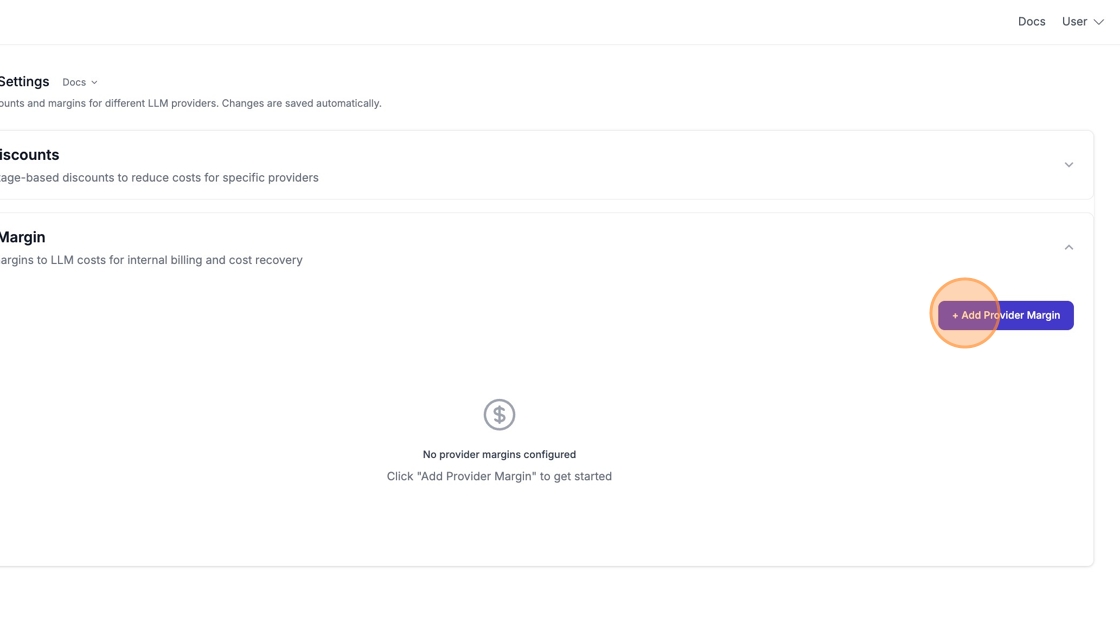
Step 4: Add Provider Margin
Click + Add Provider Margin to create a new margin configuration.
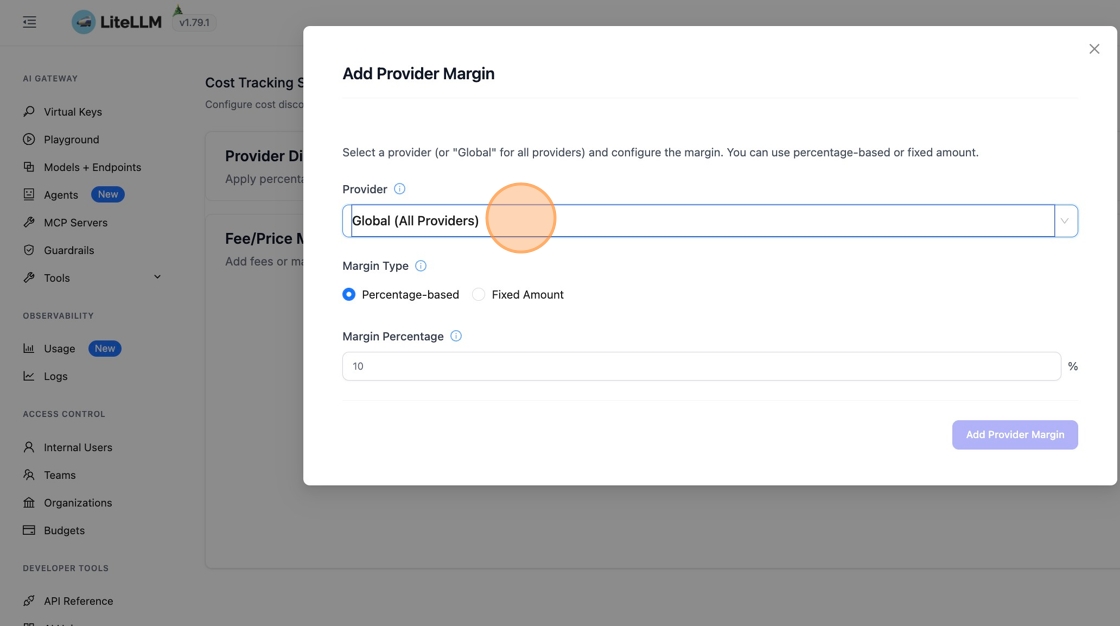
Step 5: Select Provider
Click the search field to select which provider to apply the margin to.

You can select Global (All Providers) to apply the margin to all providers, or choose a specific provider like Bedrock, OpenAI, or Anthropic.
In this example, we'll select Bedrock as the provider.
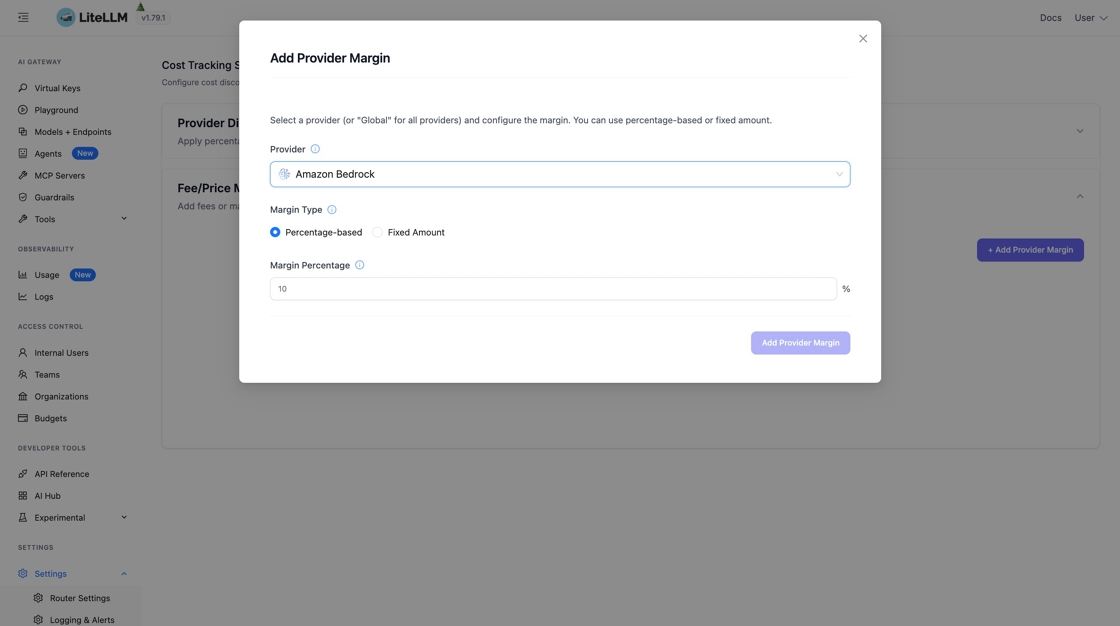
Step 6: Choose Margin Type
Select the margin type. You can choose between Percentage-based (e.g., 10% markup) or Fixed Amount (e.g., $0.001 per request).

For this example, we'll select Fixed Amount to add a flat fee per request.

Step 7: Enter Margin Value
Enter the margin value. In this example, we're adding a $25 fixed fee per request.

Step 8: Save the Margin
Click Add Provider Margin to save your configuration.

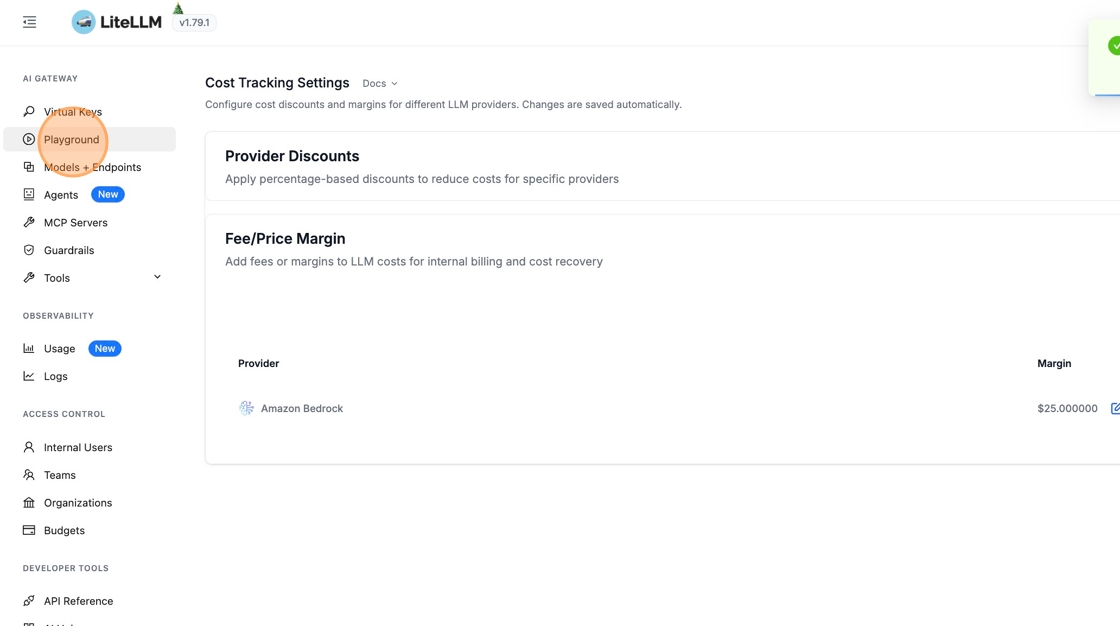
Step 9: Test the Margin in Playground
Navigate to Playground to test your margin configuration by making a request.
Select a model and send a test message.
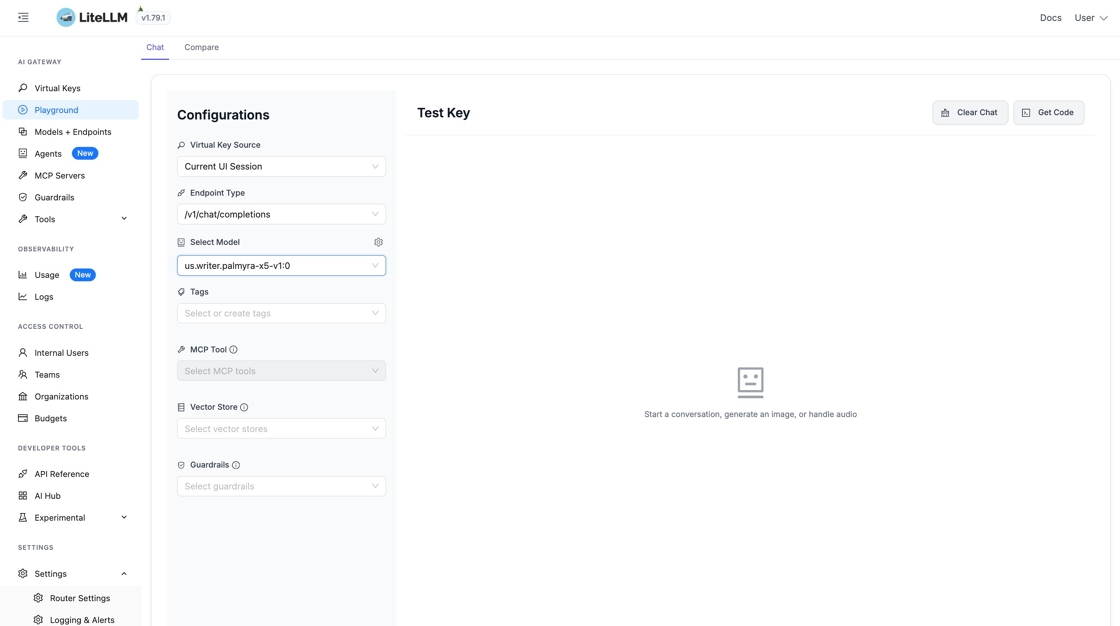
Enter your prompt in the message field and submit.

You'll receive a response from the model.

Step 10: View Cost Breakdown in Logs
Navigate to Logs to view the detailed cost breakdown for your request.

Click on the expand icon to view the request details.

Step 11: View Cost Breakdown Details
Click on Cost Breakdown to see how the total cost was calculated, including the margin.

The cost breakdown shows the margin amount that was added. In this example, you can see the +$25.00 margin clearly displayed.

The total cost reflects the base LLM cost plus the margin, giving you full transparency into your cost structure.

Setup Margins via Config
You can also configure margins directly in your config.yaml file.
Step 1: Add margin config to config.yaml
# Apply margins to providers
litellm_settings:
  cost_margin_config:
    global: 0.05            # 5% global margin on all providers
    openai: 0.10            # 10% margin for OpenAI (overrides global)
    anthropic:
      fixed_amount: 0.001   # $0.001 fixed fee per request
Step 2: Start proxy
litellm /path/to/config.yaml
The margin will be automatically applied to all cost calculations for the configured providers.
How Margins Work
- Margins are applied after discounts (if configured)
- Margins are calculated independently from discounts
- You can use:
- Percentage-based:
{"openai": 0.10}= 10% margin - Fixed amount:
{"openai": {"fixed_amount": 0.001}}= $0.001 per request - Global:
{"global": 0.05}= 5% margin on all providers (unless provider-specific margin exists)
- Percentage-based:
- Provider-specific margins override global margins
- Margin information is tracked in cost breakdown logs
- Margin information is returned in response headers:
x-litellm-response-cost-margin-amount- Total margin added in USDx-litellm-response-cost-margin-percent- Margin percentage applied
Margin Calculation Examples
Example 1: Percentage-only margin
litellm_settings:
  cost_margin_config:
    openai: 0.10  # 10% margin
If base cost is $1.00, final cost = $1.00 x 1.10 = $1.10
Example 2: Fixed amount only
litellm_settings:
  cost_margin_config:
    anthropic:
      fixed_amount: 0.001  # $0.001 per request
If base cost is $1.00, final cost = $1.00 + $0.001 = $1.001
Example 3: Global margin with provider override
litellm_settings:
  cost_margin_config:
    global: 0.05   # 5% global margin
    openai: 0.10   # 10% margin for OpenAI (overrides global)
- OpenAI requests: 10% margin applied
- All other providers: 5% margin applied
Margins with Discounts
Margins and discounts are calculated independently:
- Base cost is calculated
- Discount is applied (if configured)
- Margin is applied to the discounted cost
Example:
litellm_settings:
  cost_discount_config:
    openai: 0.05  # 5% discount
  cost_margin_config:
    openai: 0.10  # 10% margin
If base cost is $1.00:
- After discount: $1.00 x 0.95 = $0.95
- After margin: $0.95 x 1.10 = $1.045
Supported Providers
You can apply margins to all LiteLLM supported providers, or use global to apply to all providers. Common examples:
global- Applies to all providers (unless provider-specific margin exists)openai- OpenAIanthropic- Anthropicvertex_ai- Google Vertex AIgemini- Google Geminiazure- Azure OpenAIbedrock- AWS Bedrock
See the full list of providers in the LlmProviders enum.