MCP Toolsets
For direct-client URLs and LLM tool selectors, see the MCP Configuration Reference
A Toolset is a named collection of specific tools drawn from one or more MCP servers. Instead of giving an agent access to every tool on every server, you pick exactly which tools it needs, from whichever servers they live on, and bundle them under a single name.
How it works
                    ┌─────────────────────────────────┐
                    │         MCP Toolset              │
                    │      "devtooling-prod"           │
                    └────────────┬────────────────────┘
                                 │
              ┌──────────────────┴──────────────────┐
              │                                     │
     ┌────────▼────────┐                  ┌────────▼────────┐
     │  CircleCI MCP   │                  │  DeepWiki MCP   │
     │  (10+ tools)    │                  │  (3 tools)      │
     └────────┬────────┘                  └────────┬────────┘
              │                                    │
    ┌─────────┴──────────┐              ┌──────────┴──────────┐
    │ ✓ get_build_logs   │              │ ✓ read_wiki_structure│
    │ ✓ find_flaky_tests │              │ ✓ read_wiki_contents │
    │ ✓ get_pipeline_    │              │ ✗ ask_question       │
    │   status           │              └─────────────────────┘
    │ ✓ run_pipeline     │
    │ ✗ list_followed_   │
    │   projects         │
    └────────────────────┘

        Agent sees exactly 6 tools, nothing more.
Instead of 13+ tools across two servers, the agent gets 6: the ones it actually needs.
Why this matters:
- Smaller tool lists → fewer tokens, faster responses, less hallucination
- Combine tools from GitHub + Linear + CircleCI into one named grant
- Assign to keys and teams the same way you assign MCP servers today
Create a toolset
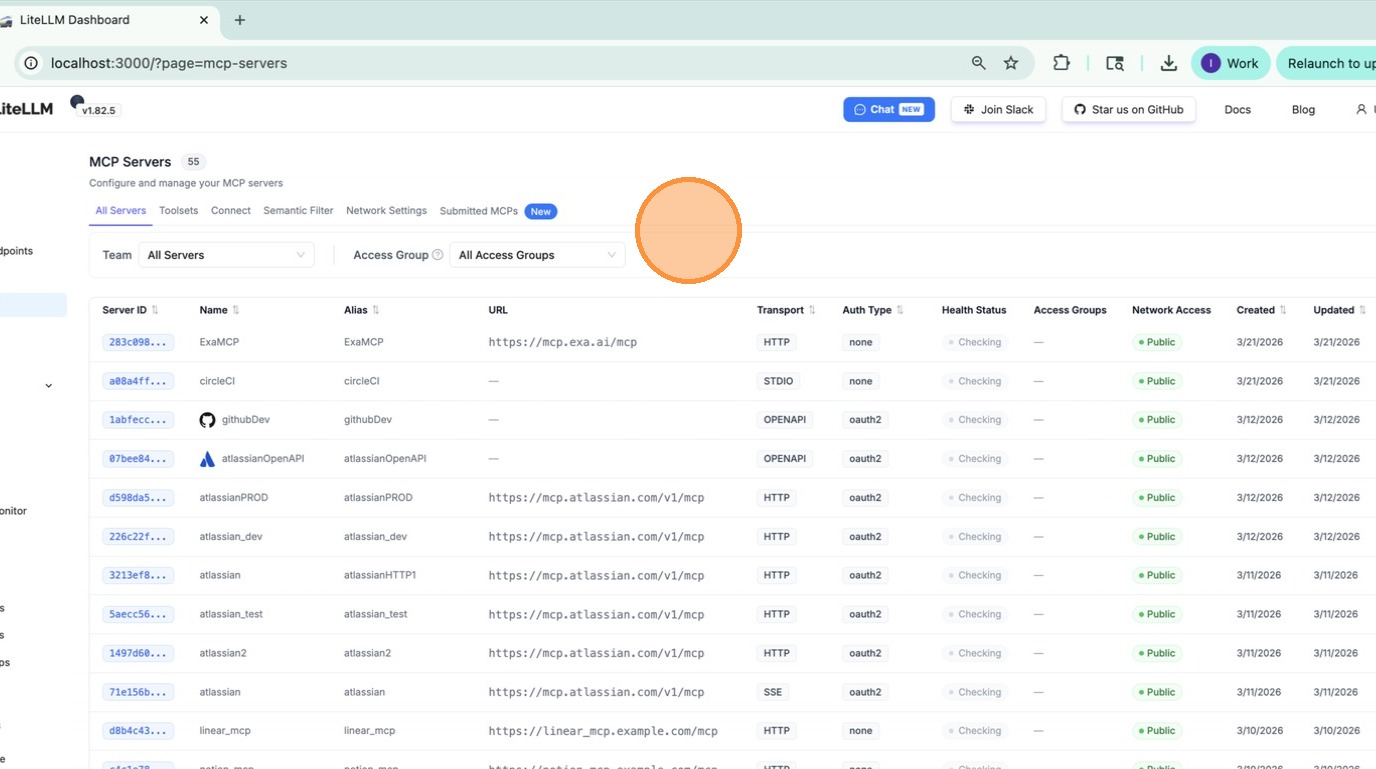
1. Go to the MCP page
Navigate to MCP in the left sidebar.
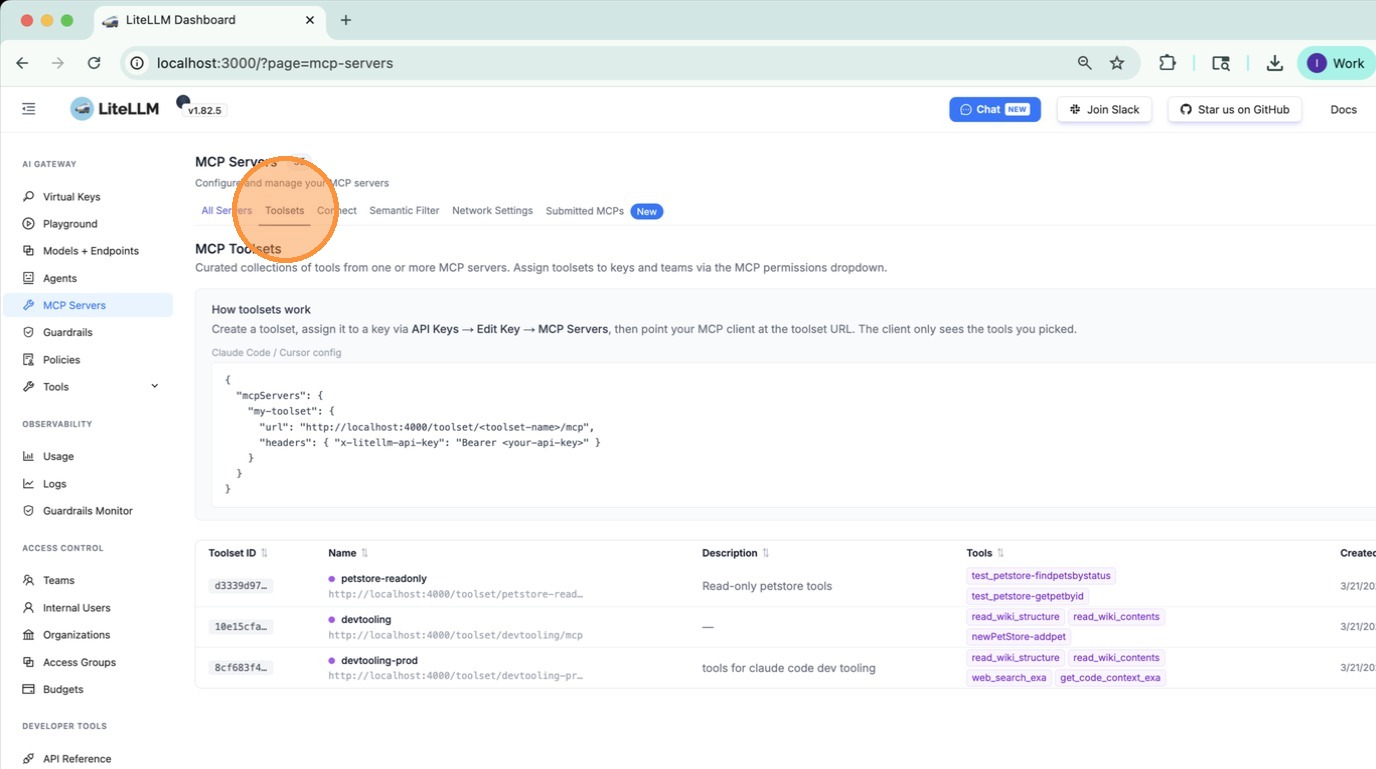
2. Open the Toolsets tab
Click the Toolsets tab on the MCP page.
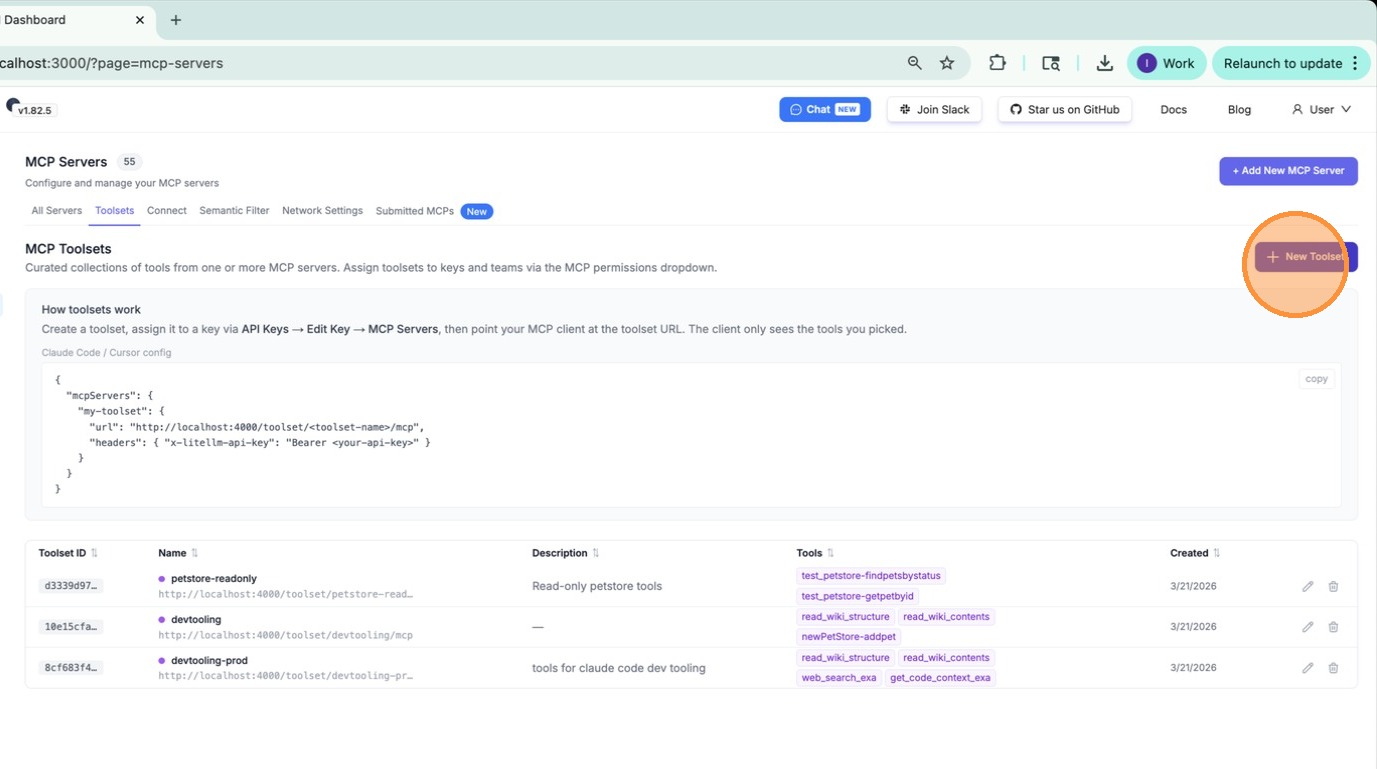
3. Click "New Toolset"
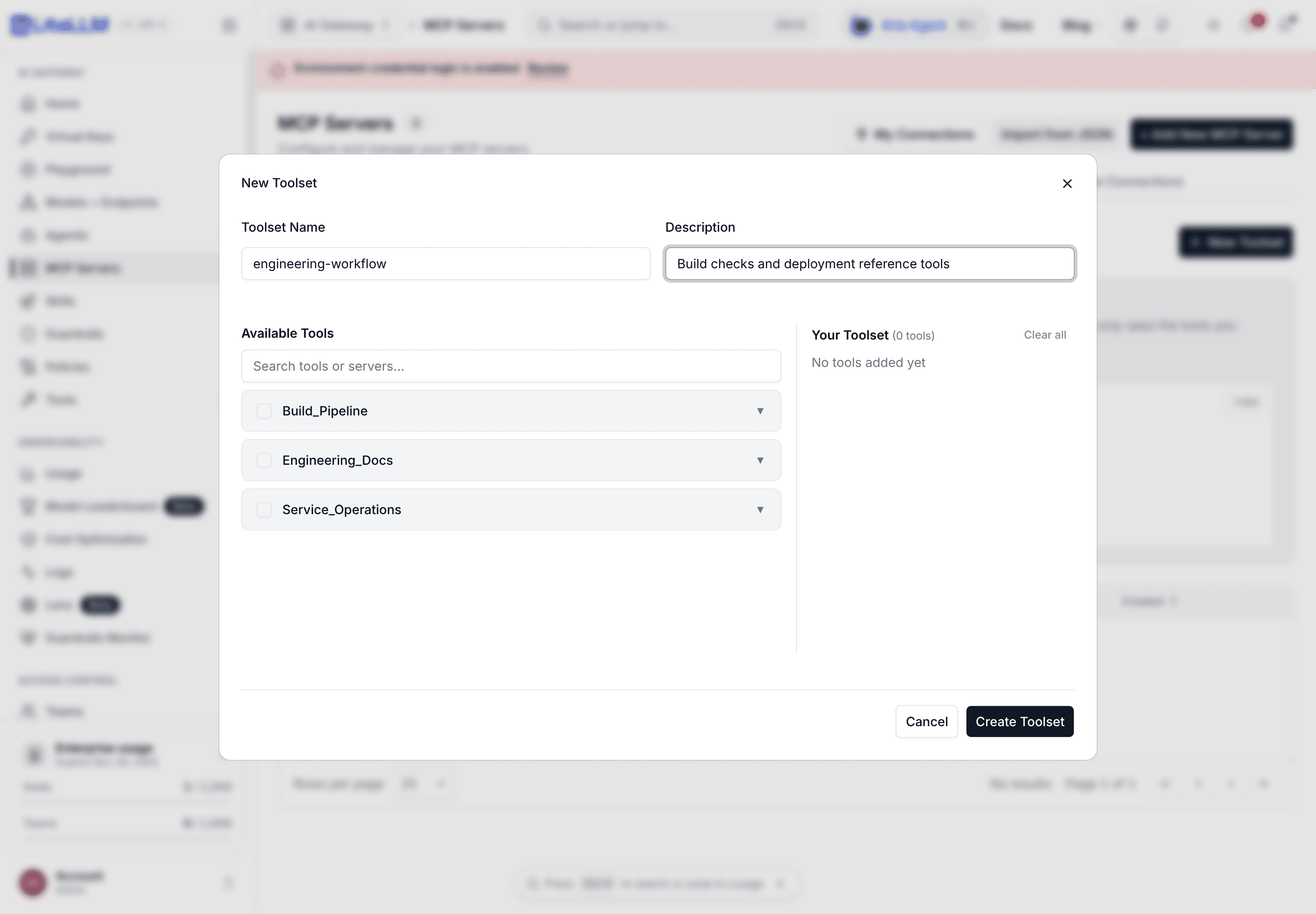
4. Enter a name
Type a descriptive Toolset Name and an optional Description. The editor shows Available Tools on the left and Your Toolset on the right.
5. Find and select tools
Click a server group to expand its tools. Select individual tool checkboxes, or use the server checkbox to select all its loaded tools.
Use Search tools or servers... to match tool names, tool descriptions or server names. Search is case-insensitive and expands matching groups. A matching server name shows all its tools. Otherwise, each group shows only tools that match the search.
While searching, Select all matching adds the matching tools across servers, and Deselect all matching removes only those matching tools. A server checkbox also applies only to that group's matching tools. These actions apply to tools that have loaded, so wait for the loading indicator to finish to include every server.
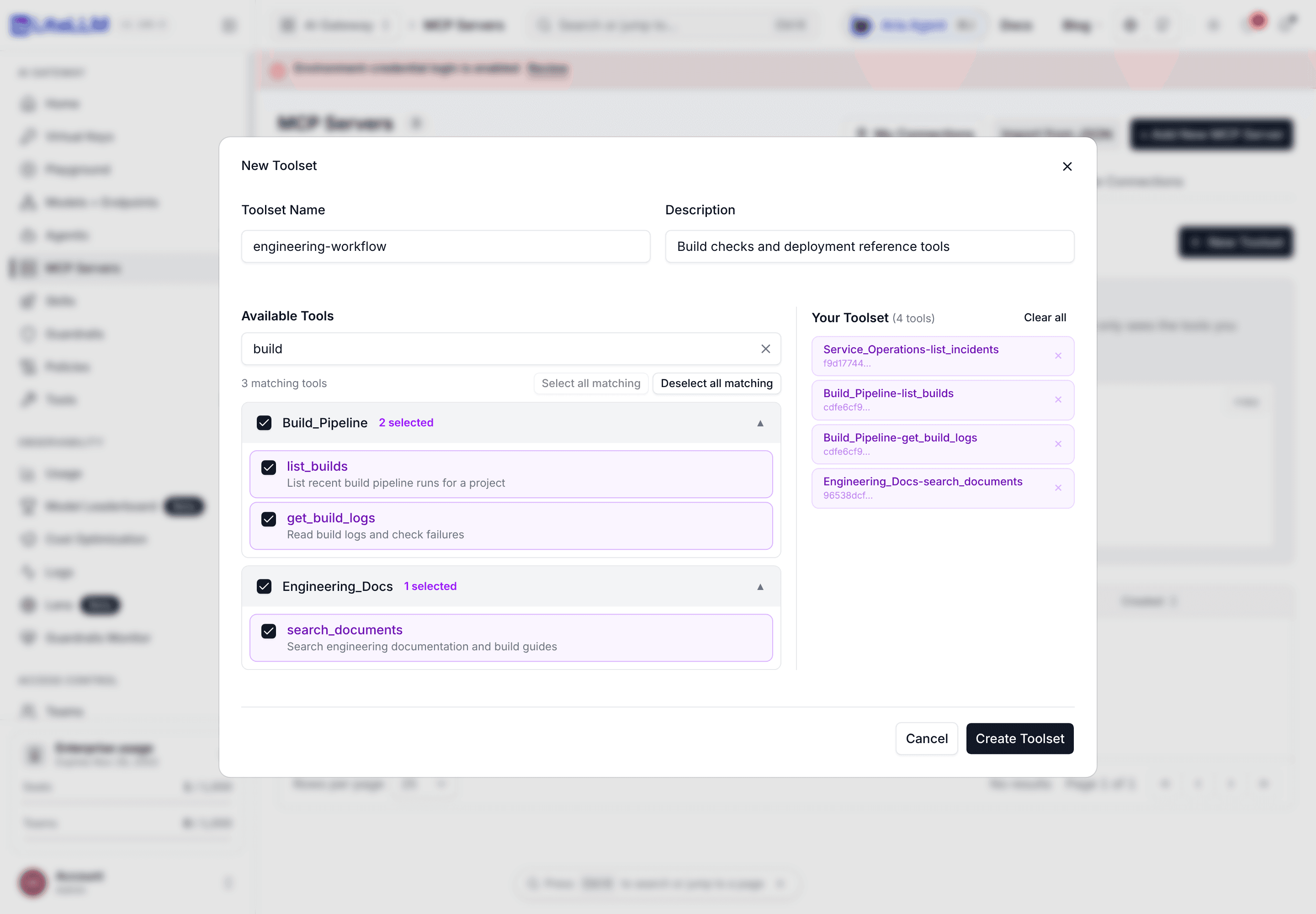
6. Review the selection
Your Toolset lists every selected tool, including tools hidden by the current search. Changing or clearing the search keeps those selections. Click a selected tool to remove it, or Clear all to remove the entire selection, including hidden tools.
You can combine tools from any number of servers in one toolset.
7. Create the toolset
Click Create Toolset to save.
Edit a toolset
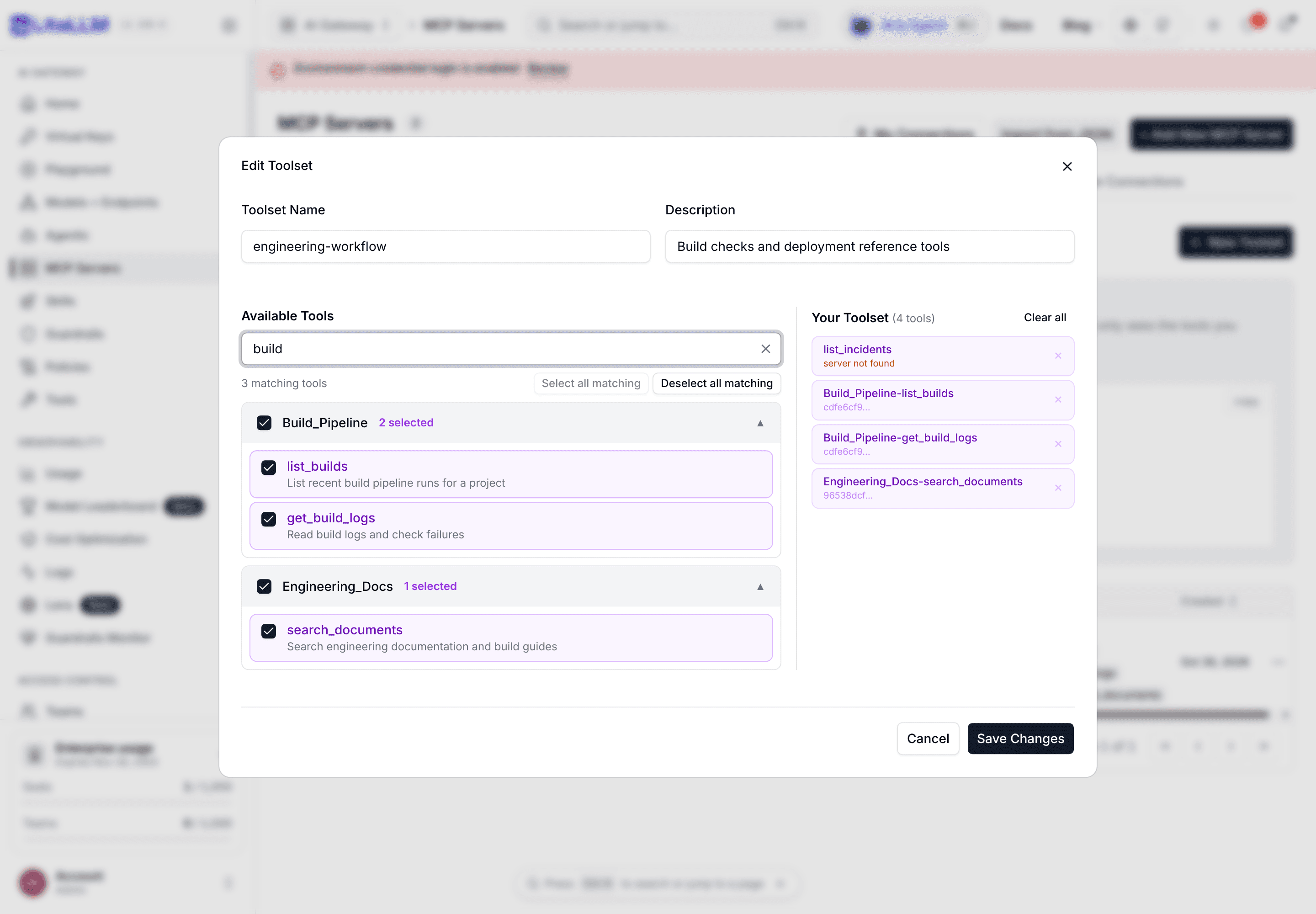
In the Toolsets tab, open the row's Open toolset actions menu and choose Edit. Use the same search and selection controls, then click Save Changes.
Saved tools remain selected even when they are unavailable. The selected-tools panel labels them server not found when the server no longer exists, server unreachable when its tools cannot load, or tool not found when the server responds without that tool. These labels do not remove the tools from the saved selection. Remove an entry explicitly if it no longer belongs in the toolset.
Use a toolset in the Playground
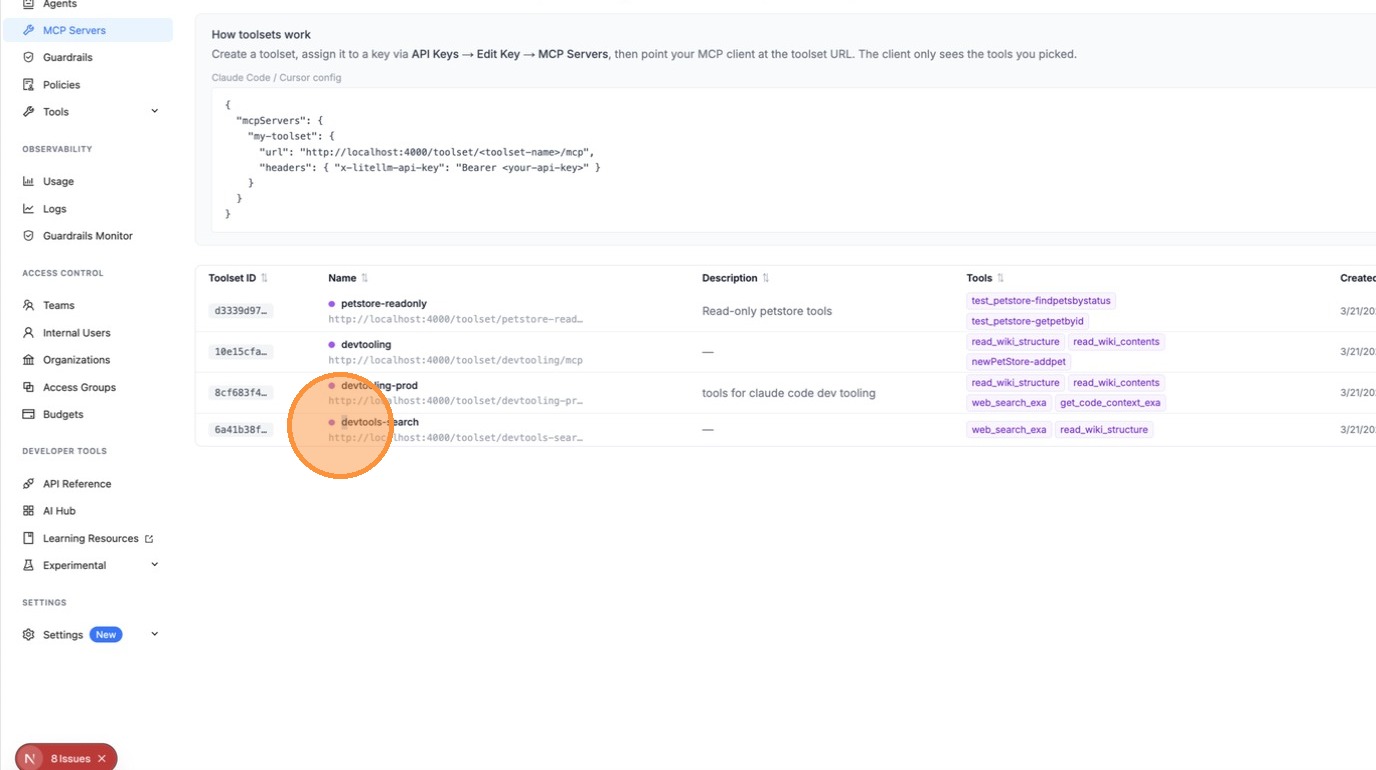
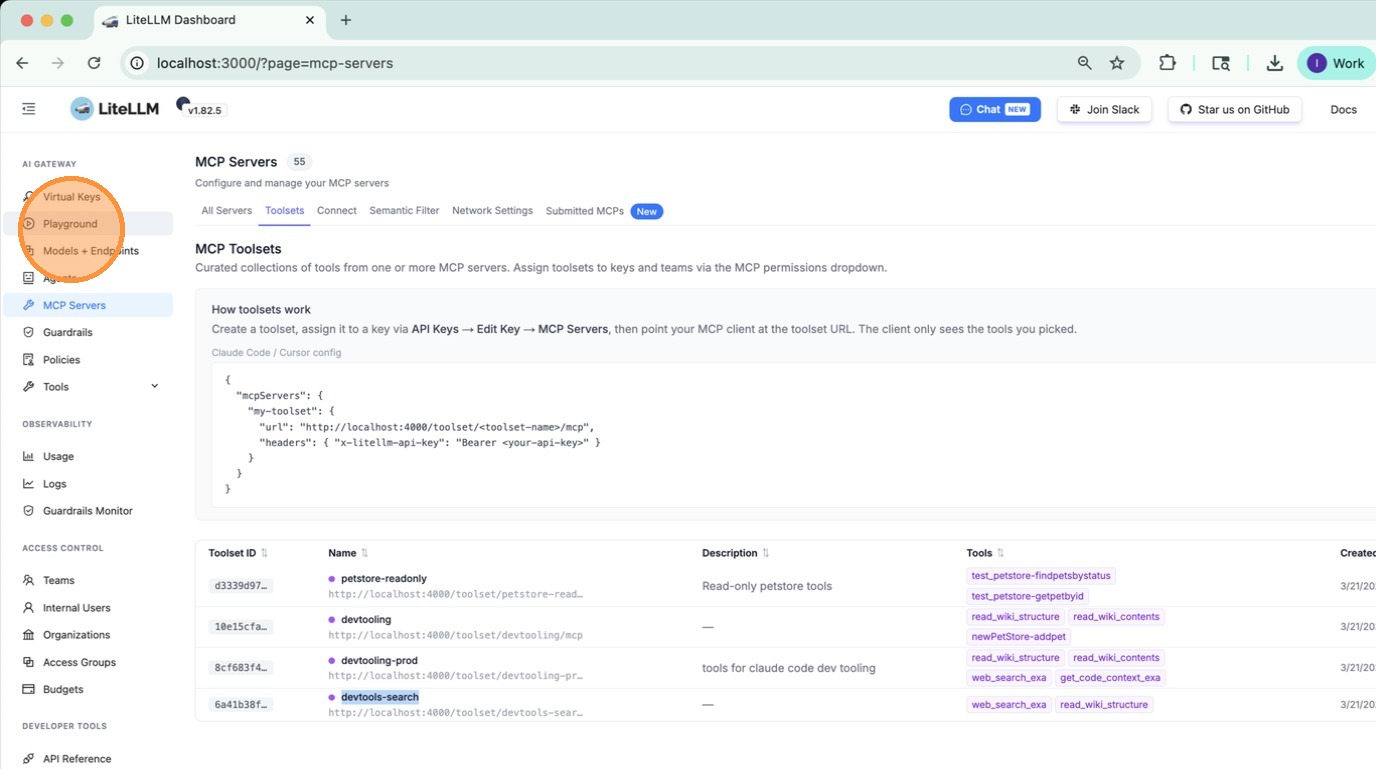
Once created, your toolset appears alongside MCP servers in the MCP Servers dropdown in the Playground, selectable the same way.
1. Go to the Playground
2. Select your toolset from MCP Servers
In the left panel under MCP Servers, open the dropdown and pick your toolset. The model will only see the tools you included in it.
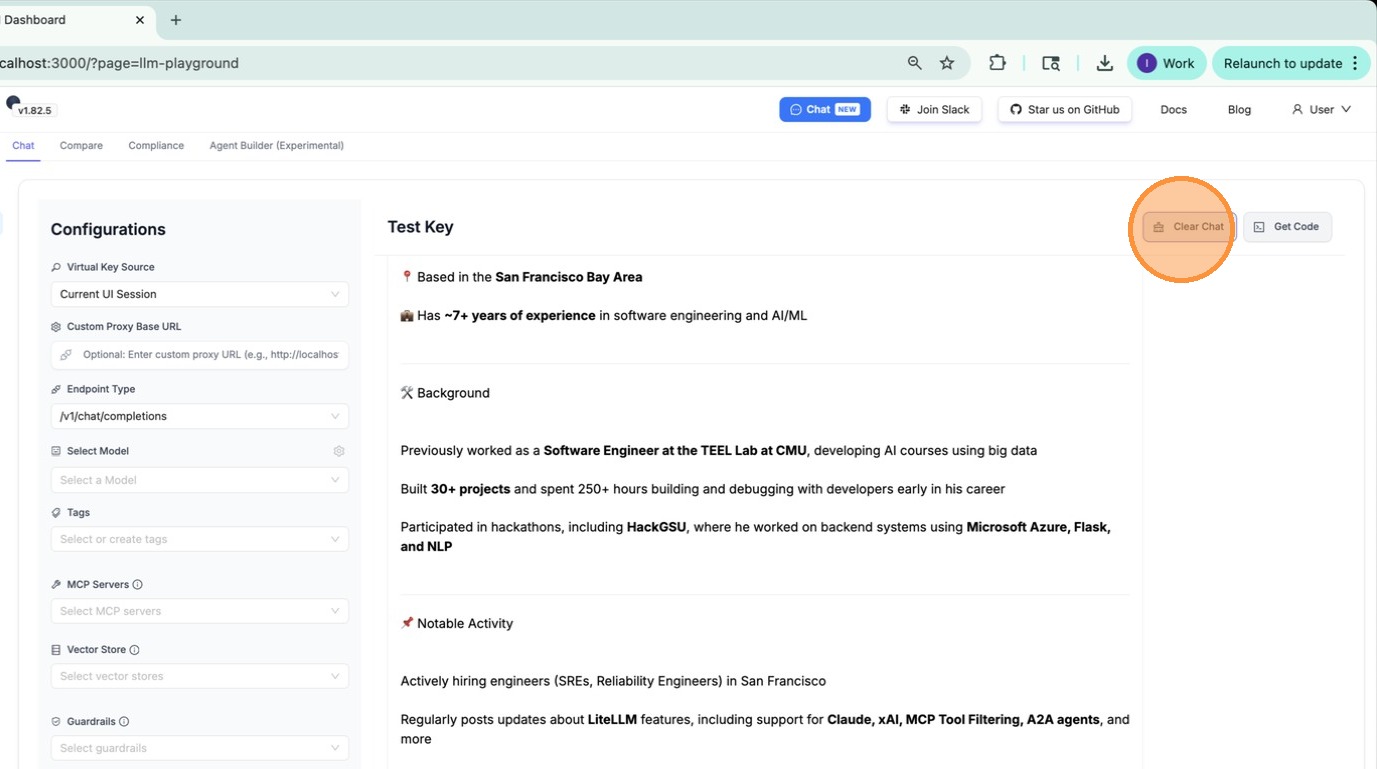
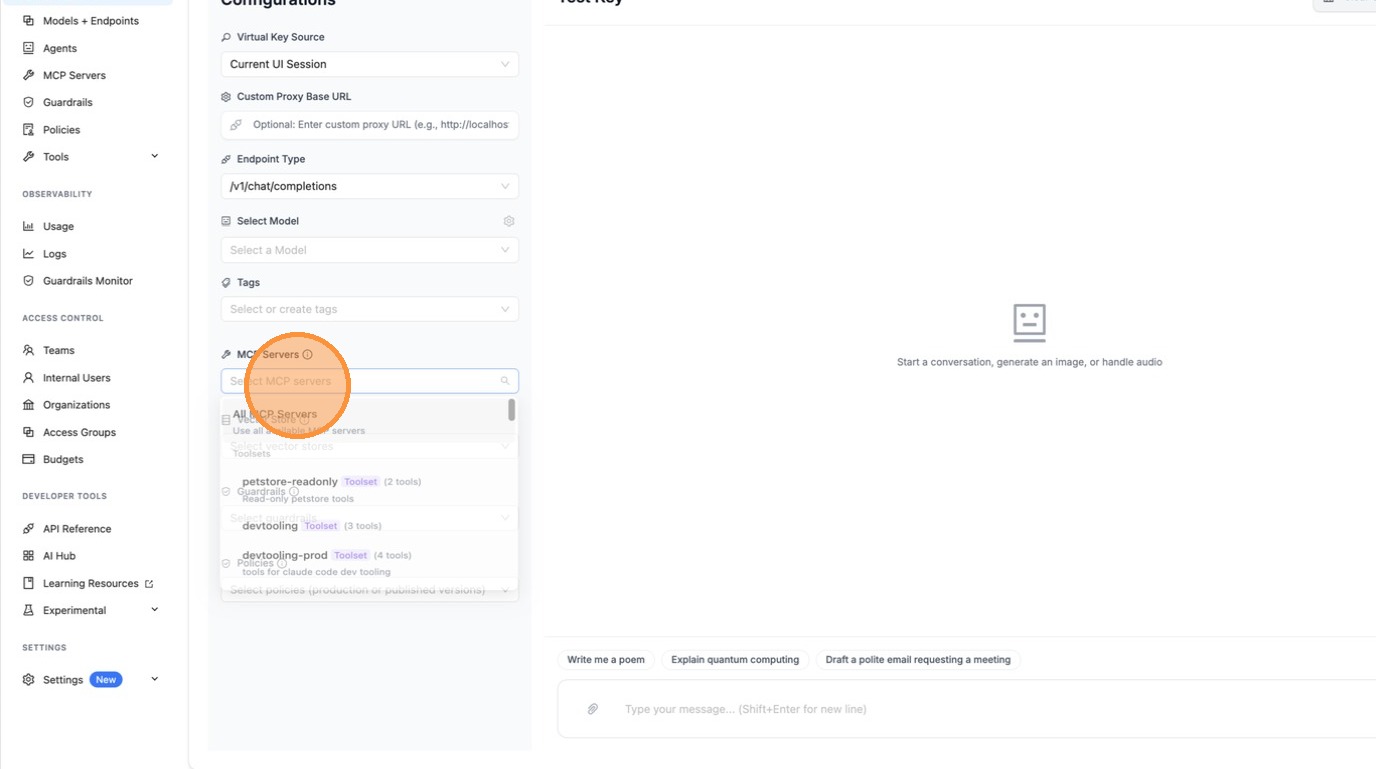
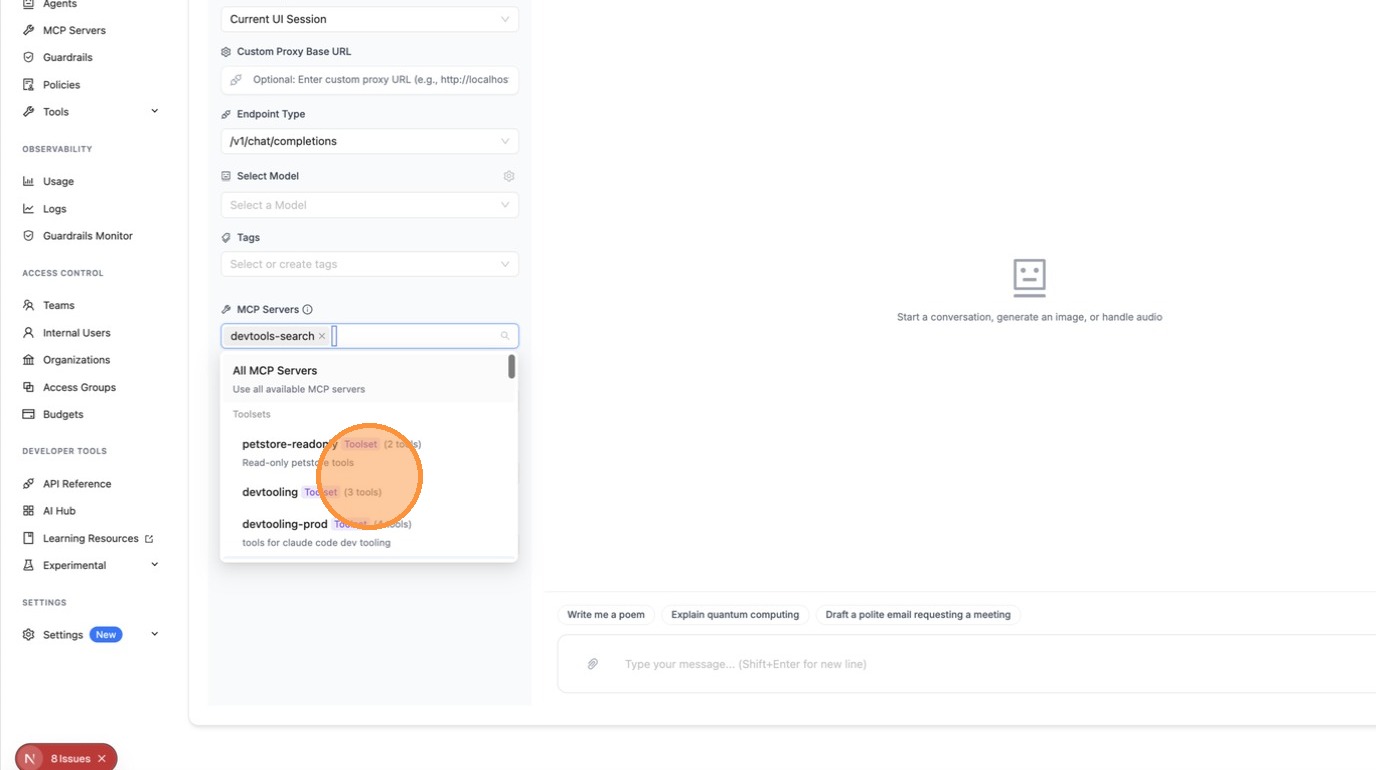
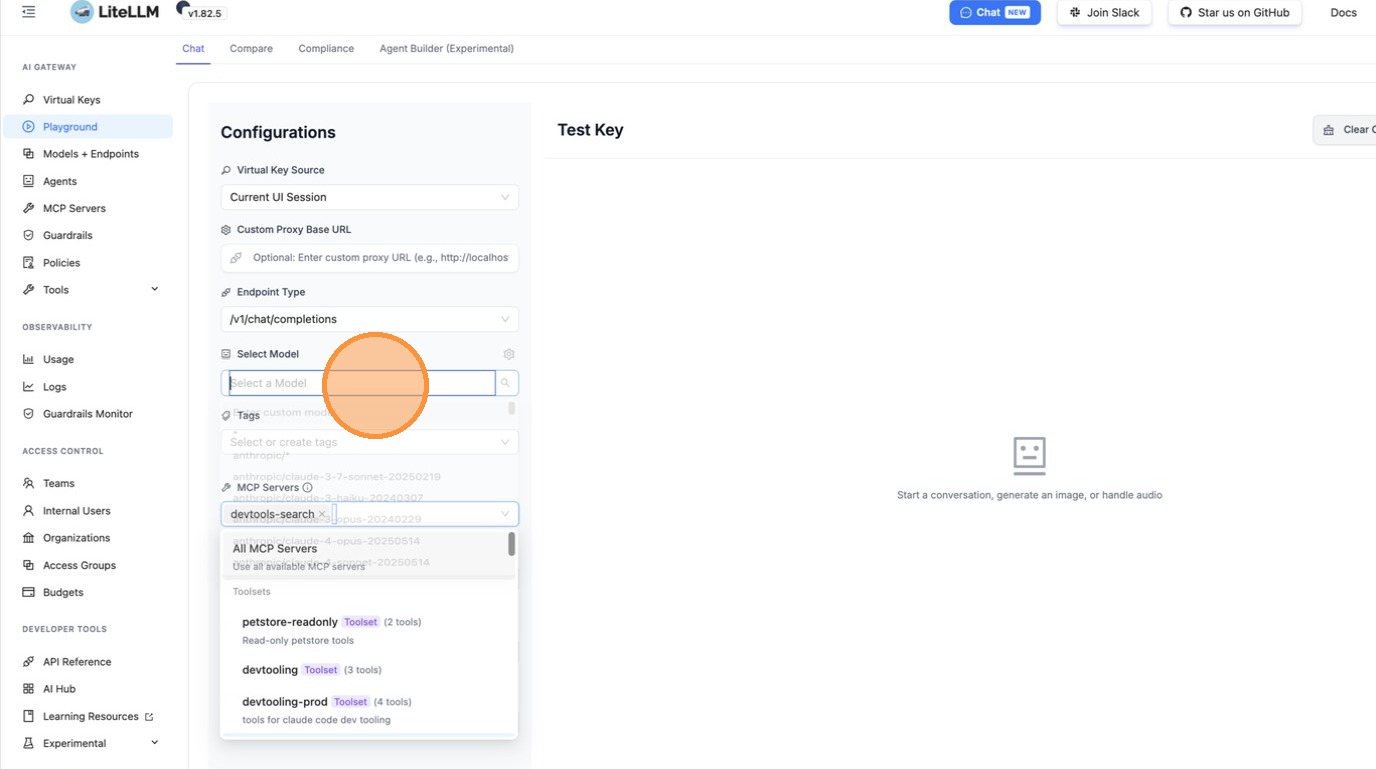
The model now has access to exactly the tools in your toolset and nothing else.
Use a toolset via API
Pass the toolset's route as the server_url in your tools list. LiteLLM resolves it server-side, so no public URL is needed.
- Responses API
- Chat Completions API
- REST
import openai

client = openai.OpenAI(
    api_key="your-litellm-key",
    base_url="http://your-proxy/v1",
)

response = client.responses.create(
    model="gpt-6.1-sol",
    input="What CI/CD tools do you have?",
    tools=[
        {
            "type": "mcp",
            "server_label": "devtooling-prod",
            "server_url": "litellm_proxy/mcp/devtooling-prod",
            "require_approval": "never",
        }
    ],
)
print(response.output_text)
import openai

client = openai.OpenAI(
    api_key="your-litellm-key",
    base_url="http://your-proxy/v1",
)

response = client.chat.completions.create(
    model="gpt-6.1-sol",
    messages=[{"role": "user", "content": "What CI/CD tools do you have?"}],
    tools=[
        {
            "type": "mcp",
            "server_label": "devtooling-prod",
            "server_url": "litellm_proxy/mcp/devtooling-prod",
            "require_approval": "never",
        }
    ],
)
print(response.choices[0].message.content)
curl http://your-proxy/v1/responses \
  -H "Authorization: Bearer your-litellm-key" \
  -H "Content-Type: application/json" \
  -d '{
    "model": "gpt-6.1-sol",
    "input": "What CI/CD tools do you have?",
    "tools": [
      {
        "type": "mcp",
        "server_label": "devtooling-prod",
        "server_url": "litellm_proxy/mcp/devtooling-prod",
        "require_approval": "never"
      }
    ]
  }'
Manage toolsets via API
# List all toolsets
curl http://your-proxy/v1/mcp/toolset \
  -H "Authorization: Bearer your-litellm-key"

# Create a toolset
curl -X POST http://your-proxy/v1/mcp/toolset \
  -H "Authorization: Bearer your-litellm-key" \
  -H "Content-Type: application/json" \
  -d '{
    "toolset_name": "devtooling-prod",
    "description": "CircleCI + DeepWiki tools for the dev team",
    "tools": [
      {"server_id": "<circleci-server-id>", "tool_name": "get_build_failure_logs"},
      {"server_id": "<circleci-server-id>", "tool_name": "run_pipeline"},
      {"server_id": "<deepwiki-server-id>", "tool_name": "read_wiki_structure"}
    ]
  }'

# Delete a toolset
curl -X DELETE http://your-proxy/v1/mcp/toolset/<toolset_id> \
  -H "Authorization: Bearer your-litellm-key"