Azure Sentinel
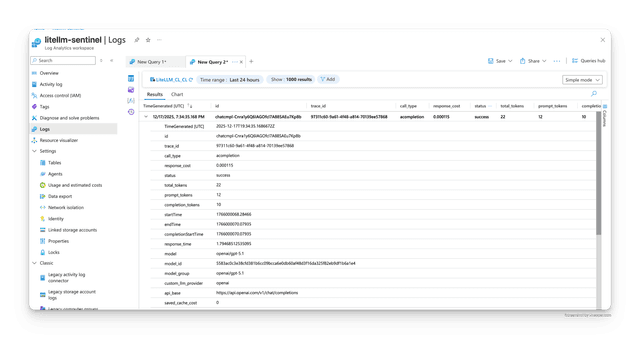
LiteLLM supports logging to Azure Sentinel via the Azure Monitor Logs Ingestion API. Azure Sentinel uses Log Analytics workspaces for data storage, so logs sent to the workspace will be available in Sentinel for security monitoring and analysis.
Azure Sentinel Integration
| Feature | Details |
|---|---|
| What is logged | StandardLoggingPayload |
| Events | Success + Failure |
| Product Link | Azure Sentinel |
| API Reference | Logs Ingestion API |
We will use the --config to set litellm.callbacks = ["azure_sentinel"] this will log all successful and failed LLM calls to Azure Sentinel.
Step 1: Create a config.yaml file and set litellm_settings: callbacks
model_list:
  - model_name: gpt-5.6-luna
    litellm_params:
      model: gpt-5.6-luna
litellm_settings:
  callbacks: ["azure_sentinel"] # logs llm success + failure logs to Azure Sentinel
Step 2: Set Up Azure Resources
Before using the Logs Ingestion API, you need to set up the following in Azure:
- Create a Log Analytics Workspace (if you don't have one)
- Create a Custom Table in your Log Analytics workspace (e.g.,
LiteLLM_CL) - Create a Data Collection Rule (DCR) with:
- Stream declaration matching your data structure
- Transformation to map data to your custom table
- Access granted to your app registration
- Register an Application in Microsoft Entra ID (Azure AD) with:
- Client ID
- Client Secret
- Permissions to write to the DCR
For detailed setup instructions, see the Microsoft documentation on Logs Ingestion API.
Step 3: Set Required Environment Variables
Set the following environment variables with your Azure credentials:
# Required: Data Collection Rule (DCR) configuration
AZURE_SENTINEL_DCR_IMMUTABLE_ID="dcr-xxxxxxxxxxxxxxxxxxxxxxxxxxxxx"  # DCR Immutable ID from Azure portal
AZURE_SENTINEL_STREAM_NAME="Custom-LiteLLM_CL_CL"                    # Stream name from your DCR
AZURE_SENTINEL_ENDPOINT="https://your-dcr-endpoint.eastus-1.ingest.monitor.azure.com"  # DCR logs ingestion endpoint (NOT the DCE endpoint)

# Required: OAuth2 Authentication (App Registration)
AZURE_SENTINEL_TENANT_ID="your-tenant-id"                            # Azure Tenant ID
AZURE_SENTINEL_CLIENT_ID="your-client-id"                            # Application (client) ID
AZURE_SENTINEL_CLIENT_SECRET="your-client-secret"                    # Client secret value
Note: The AZURE_SENTINEL_ENDPOINT should be the DCR's logs ingestion endpoint (found in the DCR Overview page), NOT the Data Collection Endpoint (DCE). The DCR endpoint is associated with your specific DCR and looks like: https://your-dcr-endpoint.{region}-1.ingest.monitor.azure.com
Step 4: Start the proxy and make a test request
Start proxy
litellm --config config.yaml --debug
Test Request
curl --location 'http://0.0.0.0:4000/chat/completions' \
    --header 'Content-Type: application/json' \
    --data '{
    "model": "gpt-5.6-luna",
    "messages": [
        {
        "role": "user",
        "content": "what llm are you"
        }
    ],
    "metadata": {
        "your-custom-metadata": "custom-field",
    }
}'
Step 5: View logs in Azure Sentinel
- Navigate to your Azure Sentinel workspace in the Azure portal
- Go to "Logs" and query your custom table (e.g.,
LiteLLM_CL) - Run a query like:
LiteLLM_CL
| where TimeGenerated > ago(1h)
| project TimeGenerated, model, status, total_tokens, response_cost
| order by TimeGenerated desc
You should see following logs in Azure Workspace.
Environment Variables
| Environment Variable | Description | Default Value | Required |
|---|---|---|---|
AZURE_SENTINEL_DCR_IMMUTABLE_ID | Data Collection Rule (DCR) Immutable ID | None | ✅ Yes |
AZURE_SENTINEL_ENDPOINT | DCR logs ingestion endpoint URL (from DCR Overview page) | None | ✅ Yes |
AZURE_SENTINEL_STREAM_NAME | Stream name from DCR (e.g., "Custom-LiteLLM_CL_CL") | "Custom-LiteLLM" | ❌ No |
AZURE_SENTINEL_TENANT_ID | Azure Tenant ID for OAuth2 authentication | None (falls back to AZURE_TENANT_ID) | ✅ Yes |
AZURE_SENTINEL_CLIENT_ID | Application (client) ID for OAuth2 authentication | None (falls back to AZURE_CLIENT_ID) | ✅ Yes |
AZURE_SENTINEL_CLIENT_SECRET | Client secret for OAuth2 authentication | None (falls back to AZURE_CLIENT_SECRET) | ✅ Yes |
AZURE_SENTINEL_AUTHORITY_HOST | Microsoft Entra authority host that issues the OAuth2 token | None (falls back to AZURE_AUTHORITY_HOST, then https://login.microsoftonline.com) | ❌ No |
Sovereign clouds
Azure Government uses its own Entra authority and its own Azure Monitor audience, so pointing AZURE_SENTINEL_ENDPOINT at a sovereign ingestion endpoint is not enough on its own. Set the authority host and LiteLLM derives the matching audience:
| Cloud | Authority host | Derived audience |
|---|---|---|
| Azure Public Cloud (default) | https://login.microsoftonline.com | https://monitor.azure.com/.default |
| Azure Government | https://login.microsoftonline.us | https://monitor.azure.us/.default |
AZURE_AUTHORITY_HOST is shared with the azure_storage callback and Azure OpenAI OIDC, so setting it moves those to the same cloud. Use AZURE_SENTINEL_AUTHORITY_HOST when your Sentinel workspace lives in a different cloud than the rest of your Azure resources; it takes precedence for Sentinel only. Both are read when the callback is first used, so restart the proxy to apply a change
How It Works
The Azure Sentinel integration uses the Azure Monitor Logs Ingestion API to send logs to your Log Analytics workspace. The integration:
- Authenticates using OAuth2 client credentials flow with your app registration
- Sends logs to the Data Collection Rule (DCR) endpoint
- Batches logs for efficient transmission
- Sends logs in the StandardLoggingPayload format
- Automatically handles both success and failure events
- Caches OAuth2 tokens and refreshes them automatically
Logs sent to the Log Analytics workspace are automatically available in Azure Sentinel for security monitoring, threat detection, and analysis.
Azure Sentinel Setup Guide
Follow this step-by-step guide to set up Azure Sentinel with LiteLLM.
Step 1: Create a Log Analytics Workspace
- Navigate to https://portal.azure.com/#home

- Search for "Log Analytics workspaces" and click "Create"

- Enter a name for your workspace (e.g., "litellm-sentinel-prod")

- Click "Review + Create"

Step 2: Create a Custom Table
- Go to your Log Analytics workspace and click "Tables"

- Click "Create" → "New custom log (Direct Ingest)"

- Enter a table name (e.g., "LITELLM_PROD_CL")

Step 3: Create a Data Collection Rule (DCR)
- Click "Create a new data collection rule"

- Enter a name for the DCR (e.g., "litellm-prod")

- Select a Data Collection Endpoint

- Upload the sample JSON file for schema (use the example_standard_logging_payload.json file)

- Click "Next" and then "Create"

Step 4: Get the DCR Immutable ID and Logs Ingestion Endpoint
- Go to "Data Collection Rules" and select your DCR

- Copy the DCR Immutable ID (starts with
dcr-)

- Copy the Logs Ingestion Endpoint URL

Step 5: Get the Stream Name
- Click "JSON View" in the DCR

- Find the Stream Name in the
streamDeclarationssection (e.g., "Custom-LITELLM_PROD_CL_CL")

Step 6: Register an App and Grant Permissions
- Go to Microsoft Entra ID → App registrations → New registration
- Create a new app and note the Client ID and Tenant ID
- Go to Certificates & secrets → Create a new client secret and copy the Secret Value
- Go back to your DCR → Access Control (IAM) → Add role assignment
- Assign the "Monitoring Metrics Publisher" role to your app registration
Summary: Where to Find Each Value
| Environment Variable | Where to Find It |
|---|---|
AZURE_SENTINEL_DCR_IMMUTABLE_ID | DCR Overview page → Immutable ID (starts with dcr-) |
AZURE_SENTINEL_ENDPOINT | DCR Overview page → Logs Ingestion Endpoint |
AZURE_SENTINEL_STREAM_NAME | DCR JSON View → streamDeclarations section |
AZURE_SENTINEL_TENANT_ID | App Registration → Overview → Directory (tenant) ID |
AZURE_SENTINEL_CLIENT_ID | App Registration → Overview → Application (client) ID |
AZURE_SENTINEL_CLIENT_SECRET | App Registration → Certificates & secrets → Secret Value |
For more details, refer to the Microsoft Logs Ingestion API documentation.