Open WebUI for Organizations
This tutorial sets up Open WebUI as a company-wide chat workspace in front of LiteLLM, for organizations that want one governed place for employees to use Claude, GPT, and other models instead of individual Claude and ChatGPT desktop subscriptions. Employees sign in to Open WebUI with your identity provider (IdP). Open WebUI forwards each user's IdP access token to LiteLLM, and LiteLLM validates it as a JWT, so every request is attributed to the real person, their team, and their organization, and model access and budgets follow IdP group membership. No virtual keys are handed out or stored in Open WebUI.
For a basic single-key connection, see Open WebUI instead.
LiteLLM JWT auth is an enterprise feature and requires LITELLM_LICENSE to be set. Every step on this page was tested end to end with Open WebUI v0.12.0, Keycloak 26.4, and LiteLLM main and v1.105.0.
How it fits together
Browser ──SSO (OIDC)──> Open WebUI ──Authorization: Bearer <user's IdP access token>──> LiteLLM ──> Anthropic, OpenAI, Bedrock, ...
                                                                                          │
                                         IdP JWKS <── signature, audience, issuer checks ─┘
Each object lives in one place, and the IdP is the source of truth for who belongs where.
| Concept | Where it lives | What it controls |
|---|---|---|
| User | IdP, auto-created in Open WebUI on first login and in LiteLLM on first request | Spend attribution, per-user logs |
| Group | IdP groups claim | Open WebUI group (model visibility, skill sharing) and LiteLLM team (model access, budget) |
| Team | LiteLLM, team_id equal to the IdP group name | Allowed models, budget, rate limits, logging |
| Organization | LiteLLM, owns teams, optional org_id claim | Allowed models across teams, spend rollup |
| Skills, artifacts | Open WebUI workspace | Reusable instructions shared per group, rendered HTML/SVG/code previews |
The examples use Keycloak with a realm called acme, two IdP groups engineering and data-science, two LiteLLM organizations acme-us and acme-eu, and two models. Any OIDC provider works the same way (Okta, Microsoft Entra ID, Google Workspace, Auth0); only the claim names and console steps differ.
Step 1. Register Open WebUI in your IdP
Create a confidential OIDC client (an "app registration" in Entra ID, a "Web app" in Okta) for Open WebUI with the authorization code flow and the redirect URI https://<open-webui-host>/oauth/oidc/callback. Keep the client ID and secret for Step 4.
Make the access token carry the claims both Open WebUI and LiteLLM read:
| Claim | Value | Used by |
|---|---|---|
email | user's email | Open WebUI account, LiteLLM user_id |
groups | list of plain group names, for example ["engineering"] | Open WebUI groups, LiteLLM teams |
aud | contains a dedicated audience such as litellm | LiteLLM audience check |
org_id (optional) | organization ID such as acme-us | LiteLLM organization attribution |
In Keycloak this means three mappers on the client's dedicated scope: a Group Membership mapper with claim name groups and "Full group path" off, an Audience mapper with included custom audience litellm, and, if you use the org_id claim, a User Attribute mapper from a user attribute such as org to claim org_id. Enable "Add to access token" on all three. Keycloak 24 and later only emit attributes declared in the realm user profile, so the org_id claim is silently missing until you either declare org in Realm settings > User profile or set Realm settings > General > Unmanaged Attributes to Enabled. In Entra ID, add groups as an optional claim (or app roles) and expose an API for the audience; group values are object IDs unless you emit names, so use the IDs as LiteLLM team IDs or map them with team_alias_jwt_field.
Set the access token lifetime to 15 minutes or more. Open WebUI refreshes the user's token when it is within 5 minutes of expiring, so with a 5 minute token (the Keycloak default) it refreshes on every request.
Set CLIENT_SECRET, ALICE_PASSWORD, and BOB_PASSWORD to the client secret and each user's Keycloak password. The password-grant command below requires Direct access grants to be enabled in the client's Capability config in Keycloak.
Decode a token to confirm the claims before moving on:
ALICE_TOKEN=$(curl -s -X POST https://<idp>/realms/acme/protocol/openid-connect/token \
  -d grant_type=password -d client_id=open-webui -d client_secret=$CLIENT_SECRET \
  -d username=alice@acme.com -d password="$ALICE_PASSWORD" -d scope=openid \
  | jq -r .access_token)

printf '%s' "$ALICE_TOKEN" | cut -d. -f2 | tr '_-' '/+' \
  | awk '{ padding = (4 - length($0) % 4) % 4; printf "%s", $0; for (i = 0; i < padding; i++) printf "="; print "" }' \
  | base64 -d | jq '{iss,aud,email,groups,org_id,exp,iat}'
Set BOB_TOKEN the same way, using username=bob@acme.com and $BOB_PASSWORD.
{
  "iss": "http://keycloak.localhost:8080/realms/acme",
  "aud": ["litellm", "account"],
  "email": "alice@acme.com",
  "groups": ["engineering"],
  "org_id": "acme-us",
  "exp": 1791680573,
  "iat": 1791679673
}
The password grant is only for this check. Disable direct access grants on the client afterwards.
For a local Docker test, use http://keycloak.localhost:8080 as the IdP URL everywhere so the token issuer is identical inside and outside the containers. Set KC_BOOTSTRAP_ADMIN_PASSWORD to a test-only value before running these commands:
docker network create owui

docker run -d --name keycloak --network owui --network-alias keycloak.localhost \
  -p 8080:8080 \
  -e KC_HOSTNAME=http://keycloak.localhost:8080 \
  -e KC_HTTP_ENABLED=true \
  -e KC_BOOTSTRAP_ADMIN_USERNAME=admin \
  -e KC_BOOTSTRAP_ADMIN_PASSWORD \
  quay.io/keycloak/keycloak:26.4 start-dev
LiteLLM and Open WebUI must join the same owui network, and Keycloak's port must be 8080 both inside and outside the container. This route also works on macOS Docker Desktop, where host networking is not an option.
Step 2. Configure LiteLLM JWT auth
Set LITELLM_LICENSE when starting LiteLLM. Without it, JWT authentication is rejected with JWT Auth is an enterprise only feature.
model_list:
  - model_name: claude-sonnet
    litellm_params:
      model: anthropic/claude-sonnet-5-5
      api_key: os.environ/ANTHROPIC_API_KEY
  - model_name: claude-haiku
    litellm_params:
      model: anthropic/claude-haiku-5-5
      api_key: os.environ/ANTHROPIC_API_KEY

general_settings:
  master_key: os.environ/LITELLM_MASTER_KEY
  database_url: os.environ/DATABASE_URL
  enable_jwt_auth: true
  litellm_jwtauth:
    user_id_jwt_field: "email"
    user_email_jwt_field: "email"
    user_id_upsert: true
    team_ids_jwt_field: "groups"
    org_id_jwt_field: "org_id"
    enforce_team_based_model_access: true
export JWT_PUBLIC_KEY_URL="https://<idp>/realms/acme/protocol/openid-connect/certs"
export JWT_AUDIENCE="litellm"
export JWT_ISSUER="https://<idp>/realms/acme"
litellm --config config.yaml
docker run --rm --network owui -p 4000:4000 \
  -v "$PWD/config.yaml:/app/config.yaml:ro" \
  -e LITELLM_LICENSE -e LITELLM_MASTER_KEY -e DATABASE_URL \
  -e ANTHROPIC_API_KEY -e JWT_PUBLIC_KEY_URL -e JWT_AUDIENCE -e JWT_ISSUER \
  ghcr.io/berriai/litellm:v1.105.0 \
  --config /app/config.yaml
user_id_jwt_field: "email" makes the LiteLLM user ID the readable email instead of the IdP's opaque sub, and user_id_upsert creates the user on first request. team_ids_jwt_field: "groups" treats every group in the token as a candidate LiteLLM team, and enforce_team_based_model_access only lets the request through when one of those teams allows the requested model. Without JWT_AUDIENCE and JWT_ISSUER, LiteLLM accepts any token signed by the IdP, including tokens minted for unrelated applications, so set both. The master key keeps working for admin API calls and the Admin UI. LiteLLM refuses to start only when the master key is unset, empty, or the publicly known default from the example configs; it does not check the key length. Generate a random value with openssl rand -hex 32. For local development only, LITELLM_DANGEROUSLY_PERMIT_WEAK_OR_UNSET_MASTER_KEY=true overrides this check.
A token for the same user minted by another client without the litellm audience is rejected:
{"error": {"message": "Authentication Error, Validation fails: Audience doesn't match", "type": "auth_error", "param": "None", "code": "401"}}
See OIDC JWT-based Auth for every claim mapping option, including team_alias_jwt_field, role mapping with jwt_litellm_role_map, and sync_user_role_and_teams.
Step 3. Create organizations and teams in LiteLLM
Teams must exist before a group claim can match them. Create them with the master key, using the IdP group name as team_id. The same objects can be created in the Admin UI under Organizations and Teams.
export LITELLM=https://litellm.acme.com
export LITELLM_MASTER_KEY="<master-key>"

curl -X POST "$LITELLM/organization/new" -H "Authorization: Bearer $LITELLM_MASTER_KEY" -H "Content-Type: application/json" \
  -d '{"organization_id": "acme-us", "organization_alias": "Acme US", "models": ["claude-sonnet", "claude-haiku"]}'

curl -X POST "$LITELLM/organization/new" -H "Authorization: Bearer $LITELLM_MASTER_KEY" -H "Content-Type: application/json" \
  -d '{"organization_id": "acme-eu", "organization_alias": "Acme EU", "models": ["claude-haiku"]}'

curl -X POST "$LITELLM/team/new" -H "Authorization: Bearer $LITELLM_MASTER_KEY" -H "Content-Type: application/json" \
  -d '{"team_id": "engineering", "team_alias": "Engineering", "organization_id": "acme-us", "models": ["claude-sonnet", "claude-haiku"], "max_budget": 100}'

curl -X POST "$LITELLM/team/new" -H "Authorization: Bearer $LITELLM_MASTER_KEY" -H "Content-Type: application/json" \
  -d '{"team_id": "data-science", "team_alias": "Data Science", "organization_id": "acme-eu", "models": ["claude-haiku"], "max_budget": 50}'
Set ALICE_TOKEN and BOB_TOKEN as shown in Step 1, then check the result with real user tokens before involving Open WebUI:
curl -s "$LITELLM/v1/models" -H "Authorization: Bearer $ALICE_TOKEN" | jq -c '[.data[].id]'
# ["claude-sonnet","claude-haiku"]

curl -s "$LITELLM/v1/chat/completions" -H "Authorization: Bearer $BOB_TOKEN" -H "Content-Type: application/json" \
  -d '{"model": "claude-sonnet", "messages": [{"role": "user", "content": "hi"}]}' | jq -r .error.message
# No team has access to the requested model: claude-sonnet. Checked teams={'data-science'}. ...
A user whose token has no group matching a LiteLLM team gets 403 No teams found in token on every call, including /v1/models, so they see no models in Open WebUI. That includes Open WebUI admins, so put admins in a group too.
The org_id claim is recorded as sent. LiteLLM does not check it against the organization that owns the team: a user in engineering (owned by acme-us) whose token says org_id: acme-eu is still allowed, and the spend is booked to acme-eu. Keep the IdP attribute consistent with team ownership, or leave org_id_jwt_field out if you do not need organization attribution from the token.
Step 4. Configure Open WebUI SSO and the LiteLLM connection
WEBUI_URL=https://chat.acme.com
WEBUI_SECRET_KEY=<random string>
ENABLE_OLLAMA_API=false

# LiteLLM connection, authenticated with the signed-in user's IdP token
OPENAI_API_BASE_URL=https://litellm.acme.com/v1
OPENAI_API_KEY=
OPENAI_API_CONFIGS={"0":{"enable":true,"auth_type":"system_oauth"}}

# SSO
ENABLE_OAUTH_SIGNUP=true
OAUTH_MERGE_ACCOUNTS_BY_EMAIL=true
OAUTH_CLIENT_ID=open-webui
OAUTH_CLIENT_SECRET=<client secret>
OPENID_PROVIDER_URL=https://<idp>/realms/acme/.well-known/openid-configuration
OAUTH_PROVIDER_NAME=Acme SSO
OAUTH_SCOPES=openid email profile
DEFAULT_USER_ROLE=user

# Mirror IdP groups into Open WebUI groups on every login
ENABLE_OAUTH_GROUP_MANAGEMENT=true
ENABLE_OAUTH_GROUP_CREATION=true
OAUTH_GROUP_CLAIM=groups
docker run -d --name open-webui -p 3000:8080 --env-file openwebui.env \
  -v open-webui:/app/backend/data ghcr.io/open-webui/open-webui:v0.12.0
auth_type: system_oauth is the setting that makes this work. For every model call, Open WebUI looks up the user's stored OAuth session, refreshes the access token if needed, and sends it to LiteLLM as Authorization: Bearer <token>. You can set the same thing in the UI under Admin Panel > Settings > Connections, editing the LiteLLM connection and choosing OAuth as the auth type. The model list is fetched per user with their own token, so LiteLLM's team checks decide which models each user's Open WebUI can list.
WEBUI_URL must match the origin users open in their browser, or the SSO redirect fails. DEFAULT_USER_ROLE=user lets SSO users chat right away. Without it new accounts land in pending and wait for an admin to approve them. On v0.12.0, a fresh install first shows a Get started splash. Click it, then use the SSO button, not Create Admin Account. The first account to sign in becomes the Open WebUI admin, so sign in with your admin IdP account first. Most of these variables are persisted in Open WebUI's database on first start, so later changes go through the Admin Panel unless you reset the volume.
Open WebUI API keys are off by default (ENABLE_API_KEYS). This is persisted configuration, so changing the environment variable after first start has no effect; enable API keys in the Admin Panel settings. A request made with an Open WebUI API key has no OAuth session: the caller sees 400 Model not found, while LiteLLM logs 401 No api key passed in. If a user's IdP session can no longer be refreshed, model calls fail until they sign in again.
Step 5. Map groups to models and permissions in Open WebUI
An IdP group appears in Admin Panel > Users > Groups only after at least one of its members has signed in. After that login, the groups are kept in sync from the groups claim, so grant model access after the group appears.
Open WebUI hides models coming from a connection from non-admin users until an admin grants access, even when LiteLLM allows them. Open Admin Panel > Settings > Models, select the pencil icon for each LiteLLM model, choose Access, click Add Access, tick the groups, click Add, close the dialog, then click Save & Update. The label continues to read Private after group grants. Access is set per model, so repeat this for every model, mirroring the LiteLLM team models: claude-sonnet to engineering, claude-haiku to engineering and data-science. With that in place Alice sees both models and Bob only sees claude-haiku. LiteLLM still enforces access, so a model shared too widely in Open WebUI fails with a 403 from LiteLLM instead of leaking.
Use the group permissions on the same page to decide who can create workspace models, prompts, knowledge, tools, and skills. A common rollout lets every employee use shared skills and lets one platform group author them.
Step 6. Share skills with a team
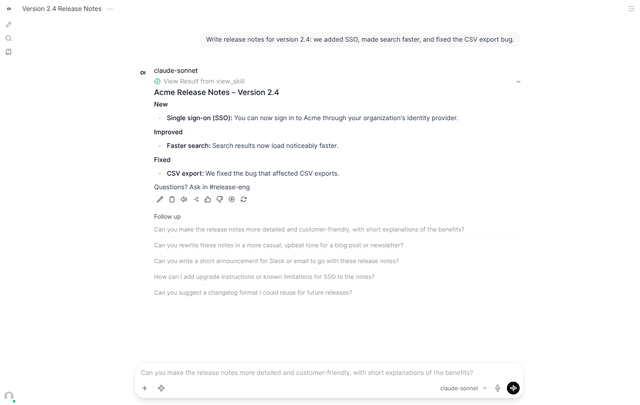
Skills are reusable instruction sets, the Open WebUI equivalent of Claude skills or custom GPT instructions. Under Workspace > Skills, create a skill named Release notes with the description Use when the user asks for release notes or a changelog. and Markdown instructions such as the following. Version history and multi-file skills are kept per skill, and skills can also be imported from a URL, GitHub, or a ZIP.
# Release notes house style

Always start with the heading `## Acme Release Notes` followed by the version.
Group changes under **New**, **Improved**, and **Fixed**.
End with the line `Questions? Ask in #release-eng`.
Set its access to the engineering group. When a user in that group asks for release notes, the model sees the skill's name and description, calls the built-in view_skill tool to load it, and follows it. Users can also pick a skill explicitly from the chat input. A user outside the group never sees the skill and gets a generic answer.
Skill discovery uses tool calling, so it needs a model with native function calling (all current Claude, GPT, and Gemini models through LiteLLM qualify) and the Skills built-in tool left enabled in the model's settings. The skill body is sent to LiteLLM as part of the conversation, so it is billed and logged like any other prompt. Discovery happens in chats from the Open WebUI chat interface. A direct call to Open WebUI's /api/chat/completions did not call view_skill in testing, so do not rely on skills for scripted access through the API.
Step 7. Use artifacts
When a response contains HTML, SVG, or a renderable code block, Open WebUI opens it in an artifact panel next to the chat, with version history across edits, copy, download, and full screen. No configuration is needed. Ask for something like "Create a single-file HTML page with a pricing table for three plans" and the rendered page appears on the right, and follow-up messages produce new versions of it.
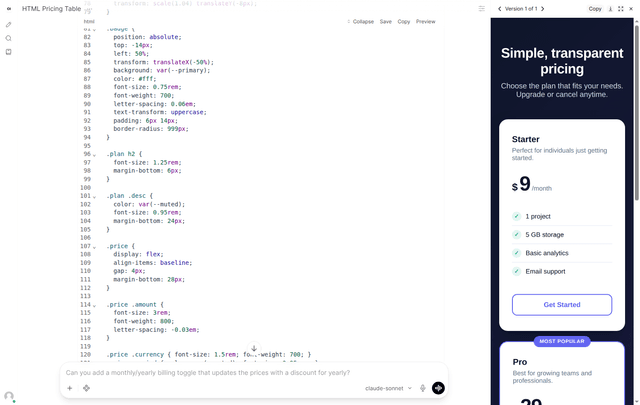
Artifacts render in a sandboxed iframe in the user's browser. Two interface settings in the Admin Panel decide whether embedded pages such as artifacts may run scripts and start downloads, and the IFRAME_CSP environment variable sets a content security policy for them, so your security team can tighten previews without turning artifacts off.
Step 8. Verify attribution and budgets
Each Open WebUI chat now shows up in LiteLLM under the real user, team, and organization. In the Admin UI, Logs and Usage filter by user, team, and organization, and team budgets apply as soon as spend accrues.
psql "$DATABASE_URL" -c 'SELECT "user", team_id, organization_id, model_group FROM "LiteLLM_SpendLogs" ORDER BY "startTime" DESC LIMIT 2;'
Each chat writes several spend-log rows because Open WebUI also calls the model for the chat title, tags, and follow-up suggestions with the same user token. By default these background calls use the chat's model. To send them to a cheaper model, set Task Model under Admin Panel > Settings > Interface.
bob@acme.com   | data-science | acme-eu | claude-haiku
alice@acme.com | engineering  | acme-us | claude-sonnet
Budgets, rate limits, guardrails, and logging callbacks set on a team or organization in LiteLLM apply to everyone in the matching IdP group without anything to configure in Open WebUI. To give one group a new model, add it to the LiteLLM team and grant the group access in Open WebUI. To offboard someone, disable them in the IdP. Open WebUI can no longer refresh their access token, so their model calls stop working once the current token expires.
Troubleshooting
| Symptom | Cause |
|---|---|
| No models in Open WebUI for a regular user | Model access not granted to their group in Admin Panel > Settings > Models, or their token has no group matching a LiteLLM team |
No models for anyone, LiteLLM logs 403 No teams found in token | groups claim missing from the access token or not matching any LiteLLM team_id |
LiteLLM logs 401 No api key passed in | The connection auth type is not OAuth |
Open WebUI API-key request returns 400 Model not found | Open WebUI API keys have no OAuth session; LiteLLM logs 401 No api key passed in |
| New users stuck on "account activation pending" | DEFAULT_USER_ROLE not set to user |
| LiteLLM rejects tokens with an audience or issuer error | JWT_AUDIENCE or JWT_ISSUER does not match the decoded token from Step 1 |
Proxy exits at startup with LiteLLM proxy refused to start: the master key is a publicly known default. | Set a random LITELLM_MASTER_KEY |
| Model shown in Open WebUI but chat fails with a 403 | Group can see the model in Open WebUI but its LiteLLM team does not allow it |