Retool Assist
This guide walks you through connecting Retool Assist to LiteLLM Proxy. Retool Assist uses AI to generate and edit apps from within the Retool app IDE. Using LiteLLM with Retool Assist allows you to:
- Access 100+ LLMs through Retool Assist
- Track spend and usage, set budget limits per virtual key
- Control which models Retool Assist can access
- Use your own LLM providers via a unified OpenAI-compatible API
Hosted Retool requires a public URL. Retool Cloud runs on Retool's servers, so localhost will not work. You must expose your LiteLLM proxy via ngrok, Cloudflare Tunnel, or by deploying to a cloud provider.
Quick Reference
| Setting | Value |
|---|---|
| Provider Schema | OpenAI |
| Base URL | Your ngrok URL (e.g. https://abc123.ngrok-free.app) or deployed proxy URL |
| API Key | Your LiteLLM Virtual Key |
| Model | Public model name from LiteLLM (e.g. openai/gpt-5.6-luna, openai/gpt-5.6-terra) |
Prerequisites
- LiteLLM Proxy running locally or deployed
- ngrok (or similar tunnel) for local development with hosted Retool
- A Retool account (Cloud or self-hosted)
1. Start LiteLLM Proxy
Set up LiteLLM Proxy following the Quickstart. Ensure your proxy is running on port 4000.
2. Expose LiteLLM with a Public URL

Retool Cloud runs on Retool's servers. You must expose your local LiteLLM proxy with a public URL.
Using ngrok
- Install ngrok
- In a separate terminal, run:
ngrok http 4000
- Copy the generated HTTPS URL (e.g.
https://abc123.ngrok-free.app). This is your Base URL for Retool.
Alternative
If you deploy LiteLLM to Railway, Render, Fly.io, or another cloud provider, use that public URL as your Base URL. See the Production Deployment guide for details.
3. Generate a Virtual Key
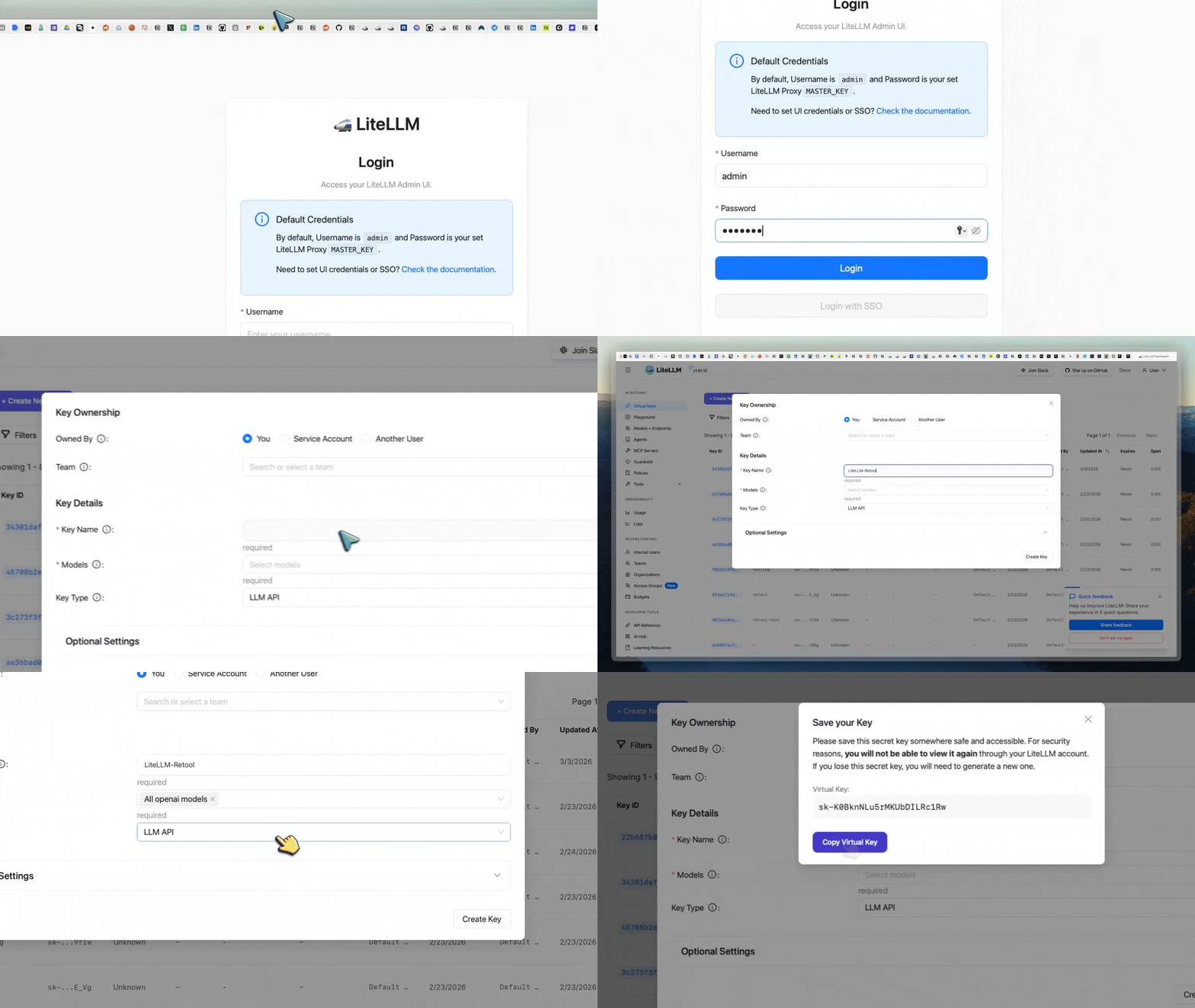
Create a virtual key that Retool Assist will use to authenticate with LiteLLM. The key must have access to the models you want to use (e.g. openai/* for all OpenAI models).
Via LiteLLM UI
- Navigate to http://localhost:4000/ui
- Go to Virtual Keys → + Create New Key
- Select the models you need (or
openai/*for all OpenAI models) - Copy the key
4. Add LiteLLM as a Custom Provider in Retool
Inside your Retool dashboard, configure LiteLLM as a custom AI resource:

-
Go to Resources
-
Under the AI category, select Custom Provider
-
Fill in the form:
- Name:
LiteLLM - Description: (optional) e.g.
LiteLLM Proxy - 100+ LLMs - Provider Schema:
OpenAI - Base URL: Your ngrok-generated URL (e.g.
https://abc123.ngrok-free.app) or deployed proxy URL. Do not add/v1unless Retool requires it - API Key: Your LiteLLM virtual key from Step 3
- Name:
-
Add model names from your LiteLLM proxy (e.g.
openai/gpt-6-luna,openai/gpt-6.1-sol). -
Click Create Resource

5. Test the Connection

- Open an app in Retool and enable Assist (if not already enabled in your organization)
- Use Assist to generate or edit app elements, it will route requests through LiteLLM
- Use the code option from the Sidebar to add a resource query, select the LiteLLM resource, and run it to test the setup.
- Check the LiteLLM Logs section to verify requests and track usage

Troubleshooting
401 Unauthorized
- Ensure the API Key in Retool matches your LiteLLM virtual key exactly
- Verify the key is not expired or blocked in LiteLLM
401 "key not allowed to access model"
Your virtual key is restricted to specific models. Generate a new key with openai/* or include the model you need (e.g. openai/gpt-6.1-sol) in the key's allowed models list.
500 "api_key client option must be set"
LiteLLM could not use your OpenAI API key to call the provider. Ensure OPENAI_API_KEY is set in your LiteLLM environment (e.g. in .env or docker-compose.yml) when using openai/* models.
localhost does not work
Retool Cloud cannot reach localhost it points to Retool's servers. Use ngrok or deploy LiteLLM to a public URL.
Additional Resources
- Virtual Keys – Create and manage API keys
- Deploy LiteLLM – Production deployment options
- Retool Assist Documentation – Configure Assist and prompting guides