Moyai
Give your coding agents a cloud workspace.
Moyai is an open source coding agent you run in your cloud. Delegate a bug fix or repository change from Slack or the browser, then review the pull request. Connect your LiteLLM gateway to choose models and track what each task costs.
Why Moyai
Spend less on coding agents
Our Devin bill reached $101,872 in 31 days. We estimate Moyai at ~$21,700 for the same period, about 79% less. You choose where to spend on models and cloud compute.
Our team's estimate, not a matched-workload benchmark. Your costs depend on usage, models, hosting, and storage.
Read our cost breakdownClose your laptop. Come back to a PR.
Send a task from Slack or the browser. Moyai works in a cloud sandbox, edits code, and runs tests while you're away. Review the diff and test results when you return.
Watch a real bug fixOne source of truth for model costs
Use LiteLLM as your source of truth for model charges. In Moyai, see those same charges by user, session, and model. Trace a teammate's total back to the requests behind it.
See the spend breakdownChoose your agent and model
Run Codex, Claude Agent SDK, or Hermes with a compatible model through your LiteLLM gateway. Try a different model for the next task and compare the result and cost.
Explore supported agentsStart with a Modal account and a LiteLLM gateway. The setup guide verifies a cloud task before you connect a repository.
Give Moyai a task from your browser
Describe the change, choose an agent and model, and add repository context. Keep your team's sessions in one workspace alongside its skills and app connections.
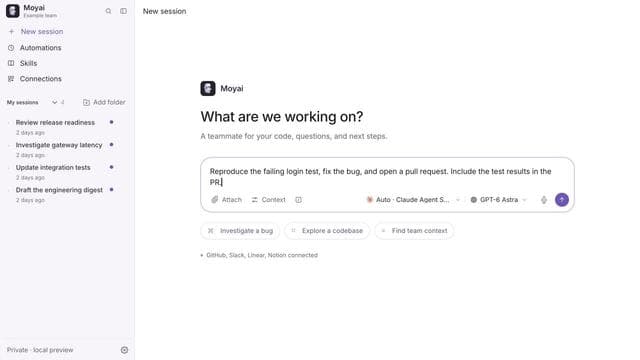
Watch a task go from request to PR
See a team ask Moyai to investigate a bug, run regression tests, and return a pull request to Slack. You can follow the work in the browser and send a correction in the same conversation.
/personal:team bug fix across Slack and the web. Edited 18-second walkthrough of a completed session; tests used a mocked Slack transport.See what each teammate spends
Use Moyai's spend dashboard to find the users, sessions, and models behind your model bill. Moyai records LiteLLM's reported charge for each tracked request, so you can trace a total back to the same cost data.
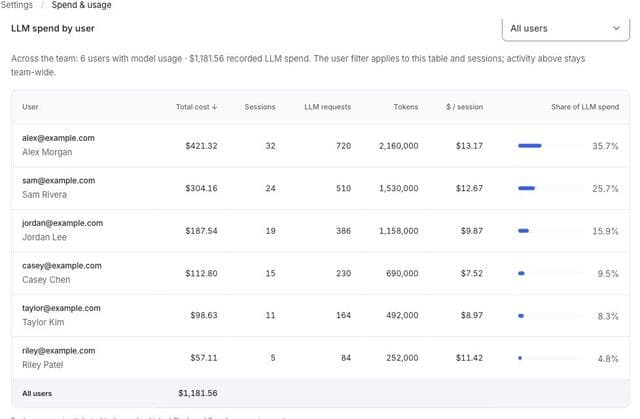
Check a request against LiteLLM. The cost accounting guide explains coverage and missing receipts. Cloud hosting and storage costs remain separate from these model charges.
Start with a bug your team already knows
After the setup checks pass, connect one repository and give Moyai a small, reproducible issue:
Reproduce this bug, add a regression test, fix it, and open a pull request. Include the failing test before the fix and the passing result afterward.
Review the diff and test output, then check the session's model cost in Moyai. Use that first result to decide which tasks to delegate next.
Before you set it up
What do I need to get started?
A Modal account, a cloud-reachable LiteLLM gateway, and a virtual key for your chosen model. The setup guide walks through installation and a cloud task. Opening GitHub PRs also requires an organization-owned GitHub App; verify the first task before connecting a repository.
What will I pay for?
Model usage plus hosting, agent sandboxes, and storage. Your workload and model choices determine the bill. The $700/day figure is our team's estimate, not a starting price or a promise about your costs. Measure your own tasks before expanding the rollout.
What does my team maintain?
You manage the service, including deployments, updates, credentials, and backups. Moyai fits a trusted engineering team willing to operate its own cloud agent. The architecture guide explains deployment choices, checkpoints, and recovery before you commit to running it.
Can I choose what the agent can access?
Select the apps and repositories in Connections. Enabled app tools can write under their connection policy without a per-use approval prompt. You review and merge GitHub PRs. Model requests go through your LiteLLM gateway to the provider you select, so account for that provider when deciding what code to share.
Run your first cloud task.
Connect your gateway, verify a task, then give Moyai a small repository change. Review the work and its cost before rolling it out to your team.
Looking for the previous gateway instructions?
The gateway configuration, connection check, spend tracking, and troubleshooting now live in the setup guide.