SSO Permissions
Configure SSO sign-in first, then use these settings to control who can use the Admin UI and what they can manage. See roles and team member permissions for the permissions each role provides.
Restrict sign-in by email domain
To allow SSO sign-in only from berri.ai, set:
export ALLOWED_EMAIL_DOMAINS="berri.ai"
LiteLLM checks the email returned by your SSO provider before allowing sign-in.
Restrict UI access
Allow only proxy_admin and proxy_admin_viewer users to sign in to the Admin UI:
Step 1. Set admin_only access
general_settings:
  ui_access_mode: "admin_only"
Step 2. Invite view-only users
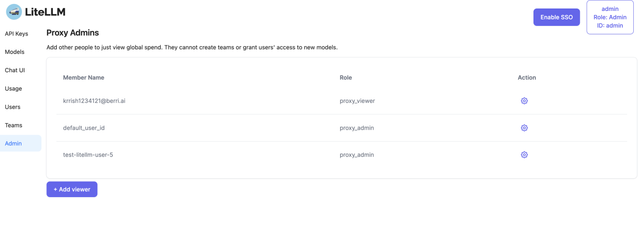
Set a proxy admin
SSO users get their user_id from the identity provider. Copy the ID from the UI and set it as PROXY_ADMIN_ID to give that user the proxy_admin role.
Step 1: Copy your ID from the UI
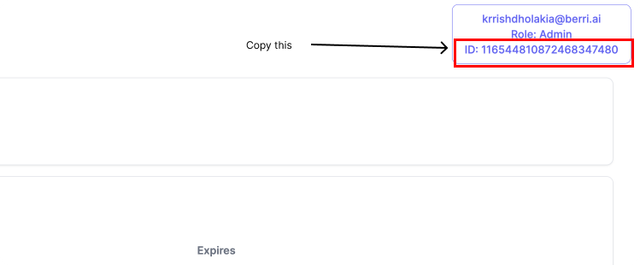
Step 2: Set it in your .env as the PROXY_ADMIN_ID
export PROXY_ADMIN_ID="116544810872468347480"
This updates the user role in LiteLLM_UserTable to proxy_admin.
To change the admin later, update the user role through /user/update or the Internal Users page.
Step 3: See all proxy keys
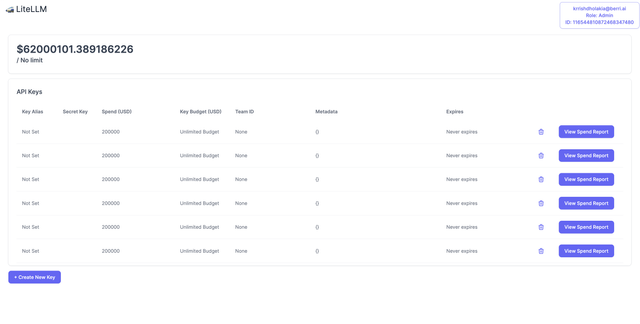
If the new admin cannot see all keys, sign out and sign in again to refresh the cached token.
Assign roles through Microsoft Entra ID
Define App Roles in Microsoft Entra ID. LiteLLM reads the assigned role when each user signs in.
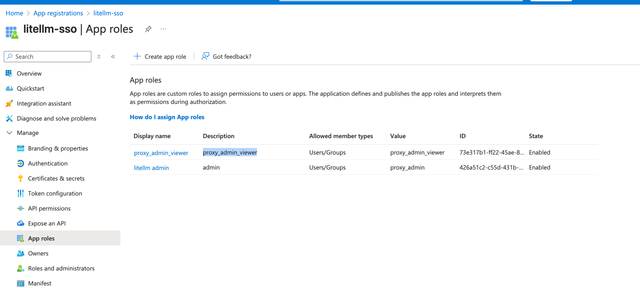
Step 1: Create App Roles on Azure App Registration
- Open your App Registration in the Azure portal.
- Go to App roles > Create app role
- Configure the app role using one of the supported LiteLLM roles:
- Display name: Admin Viewer (or your preferred display name)
- Value:
proxy_admin_viewer(must match one of the LiteLLM role values exactly)
- Click Apply to save the role
- Repeat for each LiteLLM role you want to use
Supported values are proxy_admin, proxy_admin_viewer, internal_user, and internal_user_viewer. See role permissions before assigning a role.
Step 2: Assign Users to App Roles
- Open Enterprise Applications in the Azure portal.
- Select your LiteLLM application
- Go to Users and groups > Add user/group
- Select the user
- Under Select a role, choose the app role you created (e.g.,
proxy_admin_viewer) - Click Assign to save
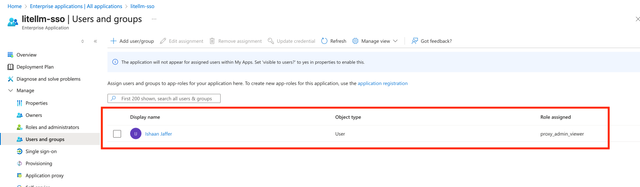
Step 3: Sign in and verify
- Sign in to the LiteLLM UI via SSO
- LiteLLM will automatically extract the app role from the JWT token
- The user will be assigned the corresponding role (you can verify this in the UI by checking the user profile dropdown)

Note: The role from Entra ID will take precedence over any existing role in the LiteLLM database. This ensures your SSO provider is the authoritative source for user roles.
Assign roles through a generic OIDC provider
Set GENERIC_USER_ROLE_ATTRIBUTE to the attribute containing the user's LiteLLM role. Nested paths such as claims.role or attributes.litellm_role are supported.
GENERIC_USER_ROLE_ATTRIBUTE="claims.role"
Supported values are proxy_admin, proxy_admin_viewer, internal_user, and internal_user_viewer. See role permissions before assigning a role.
Assign roles and teams through SAML
After configuring SAML sign-in, include the LiteLLM role and team IDs in the SAML assertion. LiteLLM recognizes these common attribute names; override them if your IdP uses another name:
| Environment variable | Default candidates | Meaning |
|---|---|---|
SAML_ATTRIBUTE_ROLE | role, roles, litellm_role | Attribute mapped to the LiteLLM user role. |
SAML_ATTRIBUTE_TEAM_IDS | teams, team_ids, groups | Attribute mapped to LiteLLM team IDs. |
SAML_ATTRIBUTE_ROLE="role"
SAML_ATTRIBUTE_TEAM_IDS="teams"
The role value must be proxy_admin, proxy_admin_viewer, internal_user, or internal_user_viewer.
- Okta: Add a custom attribute or Group Attribute Statement named
rolewith a supported LiteLLM role value. - Microsoft Entra ID: Add a custom claim named
rolesourced from an App Role or directory attribute.
Assign roles with a custom SSO handler
For custom role assignment after sign-in, use a custom SSO handler. Returning user_role=None preserves the stored LiteLLM role; an explicit role overrides it on every login.
Add SSO users to teams
For OIDC providers (Okta, Google, Generic SSO), you can pull a claim from the token returned by your identity provider into the user's team_ids. On every SSO login, LiteLLM reads that claim and adds the user as a member of each matching team.
Step 1: Point LiteLLM at the claim containing the team ids
general_settings:
  master_key: os.environ/LITELLM_MASTER_KEY
  litellm_jwtauth:
    team_ids_jwt_field: "groups" # any claim; dot notation works for nested claims, e.g. "resource_access.myapp.groups"
This assumes the token from your provider looks like this:
{
  "groups": ["team_id_1", "team_id_2"]
}
If you're unsure what your provider sends, inspect the received claims with the SSO debug flow.
Step 2: Create the teams on LiteLLM
The claim values must match the team_id of teams that already exist on LiteLLM. Teams are not auto-created from OIDC claims, and a claim value with no matching team is skipped.
curl -X POST '<PROXY_BASE_URL>/team/new' \
-H 'Authorization: Bearer <PROXY_MASTER_KEY>' \
-H 'Content-Type: application/json' \
-d '{
    "team_alias": "team_1",
    "team_id": "team_id_1"
}'
Step 3: Test the SSO flow
Log in via SSO and verify the user's team memberships on the UI (Internal Users page). Here's a video walkthrough.
Some providers only include the groups claim in the access token, not in the userinfo response. In that case, configure the claim via ui_access_mode, which also decodes the access token. Note this form additionally restricts UI login to members of the given group:
general_settings:
  ui_access_mode:
    type: "restricted_sso_group"
    restricted_sso_group: "<group required for UI access>"
    sso_group_jwt_field: "groups"
For Microsoft Entra ID, group membership is read from the Microsoft Graph API instead; follow this tutorial. For SAML, team IDs come from assertion attributes; see SAML roles and teams.
Restrict personal key creation
To limit personal key creation to proxy admins, set key_generation_settings in config.yaml. Personal keys have no team. LiteLLM enforces this restriction on /key/generate, so it applies to both the Admin UI and direct API calls.
litellm_settings:
  key_generation_settings:
    personal_key_generation:
      allowed_user_roles: ["proxy_admin"]
See Restricting Key Generation for all options.