Using Claude Code with a Claude Subscription (Pro, Max, Team, Enterprise)
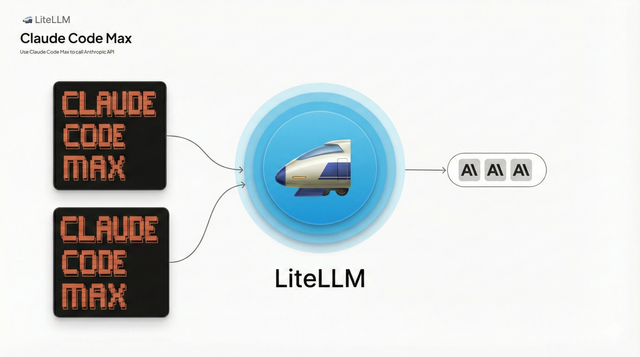
Route Claude Code traffic signed in with a Claude Pro, Max, Team, or Enterprise subscription through LiteLLM AI Gateway.
Why a Claude subscription over direct API?
- Lower costs: Claude subscriptions are cheaper for Claude Code power users than per-token API pricing
Why route through LiteLLM?
- Cost attribution: Track spend per user, team, or key
- Budgets & rate limits: Set spending caps and request limits
- Guardrails: Apply content filtering and safety controls to all requests
Quick Start Video
Watch the end-to-end walkthrough of setting up Claude Code with LiteLLM Gateway:
Prerequisites
- Claude Code installed
- A Claude Pro, Max, Team, or Enterprise subscription (Team and Enterprise members sign in with the Claude account their admin invited)
- LiteLLM Gateway v1.81.14 or later
- A PostgreSQL database for the proxy, which the Dashboard needs for virtual keys and logs
Step 1: Configure LiteLLM Proxy
Create a config.yaml that routes every Claude model to Anthropic:
model_list:
  - model_name: "anthropic/*"
    litellm_params:
      model: "anthropic/*"

general_settings:
  master_key: os.environ/LITELLM_MASTER_KEY
  database_url: os.environ/DATABASE_URL
Claude Code asks for Claude model ids such as claude-sonnet-5, and the model depends on your plan and on what you pick with /model. The anthropic/* wildcard routes whichever Claude model Claude Code asks for, so you do not need a model_name per model. The Dashboard steps below need the database_url.
Since v1.81.14, LiteLLM forwards a client's Authorization: Bearer sk-ant-oat... subscription token to anthropic/ deployments without forward_client_headers_to_llm_api. The token takes precedence over any api_key set on the deployment, and LiteLLM adds the anthropic-beta: oauth-2025-04-20 header Anthropic requires for OAuth. Turn on forward_client_headers_to_llm_api only if you also want other client headers forwarded.
A deployment without an api_key serves only subscription users: a request that arrives without a subscription token fails with 401 Missing Anthropic API Key. If you set an api_key, requests without a token fall back to it and are billed to that API key.
Step 2: Start LiteLLM Proxy
export LITELLM_MASTER_KEY="sk-<a-long-random-key>"
export DATABASE_URL="postgresql://<user>:<password>@<host>:5432/<database>"
litellm --config /path/to/config.yaml

# RUNNING on http://0.0.0.0:4000
Walkthrough
The screenshots below are from LiteLLM v1.104.2 and Claude Code v2.1.296.
Part 1: Create a Virtual Key in LiteLLM
Create a virtual key in the LiteLLM Dashboard for Claude Code to use.
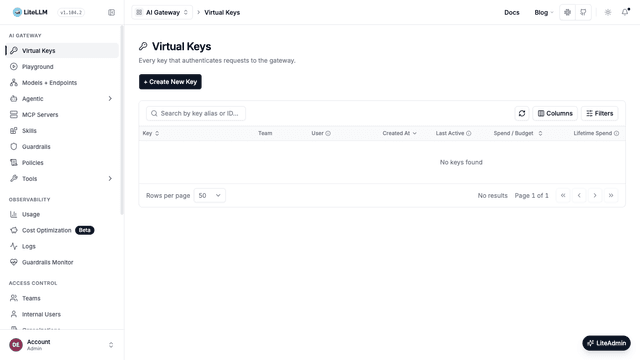
1.1 Open the Virtual Keys Page
Open the Dashboard at http://localhost:4000/ui, sign in with the username admin and your master key as the password, and go to Virtual Keys.
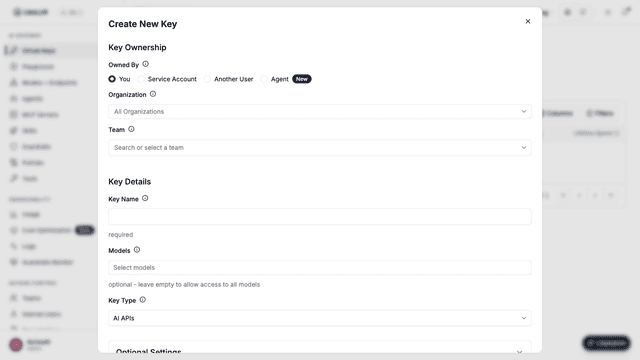
1.2 Click "Create New Key"
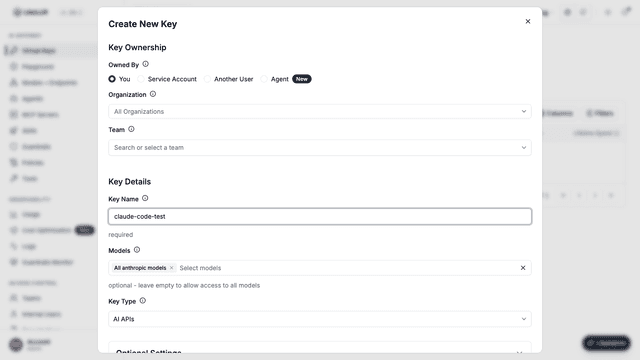
Click + Create New Key. Leave Owned By set to You and enter a Key Name, for example claude-code-test.
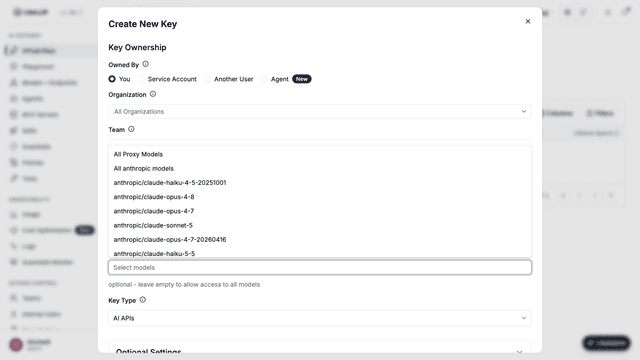
1.3 Select Models
Open Models and pick All anthropic models. It matches the anthropic/* wildcard in your config, so the key can call every Claude model and nothing else. If you leave Models empty, the key can call every model on the proxy.
1.4 Create the Key
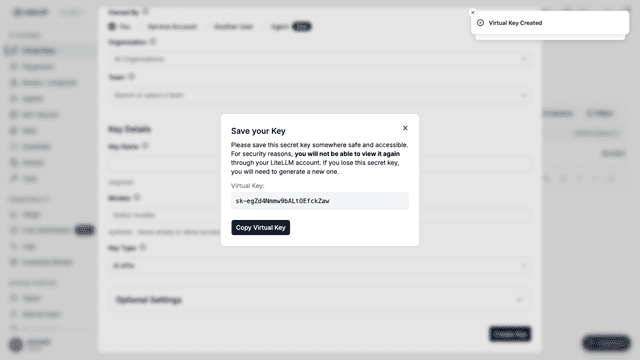
Scroll to the bottom of the form and click Create Key. Copy the virtual key from the Save your Key dialog, since the Dashboard shows it only once.
Part 2: Sign into Claude Code with Your Subscription (Client Side)
Point Claude Code at LiteLLM Gateway and sign in with your Claude subscription.
2.1 Set Environment Variables
Configure Claude Code to use LiteLLM Gateway with your virtual key:
export ANTHROPIC_BASE_URL=http://localhost:4000
export ANTHROPIC_CUSTOM_HEADERS="x-litellm-api-key: Bearer sk-<your-virtual-key>"
Environment Variables Explained
| Variable | Description |
|---|---|
ANTHROPIC_BASE_URL | Points Claude Code to your LiteLLM Gateway endpoint |
ANTHROPIC_CUSTOM_HEADERS | The x-litellm-api-key header for LiteLLM authentication |
You do not need ANTHROPIC_MODEL. Claude Code uses your plan's default model, /model switches it, and the wildcard in Step 1 routes either one. If you do set ANTHROPIC_MODEL, use a Claude model id such as claude-opus-5 rather than a custom alias, because Claude Code warns about model names it does not recognize.
Do not also set ANTHROPIC_AUTH_TOKEN, ANTHROPIC_API_KEY, or an apiKeyHelper. Claude Code sends any of those in place of the subscription login, so the request no longer uses the subscription.
2.2 Launch Claude Code
Start Claude Code in your project folder:
claude
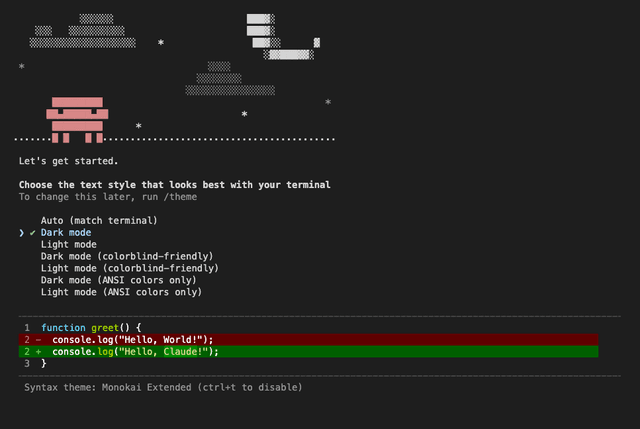
On the first run, Claude Code asks you to choose a text style. Pick one and press Enter.
2.3 Select Login Method
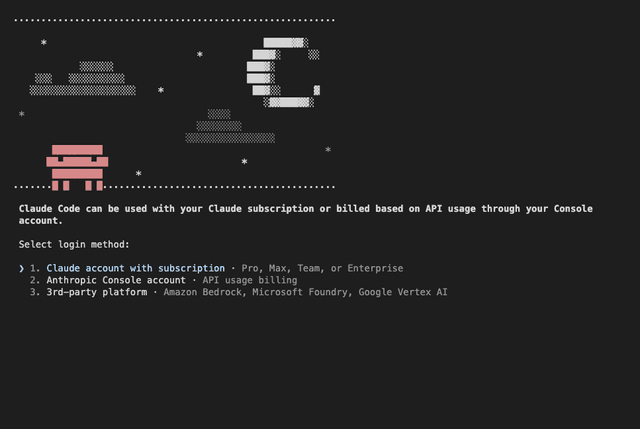
Choose Claude account with subscription (Pro, Max, Team, or Enterprise).
2.4 Sign In in Your Browser
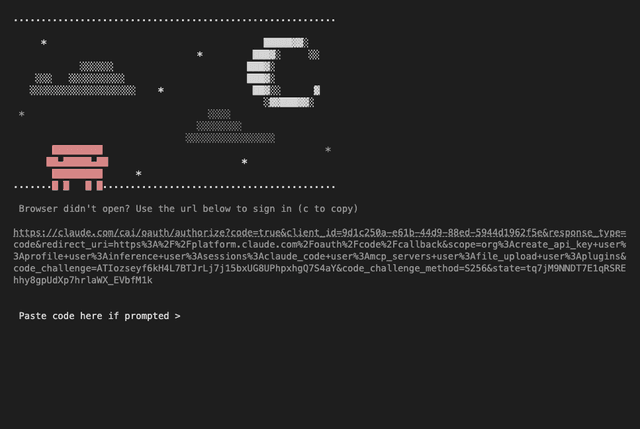
Claude Code opens claude.com in your browser. Sign in with the Claude account that has your subscription and approve the access request. If the browser shows a code, paste it at the Paste code here if prompted line. If the browser does not open, press c to copy the sign-in URL and open it yourself.
2.5 Trust the Project Folder
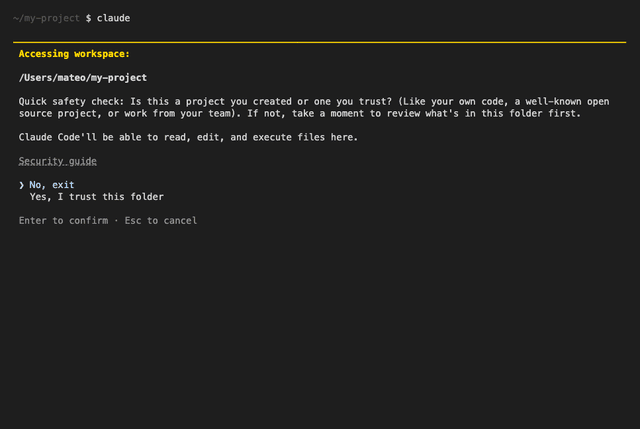
After sign-in, press Enter through the remaining setup screens. Claude Code then asks whether you trust the current folder; choose Yes, I trust this folder.
Part 3: Use Claude Code with LiteLLM
Now you can use Claude Code normally, and LiteLLM tracks every request.
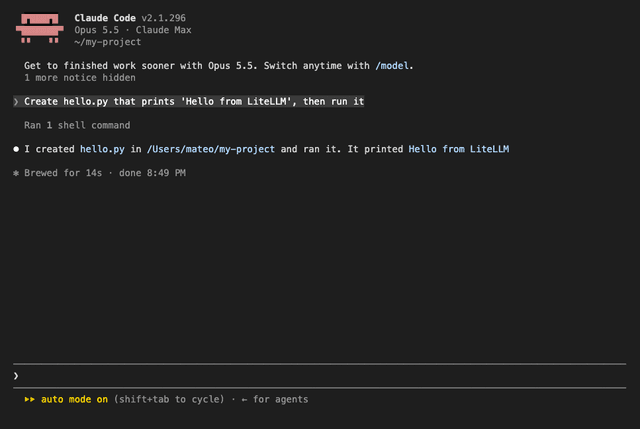
3.1 Make a Request in Claude Code
Use Claude Code as usual. The header shows the model and your plan, and every request goes through LiteLLM Gateway.
3.2 View Logs in LiteLLM Dashboard
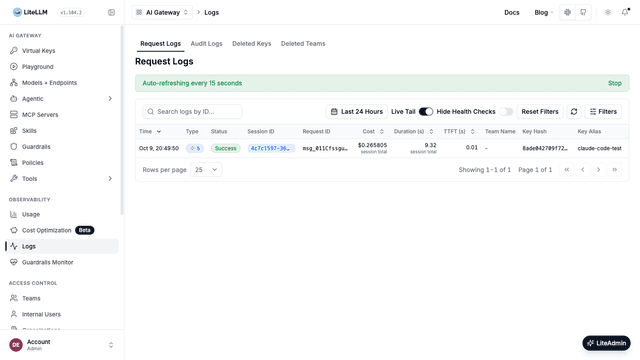
Open Logs in the Dashboard. The requests from one Claude Code session are grouped into one row, which shows the number of requests and the session's total cost and duration.
3.3 View Request Details
Click the row to open the session. The left side lists each request in the session, and the right side shows the selected request.
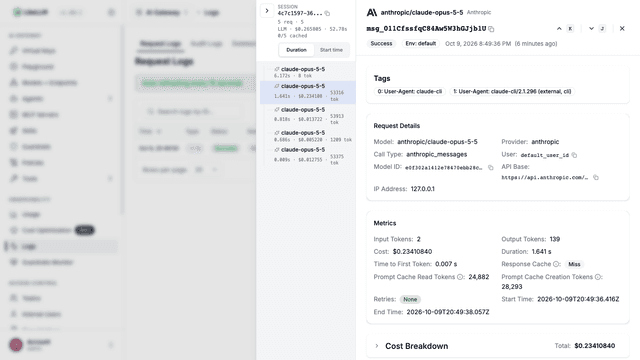
The request details show:
- Key Alias (on the Logs page):
claude-code-test, the virtual key you created - Model: the Claude model Claude Code used, for example
anthropic/claude-opus-5-5 - Tokens: input, output, and prompt cache tokens
- Cost: calculated at Anthropic API list prices, see Attribution and cost
- Tags: Claude Code's
User-Agent, for exampleclaude-cli/2.1.296 - Status: Success
How It Works
LiteLLM Gateway handles two types of authentication:
x-litellm-api-key: Authenticates the request with LiteLLM (usage tracking, budgets, rate limits)- OAuth Token (via
Authorizationheader): Forwarded to Anthropic API for Claude subscription authentication
Header Flow
| Header | Purpose | Handled By |
|---|---|---|
x-litellm-api-key | LiteLLM Gateway authentication, budget tracking, rate limits | LiteLLM |
Authorization: Bearer {oauth_token} | Claude subscription authentication | Anthropic API |
Complete Request Flow Example
Here's what a typical request looks like when Claude Code makes a call through LiteLLM:
curl -X POST "http://localhost:4000/v1/messages" \
  -H "x-litellm-api-key: Bearer sk-<your-virtual-key>" \
  -H "Authorization: Bearer sk-ant-oat01-..." \
  -H "Content-Type: application/json" \
  -d '{
    "model": "claude-sonnet-5",
    "max_tokens": 1024,
    "messages": [{"role": "user", "content": "Hello, Claude!"}]
  }'
LiteLLM then:
- Validates
x-litellm-api-keyfor gateway access - Logs the request for usage tracking
- Forwards the request to Anthropic with the OAuth
Authorizationheader in place of any configuredx-api-key
Plans, Credentials, and Attribution
Supported plans
LiteLLM does not check which plan issued the token. Pro, Max, Team, and Enterprise logins all give Claude Code an sk-ant-oat OAuth token, and LiteLLM handles every one of them the same way. Plan limits, usage reporting, and billing are applied by Anthropic to the Claude account that signed in, and Team and Enterprise admin controls such as seat assignment, SSO, and member removal stay in Claude's admin console. To keep members on your organization instead of a personal account, set Claude Code's forceLoginOrgUUID setting.
Anthropic's Legal and compliance page restricts using subscription credentials on behalf of other users. Each developer signs in with their own account and LiteLLM passes that token through per request; do not put a subscription token in a deployment's api_key to share it.
Which requests use the subscription token
The token is forwarded on /v1/messages and on /v1/chat/completions when the model is an anthropic/ deployment. It is never sent to other providers, including Claude on Bedrock or Vertex AI, which keep using their own credentials (since v1.99.0). /v1/messages/count_tokens uses the deployment's configured key, not the subscription token. The /anthropic pass-through route does not use the subscription token when the proxy has an Anthropic key configured, so point ANTHROPIC_BASE_URL at the proxy root as shown above rather than at /anthropic.
Credential storage, refresh, and revocation
Claude Code owns the subscription credential. It stores the login locally (the macOS Keychain, or ~/.claude/.credentials.json on Linux and Windows, under CLAUDE_CONFIG_DIR when that is set), refreshes it on its own, and /logout signs it out. LiteLLM stores nothing: the token is used for the one upstream request it arrived with, it is not cached across requests, and it is not written to logs or spend logs (spend logs record only whether one was used, see Seeing Which Requests Were Billed to a Seat). Concurrent requests from different users each go upstream with their own token.
When a token is expired or revoked, Anthropic answers 401 OAuth access token is invalid. and LiteLLM returns that to Claude Code; the user runs /login again. LiteLLM cannot revoke a Claude login. To cut a user off at the gateway, block or delete their virtual key, which stops their requests through LiteLLM; their Claude login itself still works directly against Anthropic until they or their admin remove it.
One user's expired or revoked token can currently block everyone else on the same model. LiteLLM counts the upstream 401 as a deployment failure and puts the deployment into cooldown, and while the cooldown lasts every other user's request to that model fails with 429 No deployments available for selected model without reaching Anthropic. On proxies that serve subscription users, turn cooldowns off:
router_settings:
  disable_cooldowns: true
Attribution and cost
Spend is attributed to the virtual key in x-litellm-api-key and the user and team it belongs to, so per-user and per-team reporting, budgets, and rate limits work as usual. LiteLLM does not see which Claude account or organization the token belongs to. Cost is calculated at Anthropic API list prices and counts toward key, user, and team budgets even though Anthropic bills the usage to the subscription, so treat budgets here as usage caps in API-equivalent dollars.
To tell subscription-billed requests from key-billed ones, see Seeing Which Requests Were Billed to a Seat.
Advanced Configuration
Per-Model Header Forwarding
The subscription token is forwarded without this setting. If you also want other client headers forwarded, you can enable header forwarding only for specific models:
model_list:
  - model_name: anthropic-claude
    litellm_params:
      model: anthropic/claude-sonnet-5

  - model_name: claude-opus-5
    litellm_params:
      model: anthropic/claude-opus-5

general_settings:
  master_key: os.environ/LITELLM_MASTER_KEY

litellm_settings:
  model_group_settings:
    forward_client_headers_to_llm_api:
      - anthropic-claude
      - claude-opus-5
Budget Controls
Set up per-user budgets while using Claude subscriptions (cost is tracked at API list prices, see Attribution and cost). With the database_url from Step 1 in place, create virtual keys with budgets:
curl -X POST "http://localhost:4000/key/generate" \
  -H "Authorization: Bearer $LITELLM_MASTER_KEY" \
  -H "Content-Type: application/json" \
  -d '{
    "key_alias": "developer-1",
    "max_budget": 100.00,
    "budget_duration": "monthly"
  }'
Seeing Which Requests Were Billed to a Seat
Every spend log row records which credential the upstream call used in metadata.used_client_oauth_token: true when the request went to Anthropic with the developer's forwarded OAuth token (the subscription seat paid for it), false when it went out with the deployment's configured api_key. The token itself is never written to the log. The field needs LiteLLM v1.105.0 or later (first in v1.105.0-rc.1), and rows written by an earlier version have no value, so they match neither filter below. A request the router sends to a Bedrock or Vertex deployment reads false even when the client sent an OAuth token, since only the direct Anthropic route forwards it. Requests through the /anthropic pass-through route do not carry the field
spend stays at the model's list price on both kinds of rows, so budgets and rate limits keep working across seat-billed and key-billed traffic. To get the real API bill, subtract the seat-billed rows
Filter the Logs page at http://localhost:4000/ui/?page=logs with the Credential dropdown (Client OAuth token or Configured key); the row's detail drawer shows the same value under Request Details. The same filter is available on the spend logs API:
curl "http://localhost:4000/spend/logs/ui?used_client_oauth_token=true" \
  -H "Authorization: Bearer $LITELLM_MASTER_KEY"
Pass used_client_oauth_token=false for the requests the configured key paid for
Troubleshooting
OAuth Token Not Being Forwarded
Symptom: Authentication errors from Anthropic API, or usage billed to the configured API key instead of the subscription
Solution: Check that you are on LiteLLM v1.81.14 or later, that the model is an anthropic/ deployment, and that Claude Code reaches the proxy root (/v1/messages) rather than /anthropic. In Claude Code, /status shows the active login; if ANTHROPIC_AUTH_TOKEN, ANTHROPIC_API_KEY, or an apiKeyHelper is set, Claude Code sends that instead of the subscription token. A 401 OAuth access token is invalid. means the login expired or was revoked; run /login.
LiteLLM Authentication Failing
Symptom: 401 errors from LiteLLM Gateway
Solution: Verify the x-litellm-api-key header is set correctly in ANTHROPIC_CUSTOM_HEADERS by sending the same header yourself. A 200 means the key works; a 401 with Invalid proxy server token passed means the key is wrong or was deleted:
curl "http://localhost:4000/v1/models" \
  -H "x-litellm-api-key: Bearer sk-<your-virtual-key>"
Model Not Found
Symptom: Model not found errors, or the key is not allowed to access the model
Solution: Check that the config has the anthropic/* wildcard from Step 1 (or a model_name for each model Claude Code asks for) and that the virtual key's Models include it; All anthropic models covers every Claude model. If you set ANTHROPIC_MODEL, it must be a model the proxy serves. List the models your key can call:
curl "http://localhost:4000/v1/models" \
  -H "Authorization: Bearer sk-<your-virtual-key>"
Related Documentation
- Forward Client Headers - Detailed header forwarding configuration
- Claude Code Quickstart - Basic Claude Code + LiteLLM setup
- Virtual Keys - Creating and managing API keys
- Budgets & Rate Limits - Setting up usage controls