Using Vector Stores (Knowledge Bases)
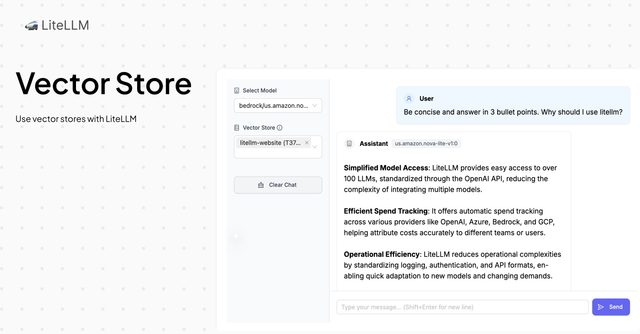
Use Vector Stores with any LiteLLM supported model
LiteLLM integrates with vector stores, allowing your models to access your organization's data for more accurate and contextually relevant responses.
Supported Vector Stores
- Bedrock Knowledge Bases
- OpenAI Vector Stores
- Azure Vector Stores (Cannot be directly queried. Only available for calling in Assistants messages.)
- Azure AI Search (Vector search with Azure AI Search indexes)
- Vertex AI RAG API
- Gemini File Search
- MongoDB Vector Search (BETA) (Use an existing Atlas or self-managed MongoDB index as context for chat completions)
- RAGFlow Datasets (Dataset management only, search not supported)
Quick Start
To use a vector store with LiteLLM, you need to
- Initialize litellm.vector_store_registry
- Pass tools with vector_store_ids to the completion request. Where
vector_store_idsis a list of vector store ids you initialized in litellm.vector_store_registry
LiteLLM Python SDK
LiteLLM's allows you to use vector stores in the OpenAI API spec by passing a tool with vector_store_ids you want to use
import os
import litellm

from litellm.vector_stores.vector_store_registry import VectorStoreRegistry, LiteLLM_ManagedVectorStore

# Init vector store registry
litellm.vector_store_registry = VectorStoreRegistry(
    vector_stores=[
        LiteLLM_ManagedVectorStore(
            vector_store_id="T37J8R4WTM",
            custom_llm_provider="bedrock"
        )
    ]
)


# Make a completion request with vector_store_ids parameter
response = await litellm.acompletion(
    model="anthropic/claude-sonnet-5",
    messages=[{"role": "user", "content": "What is litellm?"}],
    tools=[
        {
            "type": "file_search",
            "vector_store_ids": ["T37J8R4WTM"]
        }
    ],
)

print(response.choices[0].message.content)
LiteLLM Proxy
1. Configure your vector_store_registry
To use a vector store with LiteLLM, you need to configure your vector_store_registry. This tells litellm which vector stores to use and api provider to use for the vector store.
- config.yaml
- LiteLLM UI
model_list:
  - model_name: claude-sonnet-5
    litellm_params:
      model: anthropic/claude-sonnet-5
      api_key: os.environ/ANTHROPIC_API_KEY

vector_store_registry:
  - vector_store_name: "bedrock-litellm-website-knowledgebase"
    litellm_params:
      vector_store_id: "T37J8R4WTM"
      custom_llm_provider: "bedrock"
      vector_store_description: "Bedrock vector store for the Litellm website knowledgebase"
      vector_store_metadata:
        source: "https://www.litellm.com/docs"
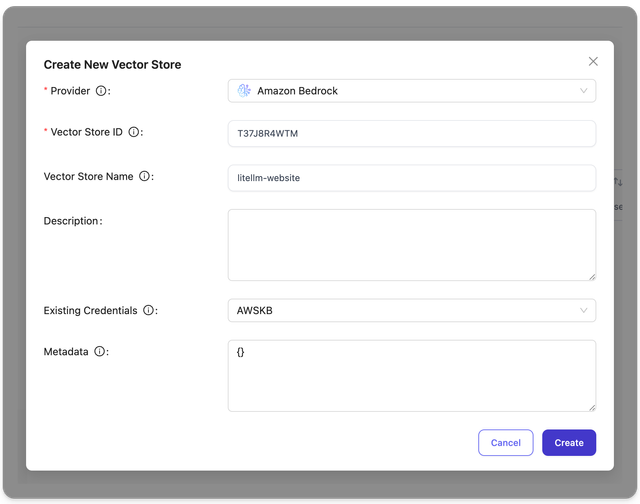
On the LiteLLM UI, Navigate to Experimental > Vector Stores > Create Vector Store. On this page you can create a vector store with a name, vector store id and credentials.
2. Make a request with vector_store_ids parameter
- Curl
- OpenAI Python SDK
curl http://localhost:4000/v1/chat/completions \
  -H "Content-Type: application/json" \
  -H "Authorization: Bearer $LITELLM_API_KEY" \
  -d '{
    "model": "claude-sonnet-5",
    "messages": [{"role": "user", "content": "What is litellm?"}],
    "tools": [
        {
            "type": "file_search",
            "vector_store_ids": ["T37J8R4WTM"]
        }
    ]
  }'
from openai import OpenAI

# Initialize client with your LiteLLM proxy URL
client = OpenAI(
    base_url="http://localhost:4000",
    api_key="your-litellm-api-key"
)

# Make a completion request with vector_store_ids parameter
response = client.chat.completions.create(
    model="claude-sonnet-5",
    messages=[{"role": "user", "content": "What is litellm?"}],
    tools=[
        {
            "type": "file_search",
            "vector_store_ids": ["T37J8R4WTM"]
        }
    ]
)

print(response.choices[0].message.content)
Provider Specific Guides
This section covers how to add your vector stores to LiteLLM. If you want support for a new provider, please file an issue here.
Bedrock Knowledge Bases
1. Set up your Bedrock Knowledge Base
Ensure you have a Bedrock Knowledge Base created in your AWS account with the appropriate permissions configured.
2. Add to LiteLLM UI
- Navigate to Tools > Vector Stores > "Add new vector store"
- Select "Bedrock" as the provider
- Enter your Bedrock Knowledge Base ID in the "Vector Store ID" field
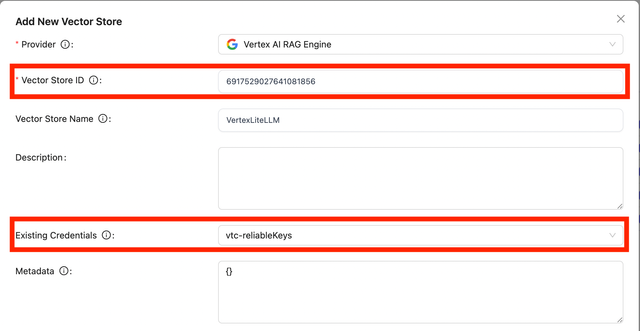
Vertex AI RAG Engine
1. Get your Vertex AI RAG Engine ID
- Navigate to your RAG Engine Corpus in the Google Cloud Console
- Select the RAG Engine you want to integrate with LiteLLM
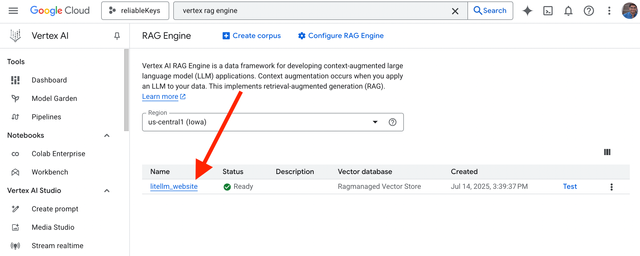
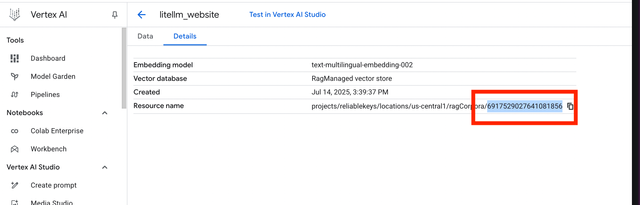
- Click the "Details" button and copy the UUID for the RAG Engine
- The ID should look like:
6917529027641081856
2. Add to LiteLLM UI
- Navigate to Tools > Vector Stores > "Add new vector store"
- Select "Vertex AI RAG Engine" as the provider
- Enter your Vertex AI RAG Engine ID in the "Vector Store ID" field
PG Vector
1. Deploy the litellm-pg-vector-store connector
LiteLLM provides a server that exposes OpenAI-compatible vector_store endpoints for PG Vector. The LiteLLM Proxy server connects to your deployed service and uses it as a vector store when querying.
- Follow the deployment instructions for the litellm-pg-vector-store connector here
- For detailed configuration options, see the configuration guide
Example .env configuration for deploying litellm-pg-vector-store:
DATABASE_URL="postgresql://neondb_owner:xxxx"
SERVER_API_KEY="sk-<your-litellm-api-key>"
HOST="0.0.0.0"
PORT=8001
EMBEDDING__MODEL="text-embedding-ada-002"
EMBEDDING__BASE_URL="http://localhost:4000"
EMBEDDING__API_KEY="sk-<your-litellm-api-key>"
EMBEDDING__DIMENSIONS=1536
DB_FIELDS__ID_FIELD="id"
DB_FIELDS__CONTENT_FIELD="content"
DB_FIELDS__METADATA_FIELD="metadata"
DB_FIELDS__EMBEDDING_FIELD="embedding"
DB_FIELDS__VECTOR_STORE_ID_FIELD="vector_store_id"
DB_FIELDS__CREATED_AT_FIELD="created_at"
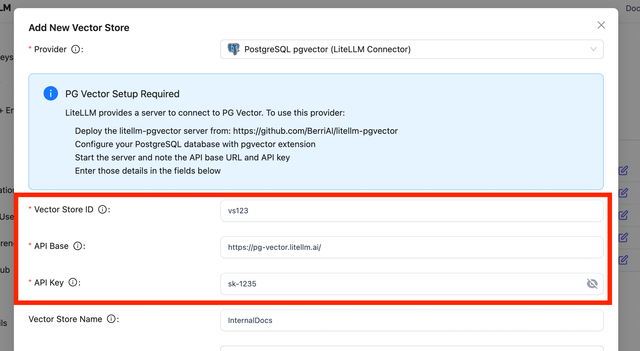
2. Add to LiteLLM UI
Once your litellm-pg-vector-store is deployed:
- Navigate to Tools > Vector Stores > "Add new vector store"
- Select "PG Vector" as the provider
- Enter your API Base URL and API Key for your
litellm-pg-vector-storecontainer- The API Key field corresponds to the
SERVER_API_KEYfrom your .env configuration
- The API Key field corresponds to the
OpenAI Vector Stores
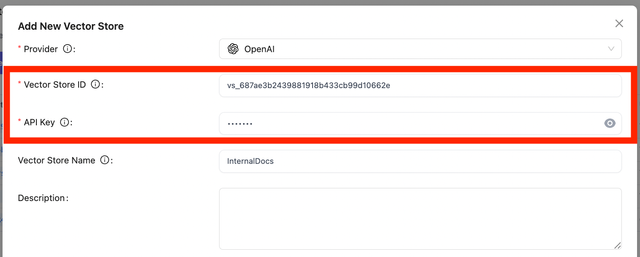
1. Set up your OpenAI Vector Store
- Create your Vector Store on the OpenAI platform
- Note your Vector Store ID (format:
vs_687ae3b2439881918b433cb99d10662e)
2. Add to LiteLLM UI
- Navigate to Tools > Vector Stores > "Add new vector store"
- Select "OpenAI" as the provider
- Enter your Vector Store ID in the corresponding field
- Enter your OpenAI API Key in the API Key field
Define Vector Store Fallbacks
Configure an ordered list of backup vector stores for proxy search requests. LiteLLM tries the primary first, then the configured backups when a search fails with a retryable error. Callers keep using the primary store ID or the existing passthrough URL.
Define the primary and every backup in config.yaml under vector_store_registry. Fallbacks cannot currently be configured through the management API or Admin UI, and database-only stores cannot be used as fallback targets. Database-backed stores still support ordinary searches.
Configure the primary and backups
Add fallbacks under the primary store's litellm_params. Each entry is another registration's vector_store_id, not its vector_store_name. Use the existing provider store IDs in this OpenAI example:
vector_store_registry:
  - vector_store_name: documents-primary
    litellm_params:
      vector_store_id: vs_primary
      custom_llm_provider: openai
      api_key: os.environ/PRIMARY_OPENAI_API_KEY
      fallbacks: [vs_backup]

  - vector_store_name: documents-backup
    litellm_params:
      vector_store_id: vs_backup
      custom_llm_provider: openai
      api_key: os.environ/BACKUP_OPENAI_API_KEY

router_settings:
  cooldown_time: 5
Replace vs_primary and vs_backup with your real store IDs. Deploy or reload the proxy configuration after changes. Each attempt uses the target store's own provider settings and credentials. The caller must have access to the primary and all configured backups; fallback routing does not bypass store or index permissions.
Backup IDs must be unique and refer to existing YAML registrations that support search. A store cannot fall back to itself, and a backup cannot define another fallback chain. Keep equivalent data in the stores yourself. LiteLLM does not copy documents, replicate writes, or synchronize indexes.
Search through the unified API
curl -i 'http://localhost:4000/v1/vector_stores/vs_primary/search' \
  -H "Authorization: Bearer $LITELLM_API_KEY" \
  -H 'Content-Type: application/json' \
  -d '{"query": "What is our refund policy?"}'
The unified search API can fall back across providers, provided each store supports search and has compatible data and search settings. These fallbacks apply to the proxy search endpoint and the native routes below; they do not configure chat-completion model fallbacks or provider-managed file-search tools.
Search through native passthrough APIs
Native search uses the same litellm_params.fallbacks configuration. All targets must use the same provider and API type so the original request and response formats remain valid.
| Provider | Native requests that support fallback |
|---|---|
| Azure AI Search | POST /azure_ai/indexes/{name}/docs/search, GET /azure_ai/indexes/{name}/docs. The /azure/ prefix is also supported. |
| Milvus | POST /milvus/v2/vectordb/entities/search |
| OpenSearch | GET or POST /opensearch/{name}/_search |
| Vertex AI Search | POST /vertex_ai/discovery/v1*/projects/{project}/locations/{location}/collections/{collection}/dataStores/{store}/servingConfigs/{config}:search |
For Azure, Milvus, and OpenSearch, retain the existing index registration pointing to the primary store. You do not need a second LiteLLM index registration for the backup. The backup must contain the same physical index or collection name used by the native request. Vertex supports vertex_ai/search_api datastore searches, not engine routes, and uses each target's project and datastore settings. Milvus hybrid search and other native reads are outside this fallback support.
Writes do not fail over. Document uploads, inserts, updates, deletes, and index lifecycle operations keep their existing passthrough routing. A primary write failure does not send the write to a backup, even when searches use that backup during cooldown.
Failover, cooldown, and response headers
HTTP 408, 429, and 5xx responses, plus connection failures and timeouts, trigger search failover. Other 4xx responses, including authentication, authorization, and missing-index errors, are terminal. Query-embedding failures do not trigger vector-store failover; configure embedding resiliency on the embedding model group.
A retryable store failure immediately puts that store in cooldown for router_settings.cooldown_time seconds (5 by default). Searches skip it during cooldown. Once the time expires, it becomes eligible again and live traffic tests it. This does not use model-routing failure-count thresholds. If every target is in cooldown, LiteLLM returns 503 with Retry-After.
For cooldown shared across proxy workers and instances, point general_settings.coordination_redis at the same Redis instance in every proxy's configuration:
general_settings:
  coordination_redis:
    host: os.environ/REDIS_HOST
    port: os.environ/REDIS_PORT
    password: os.environ/REDIS_PASSWORD
Without coordination Redis, or if it is unavailable, cooldown relies on each worker's local cache.
Successful responses expose x-litellm-vector-store-id for the serving store and x-litellm-attempted-fallbacks for the number of backup attempts. Native responses keep the provider's response body. These headers do not provide a full attempt history.
Advanced
Logging Vector Store Usage
LiteLLM allows you to view your vector store usage in the LiteLLM UI on the Logs page.
After completing a request with a vector store, navigate to the Logs page on LiteLLM. Here you should be able to see the query sent to the vector store and corresponding response with scores.
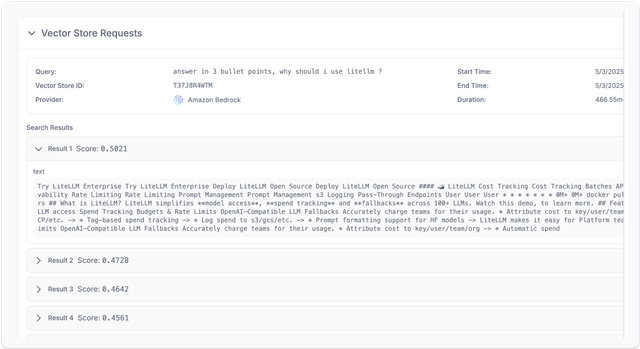
LiteLLM Logs Page: Vector Store Usage
Listing available vector stores
You can list all available vector stores using the /vector_store/list endpoint
Request:
curl -X GET "http://localhost:4000/vector_store/list" \
  -H "Authorization: Bearer $LITELLM_API_KEY"
Response:
The response will be a list of all vector stores that are available to use with LiteLLM.
{
  "object": "list",
  "data": [
    {
      "vector_store_id": "T37J8R4WTM",
      "custom_llm_provider": "bedrock",
      "vector_store_name": "bedrock-litellm-website-knowledgebase",
      "vector_store_description": "Bedrock vector store for the Litellm website knowledgebase",
      "vector_store_metadata": {
        "source": "https://www.litellm.com/docs"
      },
      "created_at": "2023-05-03T18:21:36.462Z",
      "updated_at": "2023-05-03T18:21:36.462Z",
      "litellm_credential_name": "bedrock_credentials"
    }
  ],
  "total_count": 1,
  "current_page": 1,
  "total_pages": 1
}
Always on for a model
Use this if you want vector stores to be used by default for a specific model.
In this config, we add vector_store_ids to the claude-3-5-sonnet-with-vector-store model. This means that any request to the claude-3-5-sonnet-with-vector-store model will always use the vector store with the id T37J8R4WTM defined in the vector_store_registry.
model_list:
  - model_name: claude-3-5-sonnet-with-vector-store
    litellm_params:
      model: anthropic/claude-sonnet-5
      vector_store_ids: ["T37J8R4WTM"]

vector_store_registry:
  - vector_store_name: "bedrock-litellm-website-knowledgebase"
    litellm_params:
      vector_store_id: "T37J8R4WTM"
      custom_llm_provider: "bedrock"
      vector_store_description: "Bedrock vector store for the Litellm website knowledgebase"
      vector_store_metadata:
        source: "https://www.litellm.com/docs"
How It Works
If your request includes a vector_store_ids parameter where any of the vector store ids are found in the vector_store_registry, LiteLLM will automatically use the vector store for the request.
- You make a completion request with the
vector_store_idsparameter and any of the vector store ids are found in thelitellm.vector_store_registry - LiteLLM automatically:
- Uses your last message as the query to retrieve relevant information from the Knowledge Base
- Adds the retrieved context to your conversation
- Sends the augmented messages to the model
Example Transformation
When you pass vector_store_ids=["YOUR_KNOWLEDGE_BASE_ID"], your request flows through these steps:
1. Original Request to LiteLLM:
{
    "model": "anthropic/claude-sonnet-5",
    "messages": [
        {"role": "user", "content": "What is litellm?"}
    ],
    "vector_store_ids": ["YOUR_KNOWLEDGE_BASE_ID"]
}
2. Request to AWS Bedrock Knowledge Base:
{
    "retrievalQuery": {
        "text": "What is litellm?"
    }
}
This is sent to: https://bedrock-agent-runtime.{aws_region}.amazonaws.com/knowledgebases/YOUR_KNOWLEDGE_BASE_ID/retrieve
3. Final Request to LiteLLM:
{
    "model": "anthropic/claude-sonnet-5",
    "messages": [
        {"role": "user", "content": "What is litellm?"},
        {"role": "user", "content": "Context: \n\nLiteLLM is an open-source SDK to simplify LLM API calls across providers (OpenAI, Claude, etc). It provides a standardized interface with robust error handling, streaming, and observability tools."}
    ]
}
This process happens automatically whenever you include the vector_store_ids parameter in your request.
Accessing Search Results (Citations)
When using vector stores, LiteLLM automatically returns search results in provider_specific_fields. This allows you to show users citations for the AI's response.
Key Concept
Search results are always in: response.choices[0].message.provider_specific_fields["search_results"]
For streaming: Results appear in the final chunk when finish_reason == "stop"
Non-Streaming Example
Non-Streaming Response with search results:
{
  "id": "chatcmpl-abc123",
  "choices": [{
    "index": 0,
    "message": {
      "role": "assistant",
      "content": "LiteLLM is a platform...",
      "provider_specific_fields": {
        "search_results": [{
          "search_query": "What is litellm?",
          "data": [{
            "score": 0.95,
            "content": [{"text": "...", "type": "text"}],
            "filename": "litellm-docs.md",
            "file_id": "doc-123"
          }]
        }]
      }
    },
    "finish_reason": "stop"
  }]
}
- Python SDK
- TypeScript SDK
from openai import OpenAI

client = OpenAI(
    base_url="http://localhost:4000",
    api_key="your-litellm-api-key"
)

response = client.chat.completions.create(
    model="claude-sonnet-5",
    messages=[{"role": "user", "content": "What is litellm?"}],
    tools=[{"type": "file_search", "vector_store_ids": ["T37J8R4WTM"]}]
)

# Get AI response
print(response.choices[0].message.content)

# Get search results (citations)
search_results = response.choices[0].message.provider_specific_fields.get("search_results", [])

for result_page in search_results:
    for idx, item in enumerate(result_page['data'], 1):
        print(f"[{idx}] {item.get('filename', 'Unknown')} (score: {item['score']:.2f})")
import OpenAI from 'openai';

const client = new OpenAI({
  baseURL: 'http://localhost:4000',
  apiKey: process.env.LITELLM_API_KEY
});

const response = await client.chat.completions.create({
  model: 'claude-sonnet-5',
  messages: [{ role: 'user', content: 'What is litellm?' }],
  tools: [{ type: 'file_search', vector_store_ids: ['T37J8R4WTM'] }]
});

// Get AI response
console.log(response.choices[0].message.content);

// Get search results (citations)
const message = response.choices[0].message as any;
const searchResults = message.provider_specific_fields?.search_results || [];

searchResults.forEach((page: any) => {
  page.data.forEach((item: any, idx: number) => {
    console.log(`[${idx + 1}] ${item.filename || 'Unknown'} (${item.score.toFixed(2)})`);
  });
});
Streaming Example
Streaming Response with search results (final chunk):
{
  "id": "chatcmpl-abc123",
  "choices": [{
    "index": 0,
    "delta": {
      "provider_specific_fields": {
        "search_results": [{
          "search_query": "What is litellm?",
          "data": [{
            "score": 0.95,
            "content": [{"text": "...", "type": "text"}],
            "filename": "litellm-docs.md",
            "file_id": "doc-123"
          }]
        }]
      }
    },
    "finish_reason": "stop"
  }]
}
- Python SDK
- TypeScript SDK
from openai import OpenAI

client = OpenAI(
    base_url="http://localhost:4000",
    api_key="your-litellm-api-key"
)

stream = client.chat.completions.create(
    model="claude-sonnet-5",
    messages=[{"role": "user", "content": "What is litellm?"}],
    tools=[{"type": "file_search", "vector_store_ids": ["T37J8R4WTM"]}],
    stream=True
)

for chunk in stream:
    # Stream content
    if chunk.choices[0].delta.content:
        print(chunk.choices[0].delta.content, end="", flush=True)

    # Get citations in final chunk
    if chunk.choices[0].finish_reason == "stop":
        search_results = getattr(chunk.choices[0].delta, 'provider_specific_fields', {}).get('search_results', [])
        if search_results:
            print("\n\nSources:")
            for page in search_results:
                for idx, item in enumerate(page['data'], 1):
                    print(f"  [{idx}] {item.get('filename', 'Unknown')} ({item['score']:.2f})")
import OpenAI from 'openai';

const stream = await client.chat.completions.create({
  model: 'claude-sonnet-5',
  messages: [{ role: 'user', content: 'What is litellm?' }],
  tools: [{ type: 'file_search', vector_store_ids: ['T37J8R4WTM'] }],
  stream: true
});

for await (const chunk of stream) {
  // Stream content
  if (chunk.choices[0]?.delta?.content) {
    process.stdout.write(chunk.choices[0].delta.content);
  }

  // Get citations in final chunk
  if (chunk.choices[0]?.finish_reason === 'stop') {
    const searchResults = (chunk.choices[0].delta as any).provider_specific_fields?.search_results || [];
    if (searchResults.length > 0) {
      console.log('\n\nSources:');
      searchResults.forEach((page: any) => {
        page.data.forEach((item: any, idx: number) => {
          console.log(`  [${idx + 1}] ${item.filename || 'Unknown'} (${item.score.toFixed(2)})`);
        });
      });
    }
  }
}
Search Result Fields
| Field | Type | Description |
|---|---|---|
search_query | string | The query used to search the vector store |
data | array | Array of search results |
data[].score | float | Relevance score (0-1, higher is more relevant) |
data[].content | array | Content chunks with text and type |
data[].filename | string | Name of the source file (optional) |
data[].file_id | string | Identifier for the source file (optional) |
data[].attributes | object | Provider-specific metadata (optional) |
API Reference
LiteLLM Completion Knowledge Base Parameters
When using the Knowledge Base integration with LiteLLM, you can include the following parameters:
| Parameter | Type | Description |
|---|---|---|
vector_store_ids | List[str] | List of Knowledge Base IDs to query |
VectorStoreRegistry
The VectorStoreRegistry is a central component for managing vector stores in LiteLLM. It acts as a registry where you can configure and access your vector stores.
What is VectorStoreRegistry?
VectorStoreRegistry is a class that:
- Maintains a collection of vector stores that LiteLLM can use
- Allows you to register vector stores with their credentials and metadata
- Makes vector stores accessible via their IDs in your completion requests
Using VectorStoreRegistry in Python
from litellm.vector_stores.vector_store_registry import VectorStoreRegistry, LiteLLM_ManagedVectorStore

# Initialize the vector store registry with one or more vector stores
litellm.vector_store_registry = VectorStoreRegistry(
    vector_stores=[
        LiteLLM_ManagedVectorStore(
            vector_store_id="YOUR_VECTOR_STORE_ID",  # Required: Unique ID for referencing this store
            custom_llm_provider="bedrock"            # Required: Provider (e.g., "bedrock")
        )
    ]
)
LiteLLM_ManagedVectorStore Parameters
Each vector store in the registry is configured using a LiteLLM_ManagedVectorStore object with these parameters:
| Parameter | Type | Required | Description |
|---|---|---|---|
vector_store_id | str | Yes | Unique identifier for the vector store |
custom_llm_provider | str | Yes | The provider of the vector store (e.g., "bedrock") |
vector_store_name | str | No | A friendly name for the vector store |
vector_store_description | str | No | Description of what the vector store contains |
vector_store_metadata | dict or str | No | Additional metadata about the vector store |
litellm_credential_name | str | No | Name of the credentials to use for this vector store |
Configuring VectorStoreRegistry in config.yaml
For the LiteLLM Proxy, you can configure the same registry in your config.yaml file:
vector_store_registry:
  - vector_store_name: "bedrock-litellm-website-knowledgebase"  # Optional friendly name
    litellm_params:
      vector_store_id: "T37J8R4WTM"                            # Required: Unique ID
      custom_llm_provider: "bedrock"                           # Required: Provider
      vector_store_description: "Bedrock vector store for the Litellm website knowledgebase"
      vector_store_metadata:
        source: "https://www.litellm.com/docs"
The litellm_params section accepts all the same parameters as the LiteLLM_ManagedVectorStore constructor in the Python SDK.