LiteLLM as requesting app
Let LiteLLM call MCP tools on behalf of a signed-in user. LiteLLM exchanges the user's login token for an ID-JAG, then exchanges the ID-JAG for an access token at the MCP server's authorization server.
This feature requires an enterprise license, a database, and LiteLLM SSO.
Get started
Select your identity provider.
- Okta
- Other IdP
This walkthrough uses your existing LiteLLM OIDC app in Okta.
1. Register LiteLLM as an AI agent
Open LiteLLM in Applications and Resources > Applications.
- Under Grant type, enable Authorization Code and Refresh Token.
- In Assignments, assign the users who will test the flow.
- Open Machine Assignments > Resources and select Register AI agent. Under User access and authentication, choose Select an existing app, select LiteLLM, and complete the registration.

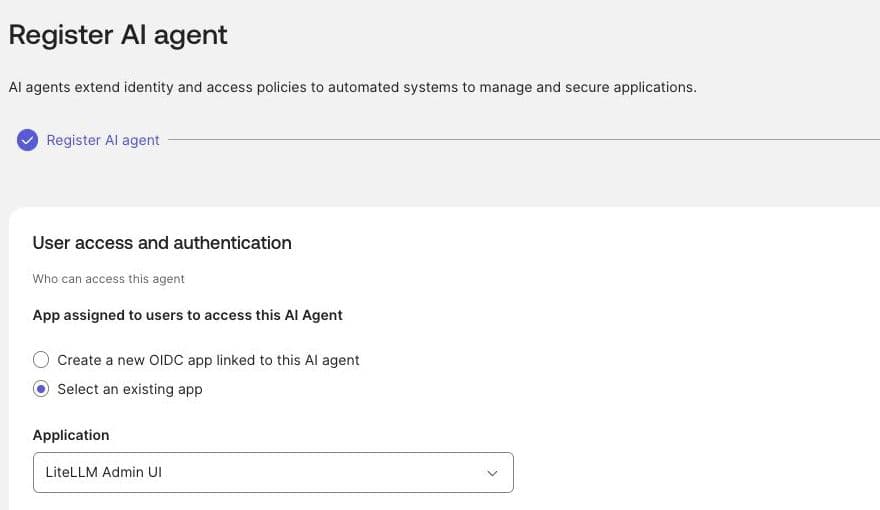
In the agent's Client registration, select Client secret authentication. Use its client ID and secret as GENERIC_CLIENT_ID and GENERIC_CLIENT_SECRET in your LiteLLM SSO settings. Use https://your-org.okta.com as the SSO issuer.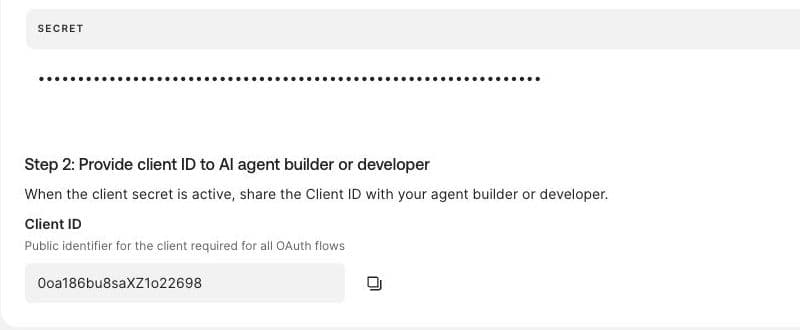
2. Set up the MCP resource app
The MCP authorization server must accept ID-JAGs from your Okta org. If the resource is another LiteLLM proxy, follow its resource-app setup.
- At the MCP authorization server, register LiteLLM as a client. Save its client ID and secret, plus the server's issuer and token endpoint, for step 4.
- In Okta's Applications and Resources > Applications, add or open the MCP resource app using the provider's SSO settings. Assign the users from the LiteLLM app.
- Open Machine Assignments > Callers > Cross App Access > Edit and enable XAA. Set Issuer URL to the MCP authorization server's issuer and add its supported scopes.
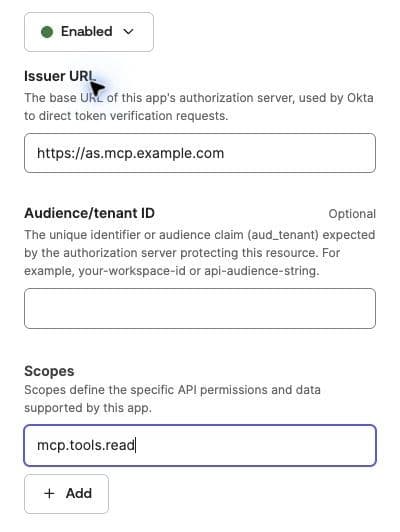
3. Connect LiteLLM to the resource
Return to the LiteLLM AI agent's Resource connections tab and add the MCP resource app.
| Field | Value |
|---|---|
| AI agent's client ID registered in this app | The client ID from the MCP authorization server in step 2. |
| Resource identifier | The MCP service's resource URL. |
| Scopes | Select Allow specific scopes and choose the scopes LiteLLM may request. |
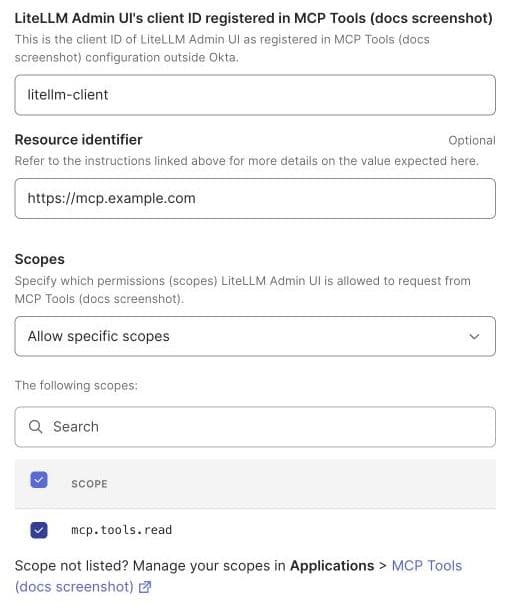
Activate the agent if its status is STAGED.
4. Configure LiteLLM
Use your Okta SSO credentials for the ID-JAG exchange. Set RESOURCE_AS_CLIENT_SECRET to LiteLLM's client secret at the MCP authorization server.
Add these settings to your existing deployment. Replace the example URLs, <resource-client-id>, and scopes with the values from steps 2 and 3.
- Helm
- Terraform
envVars:
  GENERIC_SCOPE: "openid profile email offline_access"
environmentSecrets: [litellm-id-jag]
proxy_config:
  mcp_servers:
    internal_tools:
      url: "https://mcp.example.com/mcp"
      transport: http
      auth_type: oauth2_id_jag
      token_exchange_endpoint: "https://your-org.okta.com/oauth2/v1/token"
      client_id: os.environ/GENERIC_CLIENT_ID
      client_secret: os.environ/GENERIC_CLIENT_SECRET
      id_jag_subject_source: refresh_token
      id_jag_resource_token_endpoint: "https://as.mcp.example.com/oauth2/token"
      id_jag_resource_client_id: "<resource-client-id>"
      id_jag_resource_client_secret: os.environ/RESOURCE_AS_CLIENT_SECRET
      audience: "https://as.mcp.example.com"
      id_jag_resource: "https://mcp.example.com"
      scopes: [mcp.tools.read]
Add these inputs to your existing LiteLLM AWS or Google Cloud module. Set var.resource_client_secret_ref to the resource client's secret ARN on AWS or Secret Manager resource ID on Google Cloud.
gateway_extra_env = { GENERIC_SCOPE = "openid profile email offline_access" }
backend_extra_env = { GENERIC_SCOPE = "openid profile email offline_access" }
gateway_extra_secrets = { RESOURCE_AS_CLIENT_SECRET = var.resource_client_secret_ref }
backend_extra_secrets = { RESOURCE_AS_CLIENT_SECRET = var.resource_client_secret_ref }
proxy_config = {
  mcp_servers = {
    internal_tools = {
      url                                = "https://mcp.example.com/mcp"
      transport                          = "http"
      auth_type                          = "oauth2_id_jag"
      token_exchange_endpoint            = "https://your-org.okta.com/oauth2/v1/token"
      client_id                          = "os.environ/GENERIC_CLIENT_ID"
      client_secret                      = "os.environ/GENERIC_CLIENT_SECRET"
      id_jag_subject_source              = "refresh_token"
      id_jag_resource_token_endpoint     = "https://as.mcp.example.com/oauth2/token"
      id_jag_resource_client_id          = "<resource-client-id>"
      id_jag_resource_client_secret      = "os.environ/RESOURCE_AS_CLIENT_SECRET"
      audience                           = "https://as.mcp.example.com"
      id_jag_resource                    = "https://mcp.example.com"
      scopes                             = ["mcp.tools.read"]
    }
  }
}
Run terraform plan, then terraform apply.
5. Sign in and call the MCP server
After deploying, sign in to https://litellm.example.com/ui through Okta. Use that user's credential with access to internal_tools:
curl -X POST "https://litellm.example.com/internal_tools/mcp" \
  -H "Content-Type: application/json" \
  -H "Accept: application/json, text/event-stream" \
  -H "x-litellm-api-key: Bearer <user-credential>" \
  -d '{"jsonrpc":"2.0","id":1,"method":"tools/list","params":{}}'
A successful response lists the server's tools.
This walkthrough uses your existing OIDC SSO setup. Your IdP must support ID-JAG exchanges with OIDC ID tokens.
1. Enable ID-JAG for LiteLLM
Enable ID-JAG exchange for LiteLLM's SSO client, or register a separate exchange client if your IdP requires one. Use client-secret authentication (client_secret_post) and allow it to exchange ID tokens issued to the SSO app.
Save the exchange client's ID, secret, and ID-JAG token endpoint. The example reads its secret from IDP_EXCHANGE_CLIENT_SECRET.
2. Set up the MCP resource app
At the MCP authorization server, register LiteLLM as a client allowed to redeem ID-JAGs. Configure trust for your IdP and map its users. Save LiteLLM's resource client ID and secret, the server's issuer and token endpoint, and its supported scopes.
If the resource is another LiteLLM proxy, follow its resource-app setup.
3. Connect LiteLLM to the resource
In your IdP, register the MCP authorization server's issuer as the resource audience. Allow LiteLLM's exchange client from step 1 to request ID-JAGs for this resource and its scopes. Assign the users who will test the flow.
Use the resource client ID from step 2 in this connection.
4. Configure LiteLLM
Set IDP_EXCHANGE_CLIENT_SECRET to the exchange secret from step 1 and RESOURCE_AS_CLIENT_SECRET to the resource client secret from step 2.
Add these settings to your existing deployment. Replace the example URLs, client IDs, and scopes with your provider's values.
- Helm
- Terraform
environmentSecrets: [litellm-id-jag]
proxy_config:
  mcp_servers:
    internal_tools:
      url: "https://mcp.example.com/mcp"
      transport: http
      auth_type: oauth2_id_jag
      token_exchange_endpoint: "https://idp.example.com/oauth2/token"
      client_id: "<idp-exchange-client-id>"
      client_secret: os.environ/IDP_EXCHANGE_CLIENT_SECRET
      id_jag_resource_token_endpoint: "https://as.mcp.example.com/oauth2/token"
      id_jag_resource_client_id: "<resource-client-id>"
      id_jag_resource_client_secret: os.environ/RESOURCE_AS_CLIENT_SECRET
      audience: "https://as.mcp.example.com"
      scopes: [mcp.tools.read]
Add these inputs to your existing LiteLLM AWS or Google Cloud module. The secret references are ARNs on AWS or Secret Manager resource IDs on Google Cloud.
gateway_extra_secrets = {
  IDP_EXCHANGE_CLIENT_SECRET = var.idp_exchange_client_secret_ref
  RESOURCE_AS_CLIENT_SECRET  = var.resource_client_secret_ref
}
backend_extra_secrets = {
  IDP_EXCHANGE_CLIENT_SECRET = var.idp_exchange_client_secret_ref
  RESOURCE_AS_CLIENT_SECRET  = var.resource_client_secret_ref
}
proxy_config = {
  mcp_servers = {
    internal_tools = {
      url                                = "https://mcp.example.com/mcp"
      transport                          = "http"
      auth_type                          = "oauth2_id_jag"
      token_exchange_endpoint            = "https://idp.example.com/oauth2/token"
      client_id                          = "<idp-exchange-client-id>"
      client_secret                      = "os.environ/IDP_EXCHANGE_CLIENT_SECRET"
      id_jag_resource_token_endpoint     = "https://as.mcp.example.com/oauth2/token"
      id_jag_resource_client_id          = "<resource-client-id>"
      id_jag_resource_client_secret      = "os.environ/RESOURCE_AS_CLIENT_SECRET"
      audience                           = "https://as.mcp.example.com"
      scopes                             = ["mcp.tools.read"]
    }
  }
}
Run terraform plan, then terraform apply.
If your IdP requires a resource identifier, add id_jag_resource with the MCP service's resource URL.
5. Sign in and call the MCP server
After deploying, sign in to https://litellm.example.com/ui through your IdP. Use that user's credential with access to internal_tools:
curl -X POST "https://litellm.example.com/internal_tools/mcp" \
  -H "Content-Type: application/json" \
  -H "Accept: application/json, text/event-stream" \
  -H "x-litellm-api-key: Bearer <user-credential>" \
  -d '{"jsonrpc":"2.0","id":1,"method":"tools/list","params":{}}'
A successful response lists the server's tools.
Troubleshooting
- Okta
- Other IdP
| Response or log | Cause and fix |
|---|---|
401 invalid_client | Match the IdP client credentials to the AI agent's Client registration. |
invalid_target | Match audience to the resource app's Issuer URL, and id_jag_resource to its resource identifier. |
unauthorized_client | Allow the requested scopes on the agent's Resource connection. |
requested_token_type invalid or not supported | Use https://<your-org>.okta.com/oauth2/v1/token for the ID-JAG exchange. |
invalid_grant with a SAML subject | Set id_jag_subject_source: refresh_token and the SAML app's audience to the AI agent's client ID. Check assertion expiry. Okta SAML setup. |
412: missing or expired credentials | Sign in to LiteLLM again. For a missing refresh token, check login logs and enable Refresh Token on the Okta app. |
| Login logs report multiple refresh-token clients | Give all servers using id_jag_subject_source: refresh_token the same client_id and token_exchange_endpoint. |
| Resource authorization server rejects the ID-JAG | Check the resource client credentials and match audience and id_jag_resource_token_endpoint to the resource authorization server. |
| MCP server receives the user's credential | Send the credential in x-litellm-api-key. |
503 on connect | Check database connectivity. |
No tools; _meta contains http_status: 412 | Call /internal_tools/mcp to read the full error. |
| Response or log | Cause and fix |
|---|---|
| ID-JAG exchange rejects the subject | Confirm the IdP accepts the assertion's issuer and token type for ID-JAG exchange. |
412: no assertion stored | Sign in through LiteLLM SSO after configuring the MCP server. |
412: assertion expired | Sign in again. To renew OIDC assertions automatically, configure the SSO app to issue refresh tokens. |
412: no refresh token stored | Check login logs and whether the IdP supports refresh-token exchange for this client, then sign in again. |
412: refresh token expired | Sign in again. |
| Login logs report multiple refresh-token clients | Give all servers using id_jag_subject_source: refresh_token the same client_id and token_exchange_endpoint. |
| Resource authorization server rejects the ID-JAG | Check the resource client credentials and match audience and id_jag_resource_token_endpoint to the resource authorization server. |
| MCP server receives the user's credential | Send the credential in x-litellm-api-key. |
503 on connect | Check database connectivity. |
No tools; _meta contains http_status: 412 | Call /internal_tools/mcp to read the full error. |