Grant MCP Server Access to Keys and Teams
This guide walks through granting an MCP server to a virtual key and to a team, first in the Admin UI and then through the management API, and shows how the resulting access resolves when the key and the team both carry a grant. The rules themselves (six-level intersection, no-mcp-servers, require_key_mcp_access_defined, access groups, per-entity tool permissions) live in MCP Permission Management; this page is the procedure that applies them.
Before you start
Register the MCP server first, either in config.yaml under mcp_servers or from MCP Servers in the Admin UI (see MCP Gateway). Every grant below refers to the server by its server_id (a UUID for servers added in the UI) or by its server_name alias (the config key, for example deepwiki). Both forms are accepted by the API and resolve to the same server.
If several servers should always be granted together, put them in an access group and grant the group instead. If a key or team should see a hand-picked subset of tools across servers, create a toolset and grant that.
The grant fields
MCP access is stored in the object_permission block of the key or team. The same four fields work on both, and they map one to one onto the controls in the Admin UI MCP Settings section.
| Field | Type | What it grants |
|---|---|---|
mcp_servers | list[str] | Server IDs or aliases the entity may reach. The sentinel no-mcp-servers blocks all MCP access, see Opting a key out |
mcp_access_groups | list[str] | Access group names. Every server in the group is granted |
mcp_toolsets | list[str] | Toolset IDs. Grants the servers the toolset draws from, limited to the tools it names |
mcp_tool_permissions | dict[str, list[str]] | Per-server tool allowlist, keyed by server ID or alias. Omit a server to allow all of its tools. A server named here counts as granted even if it is missing from mcp_servers |
A key or team with none of these fields set has no MCP restriction of its own; what that means at runtime depends on the other levels, see How key and team grants resolve.
Grant an MCP server to a virtual key
Admin UI
Open Virtual Keys in the left sidebar (http://localhost:4000/ui/api-keys) and click + Create New Key. Fill in the owner, key name and models as usual, then scroll down and expand the MCP Settings accordion. The Allowed MCP Servers selector lists every registered server, access group and toolset, plus a No MCP Servers entry that blocks all MCP access for the key.
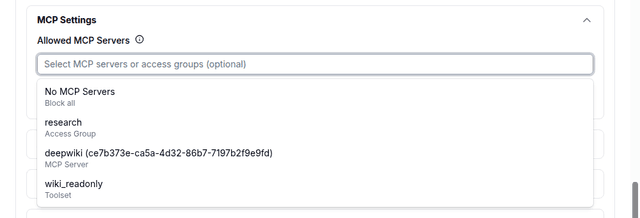
Pick one or more entries. Each selected server (including servers resolved from an access group) expands into its tool list underneath, with every tool on by default. Untick a tool to remove it from the key; the header shows how many tools remain allowed. Click Create Key and copy the key from the confirmation dialog.
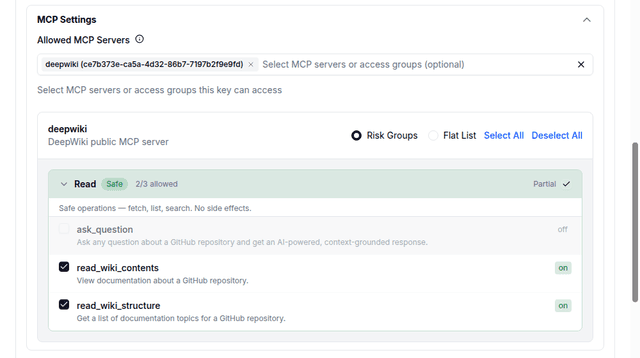
The selection is saved as object_permission.mcp_servers (or mcp_access_groups / mcp_toolsets, depending on what you picked) and the tool toggles as object_permission.mcp_tool_permissions. Read it back with GET /key/info?key=<key>.
To change an existing key, click the key in the Virtual Keys table, open its Settings tab, click Edit Settings, change MCP Servers / Access Groups and the tool toggles, then click Save Changes.
API
POST /key/generate takes the grant inline. The example below grants one server and restricts the key to two of its tools:
curl -X POST "http://localhost:4000/key/generate" \
  -H "Authorization: Bearer sk-master-key" \
  -H "Content-Type: application/json" \
  -d '{
    "key_alias": "wiki-reader",
    "team_id": "<team-id>",
    "object_permission": {
      "mcp_servers": ["deepwiki"],
      "mcp_tool_permissions": {
        "deepwiki": ["read_wiki_structure", "read_wiki_contents"]
      }
    }
  }'
POST /key/update takes the same block plus the key to change. Fields you send replace the stored value for that field and fields you omit are kept, so adding a toolset to the key above leaves mcp_servers and mcp_tool_permissions in place:
curl -X POST "http://localhost:4000/key/update" \
  -H "Authorization: Bearer sk-master-key" \
  -H "Content-Type: application/json" \
  -d '{
    "key": "sk-...",
    "object_permission": {
      "mcp_toolsets": ["<toolset-id>"]
    }
  }'
To grant every server in an access group, send "mcp_access_groups": ["research"] instead of mcp_servers. To block all MCP access, send "mcp_servers": ["no-mcp-servers"].
Confirm what the key sees by listing tools with the key itself:
curl -s "http://localhost:4000/mcp-rest/tools/list" \
  -H "Authorization: Bearer sk-..." | jq '[.tools[] | .name]'
["read_wiki_contents", "read_wiki_structure"]
Grant an MCP server to a team
Admin UI
Open Teams in the left sidebar (http://localhost:4000/ui/teams) and click Create Team. Fill in the team name and models, then expand the MCP Settings accordion. The Allowed MCP Servers selector offers the same servers, access groups and toolsets as the key form. Selecting an access group shows each server it resolves to, tagged with the group name, so you can still toggle tools per server. Click Create Team.
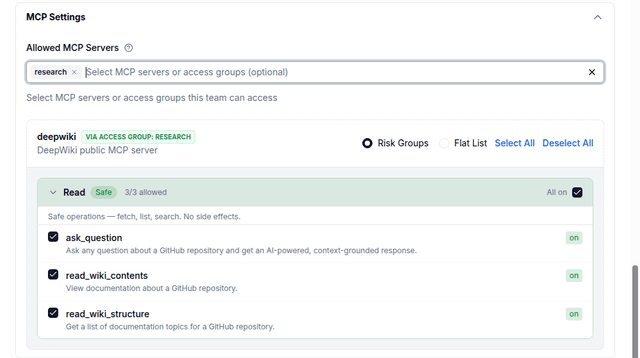
To change an existing team, click the team in the Teams table, open its Settings tab, click Edit Settings, change MCP Servers / Access Groups and the tool toggles, then click Save Changes. Keys that belong to the team inherit the new grant; nothing on the keys needs to be edited.
API
POST /team/new and POST /team/update take the same object_permission block as the key endpoints, with team_id identifying the team on update:
- /team/new
- /team/update
curl -X POST "http://localhost:4000/team/new" \
  -H "Authorization: Bearer sk-master-key" \
  -H "Content-Type: application/json" \
  -d '{
    "team_alias": "research-team",
    "object_permission": {
      "mcp_servers": ["deepwiki"],
      "mcp_access_groups": ["research"],
      "mcp_toolsets": ["<toolset-id>"],
      "mcp_tool_permissions": {
        "deepwiki": ["read_wiki_structure", "read_wiki_contents"]
      }
    }
  }'
curl -X POST "http://localhost:4000/team/update" \
  -H "Authorization: Bearer sk-master-key" \
  -H "Content-Type: application/json" \
  -d '{
    "team_id": "<team-id>",
    "object_permission": {
      "mcp_servers": ["deepwiki"]
    }
  }'
/team/update merges the same way /key/update does: only the fields you send are replaced. Read the stored grant back with GET /team/info?team_id=<team-id>; it is returned under team_info.object_permission.
Grant MCP access through SCIM-provisioned teams
When your identity provider (IdP) provisions LiteLLM over SCIM, the supported way to give an IdP group MCP access is through the LiteLLM team that SCIM creates for that group. SCIM syncs the group into a team and keeps its membership current; you grant MCP servers or access groups on that team once, and every member reaches them through keys that belong to the team.
IdP group -> SCIM /scim/v2/Groups -> LiteLLM team (team_id, members) -> team object_permission -> team keys
1. Provision the group as a team
Assign the group to the LiteLLM app in your IdP, as described in SCIM with LiteLLM. The IdP then sends a SCIM group such as the one below. LiteLLM creates a team whose team_id is the group id (or externalId when no id is sent), whose team_alias is the group displayName, and whose members are the group members.
curl -X POST "http://localhost:4000/scim/v2/Groups" \
  -H "Authorization: Bearer <scim-token>" \
  -H "Content-Type: application/scim+json" \
  -d '{
    "schemas": ["urn:ietf:params:scim:schemas:core:2.0:Group"],
    "externalId": "6f1c2e1a-entra-research",
    "displayName": "Research Engineers",
    "members": [{"value": "alice@example.com"}]
  }'
This creates the team Research Engineers with team_id 6f1c2e1a-entra-research. Look it up in Teams in the Admin UI or with GET /team/info?team_id=6f1c2e1a-entra-research.
2. Grant MCP access to the team
Grant the access group (or individual servers) to the team the same way as any other team, see Grant an MCP server to a team. In the Admin UI, open the team from Teams, go to Settings, click Edit Settings, select the access group under MCP Servers / Access Groups, and click Save Changes. Each server in the group is listed with its tools, tagged with the group it comes from.
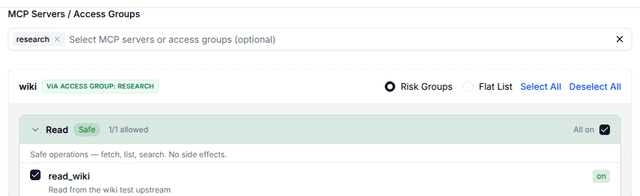
Through the API, call /team/update with the SCIM team's team_id:
curl -X POST "http://localhost:4000/team/update" \
  -H "Authorization: Bearer sk-master-key" \
  -H "Content-Type: application/json" \
  -d '{
    "team_id": "6f1c2e1a-entra-research",
    "object_permission": {
      "mcp_access_groups": ["research"]
    }
  }'
The team's Overview tab then shows the grant under Object Permissions, and GET /team/info returns it under team_info.object_permission.
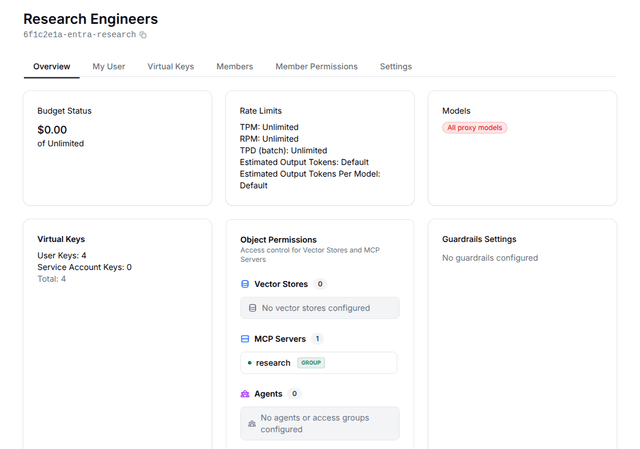
Later SCIM syncs keep this grant. Group PUT and PATCH requests from the IdP (renames, members added or removed) update the team alias, metadata, and members only; they do not touch object_permission.
3. Give members a team key
Members reach MCP with keys that belong to the team: pick the team when creating the key in Virtual Keys, or pass team_id to /key/generate. A team key with no MCP grant of its own inherits the team's grant, as described in How key and team grants resolve. A personal key that is not in the team does not pick up the team's grant, even when its owner is a member.
curl "http://localhost:4000/mcp-rest/tools/list" \
  -H "Authorization: Bearer <team-key>"
The response lists only tools from servers in the research access group. Calling a tool on a server outside the grant returns 403 with The key is not allowed to access server <server>.
When the IdP removes a user from the group, LiteLLM removes them from the team and deletes their keys for that team. If the user is added back, they need a new team key.
If callers authenticate with JWTs instead of virtual keys, the token reaches the team's MCP grant only when it resolves to the SCIM team, for example by listing its team_id in the claim configured as team_ids_jwt_field, see Control model access with Teams.
Direct claim mapping is not supported
LiteLLM does not map IdP claims straight to MCP access groups, and this is by design. A SCIM groups[].value, roles, or entitlements value, or a JWT claim, that names an MCP access group grants nothing on its own: SCIM groups[].value entries are read as LiteLLM team_ids, roles and entitlements are stored as metadata only, and no litellm_jwtauth setting reads MCP access groups from a token. Keeping the IdP responsible for who belongs to which group, and LiteLLM team object_permission responsible for what that group may reach, gives every MCP grant a single auditable path that you can inspect on the team.
How key and team grants resolve
The full rule set is in Permission Hierarchy and Per-entity Tool-Level Permissions. The cases below are the ones you hit when only a key and its team carry grants, in the order LiteLLM applies them.
A key with no MCP grant of its own inherits the team's grant. Every server and every tool the team allows is available to the key, and nothing else. With require_key_mcp_access_defined: true in general_settings the same key gets no MCP servers at all until it is granted some explicitly, see Require keys to define their own MCP access.
When both the key and the team list servers, the key reaches the intersection. Tool permissions intersect too, per server: a team that allows two tools on deepwiki and a key that allows one of them yields that one tool. If only one side sets mcp_tool_permissions for a server, that side's list applies unchanged.
Within a single level, a toolset and a direct mcp_tool_permissions entry are unioned before the levels are intersected. A key granted the toolset wiki_readonly (two read tools) plus mcp_tool_permissions: {"deepwiki": ["read_wiki_structure"]} sees both read tools, not just the one named directly.
no-mcp-servers on the key wins over any team grant. tools/list returns an empty list and tools/call is refused, even though the team allows the server.
A key inside a team can only be granted servers the team already allows (or servers marked allow_all_keys). /key/generate and /key/update enforce this at write time (the Admin UI saves through the same endpoints) and answer 403:
Key requests MCP servers not allowed by team '<team-id>': ['<server-id>']. Team allows: ['<server-id>']. Global (allow_all_keys) servers: [].
A key that is not in a team can be granted any server by a proxy admin; a non-admin caller can only grant allow_all_keys servers to such a key. Servers the key already holds are grandfathered on /key/update, so shrinking the team's list does not break existing keys until you try to add a new server.
Organization, internal user, end user and agent grants sit above the key and team and only ever narrow the result further. Narrowing happens at tools/list time and again at tools/call time, so a tool outside the effective set is neither advertised nor callable.
Worked example
Team research-team allows deepwiki with mcp_tool_permissions: {"deepwiki": ["read_wiki_structure", "read_wiki_contents"]} and the toolset wiki_readonly (the same two tools).
| Key grant | Effective tools on deepwiki |
|---|---|
| none | read_wiki_structure, read_wiki_contents (inherited from the team) |
mcp_servers: ["deepwiki"], mcp_tool_permissions: {"deepwiki": ["read_wiki_structure"]} | read_wiki_structure (intersection) |
the row above plus mcp_toolsets: ["wiki_readonly"] | read_wiki_structure, read_wiki_contents (key-level union, then intersected with the team) |
mcp_servers: ["no-mcp-servers"] | none, tools/list is empty |
mcp_servers: ["deepwiki_backup"] (not allowed by the team) | write rejected with 403 |
Related
MCP Permission Management for the rules and the remaining levels (organization, internal user, end user, agent), MCP Toolsets for creating toolsets, Agent Permission Management for agent grants, and MCP Gateway for registering servers.